PhotoGenerAI

Image generation & editing

GPT Image 2

Turn a written idea into an image, design a scene with text, or edit your photos. Use GPT Image 2 online with the quality setting that fits your project.

  • Low from 1 credit
  • Low / Medium / High
  • Up to 10 references
  • JPEG download

Start with free credits. No account required.

Image shape
Optional

Model examples

The same brief, two GPT Image 2 settings

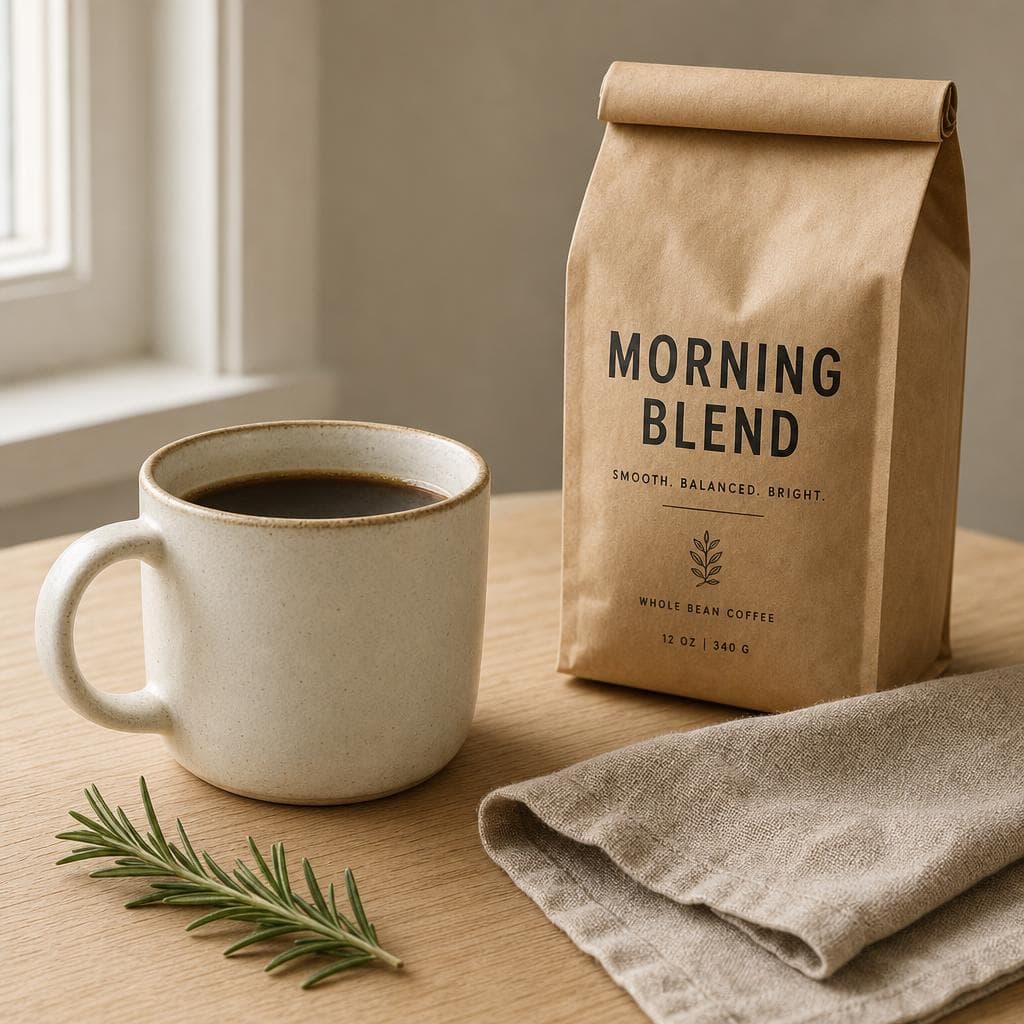
These are real outputs from our GPT Image 2 integration, generated independently with the same product-photography prompt at 1024 × 1024. Compare the lettering, materials, and composition. This pair illustrates two results; it does not promise that a higher setting will improve every image.

GPT Image 2 Low product photograph of a coffee cup and kraft coffee bag
Low · 1 credit per image
GPT Image 2 Medium product photograph of a coffee cup and kraft coffee bag
Medium · 2 paid credits per image

Generation settings and original prompt

Start with an idea

Three ways to use GPT Image 2

Choose a brief, replace the subject with your own, and review the settings before generating. Prompt buttons keep your uploaded images and fill the editor without starting a generation.

01

Create a product photograph

Define the product, surface, props, and light. The coffee prompt below is the brief used for the two samples above. For your own product, upload a reference and explicitly ask to keep its shape, color, and label. Inspect any generated packaging text before using the image in a listing.

Try this prompt

A studio product photograph of a cream ceramic coffee cup on a pale oak table, a folded linen napkin, a small sprig of rosemary and a kraft paper bag labeled MORNING BLEND in clean dark lettering. Soft window light from the left, realistic ceramic glaze, visible linen weave and wood grain, restrained editorial composition. Square image.

02

Design a poster with a headline

Put the exact words in quotation marks and describe their placement. A short headline and a simple layout give you a useful first draft to inspect. Choose a portrait ratio in the tool for this brief; the prompt button fills the text without changing your current settings.

Try this prompt

A vertical poster for a neighborhood coffee shop. A cream ceramic cup on a pale oak counter in soft morning light. Large dark brown headline at the top reads "A slower morning". Smaller subtitle reads "Coffee, conversation, and a little time". Generous margins, restrained editorial layout, clearly separated text and image, no other words.

03

Change the background of a photo

Upload your original as the first image, then describe the new surroundings and the details to retain. Additional references can supply a palette or setting. This is a natural-language edit: review the subject's edges and small features in the result before downloading it.

Try this prompt

Edit the first uploaded product photo. Keep the product's silhouette, proportions, color, and visible label. Replace the background with a pale warm-gray studio surface. Add soft window light from the left and a subtle contact shadow beneath the product. Use a realistic photographic style, with no added props or text.

Create your first GPT Image 2 image

  1. 01

    Write a brief or upload a photo

    Start from text for a new image. For an edit, upload the original first and describe the change. Add extra references only when they have a clear role. Use this prompt fills the editor, keeps your uploads, and lets you review the brief before generating.

  2. 02

    Choose quality and shape

    This page starts with GPT Image 2 Low and Auto shape. Low uses one free or paid credit; Medium uses two paid credits and High uses five. Choose an explicit ratio when your layout has a fixed frame. The credit amount updates with the selected setting.

  3. 03

    Generate, review, and download

    Generate the image, inspect it at full size, and download the JPEG. Check lettering, faces, and product details against your brief. Continue editing adds the result to your materials so you can describe a specific revision. Each new generation uses the currently selected model and credits.

GPT Image 2 settings and credits

Quality and image shape are separate controls. Choose Low, Medium, or High for the generation, then pick Auto or one of the supported ratios. GPT Image 2's square setting requests 1024 × 1024 in this tool. Medium and High change quality rather than adding a 2K or 4K resolution tier.

GPT Image 2 generation settings in PhotoGenerAI
SettingCredits per imageCredit access
low1Free or purchased credits
medium2Purchased credits
high5Purchased credits

Compare another model with your own brief: GPT Image 2, Nano Banana 2, or Qwen Image 2.1 Turbo. The model selector keeps your prompt and references while updating the available settings and credit amount.

What is GPT Image 2?

GPT Image 2 is OpenAI's image generation and editing model. It accepts a written description to create a new image and uses uploaded pictures as context for an edit. Its image capabilities include rendering text within a scene and following instructions about the subject, arrangement, and style. PhotoGenerAI brings those tasks into one browser editor, with your prompt, references, model settings, and downloadable result together.

Use the task to shape your brief. A product image needs the object, materials, lighting, and camera angle. A poster needs the exact wording, hierarchy, and space around the text. An edit needs both the requested change and the features to retain. You can start with the examples on this page and replace the subject or wording with your own. There is no software installation or personal OpenAI API key to configure.

Choose Low, Medium, or High deliberately

Start with Low when you are exploring the subject, composition, or wording. Its one-credit price makes the first version easy to review with the weekly free allowance. If the brief is still changing, revise it before moving to another quality setting. A longer prompt is useful when it adds a clear instruction; repeating the same request several times makes the brief harder to inspect.

Medium and High are available with purchased credits at two and five credits per image. Compare the result against the job you need it to do: readable packaging, convincing materials, or a clean focal point. Higher quality is a generation setting, not a promise to keep the previous composition or reproduce a previous image exactly. Upload the result as a reference when you want to work from it rather than request another independent image.

Make reference edits easier to follow

Put the main photo first and state what should change. Follow it with instructions to retain the face, hairstyle, product shape, colors, or camera angle that matter to the project. If you upload more pictures, describe each role by its order: the first image is the product, the second supplies the background, and the third supplies the palette. The tool accepts up to ten images in total.

Keep each revision focused. Changing the background, lighting, pose, clothing, and typography in the same request gives you more details to check afterward. For a sequence of edits, download a useful version before continuing, then use that result as the next reference. GPT Image 2 may redraw parts of the original, so inspect the details you asked it to keep. The page does not offer a brush or a pixel-level mask.

Write text that belongs in the image

Specify the exact phrase, where it should sit, and the relative size of the headline and supporting text. Add the visual context around it: a paper label on a coffee bag, a sign above a shop door, or a headline in the upper third of a poster. Leave enough room for the words, and avoid asking a short headline area to contain a full paragraph.

After generating, open the full-size image and read every word. Check names, numbers, spelling, and any small lines the model added. If the text is wrong, request a focused correction with the result uploaded as a reference. For a layout where the wording must remain editable, use the generated visual in your design editor and add the final typography there. The JPEG download is a finished image rather than a layered design file.

Read OpenAI's image prompting guide for the model's capabilities. Explore our AI photo generator for the shared workspace, or use the AI photo editor when your next task starts with an existing photograph.

GPT Image 2 FAQ

PhotoGenerAI

Put your idea into an image

Start with a prompt or your own references. Check the selected model and settings, then make your next image.

Create with GPT Image 2