PhotoGenerAI

Image generation & editing

Nano Banana 2

Create an image, develop a visual idea, or edit a photo with Google's Gemini 3.1 Flash Image model. Try Nano Banana 2 online in 1K, 2K, or 4K.

  • From 2 paid credits
  • 1K / 2K / 4K
  • Up to 10 references
  • Portrait to ultra-wide

Nano Banana 2 uses purchased credits: 1K costs 2, 2K costs 3, and 4K costs 5 per image. Weekly free credits apply only to GPT Image 2 Low.

Image shape
Optional

Model examples

Explore Google's Nano Banana 2 examples

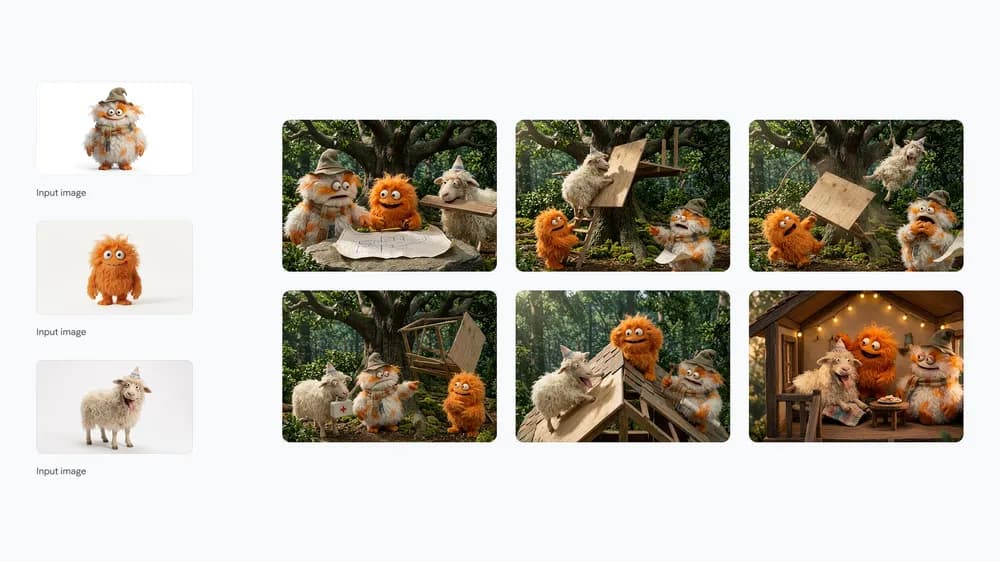
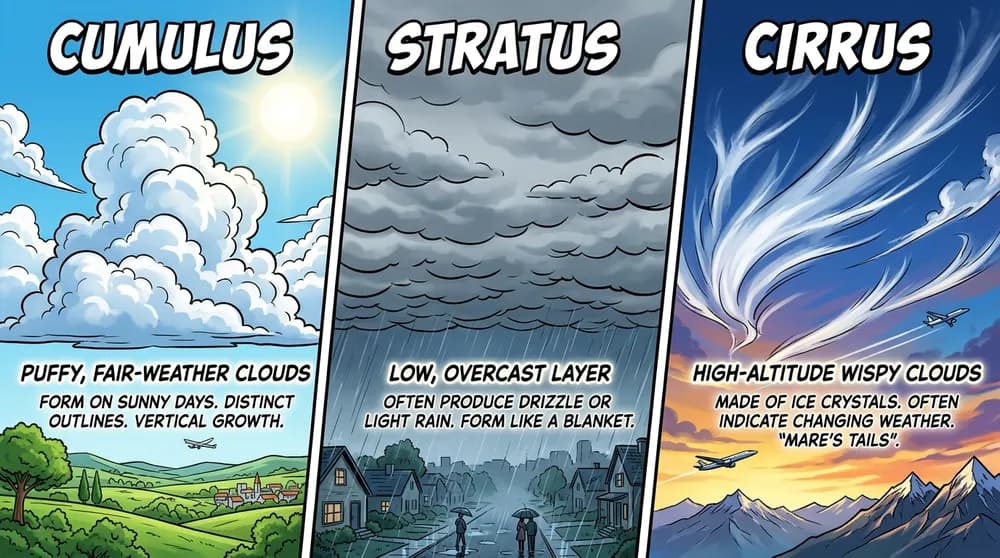
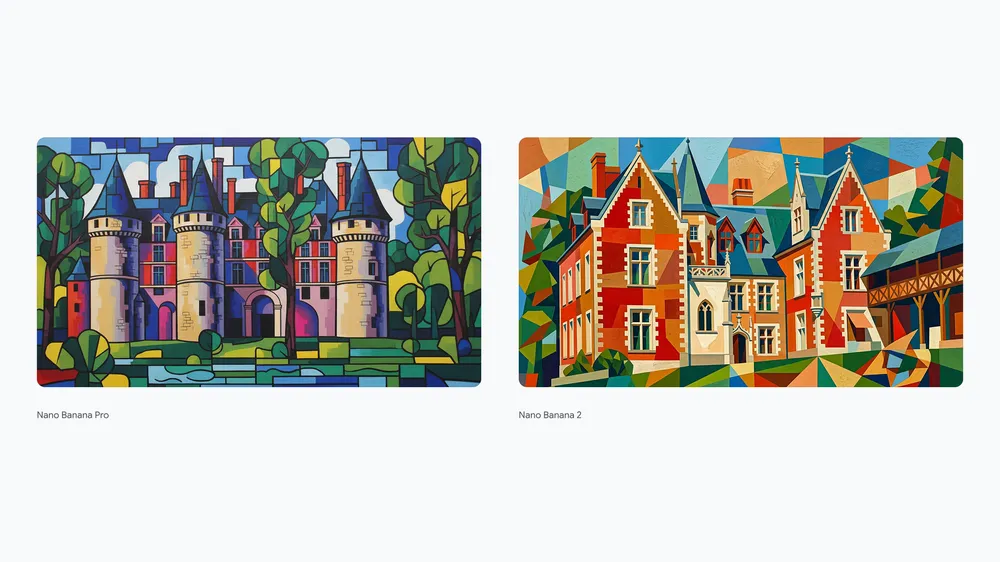
Google published these examples with its Nano Banana 2 announcement. They illustrate character references, labeled diagrams, and visual style. They are official model demonstrations rather than results generated by the suggested prompts below.

Three reference characters appear across a six-scene treehouse story
Character references and a visual story
Three illustrated cloud diagrams labeled Cumulus, Stratus, and Cirrus
Illustrations with labels and text
Google's cubist building comparison: Nano Banana Pro on the left and Nano Banana 2 on the right
Google comparison · Pro left, Nano Banana 2 right

Google's Nano Banana 2 announcement

Start with an idea

Three ways to use Nano Banana 2

Choose a brief, replace the subject with your own, and review the settings before generating. Prompt buttons keep your uploaded images and fill the editor without starting a generation.

01

Build a small visual story

Describe the character once, then give each panel a distinct action. Keep the clothing, palette, and setting consistent across the brief. Upload your own character image when its appearance matters. Choose a landscape ratio for this three-panel idea and review the character details in each panel.

Try this prompt

A three-panel illustrated story in one landscape image. The same small orange fox wears a green scarf in every panel, in a warm woodland picture-book style. Panel one: the fox sketches a treehouse. Panel two: the fox carries a wooden plank up a ladder. Panel three: the fox drinks tea inside the finished treehouse at sunset. Clear panel divisions, consistent character features, no text.

02

Make a labeled graphic

Provide the content and labels yourself, then describe the layout and visual hierarchy. Keep the first version simple enough to read at its intended size. This tool uses your prompt and uploads; it does not run a web search to verify the facts in a diagram. Review every label and illustration before sharing it.

Try this prompt

A clean educational graphic with three equal horizontal panels on a cream background. Left: a fluffy white cumulus cloud, labeled "Cumulus". Center: a low gray layer of stratus cloud, labeled "Stratus". Right: thin wispy cirrus clouds high in a blue sky, labeled "Cirrus". Simple illustrations, clear dark lettering, generous margins, no other text.

03

Restyle your own photograph

Upload the photo you want to transform, then define the artistic treatment and the structural details to keep. A second image can provide the palette or style. Keep the roles explicit so the model has a clear brief. This prompt uses your first upload and preserves the broad arrangement of the scene.

Try this prompt

Transform the first uploaded photograph into a colorful cubist illustration. Keep the main building, paths, and large trees in their original positions. Use angular overlapping shapes, warm ochre walls, deep blue shadows, and textured green foliage. Keep the scene recognizable while simplifying small details. No text or added buildings.

Create your first Nano Banana 2 image

  1. 01

    Describe the result you want

    Start with the subject, style, and layout. For an edit, upload the original first. Add references for a character, object, or palette and describe their roles. The example buttons fill the prompt without clearing your images or starting a generation.

  2. 02

    Select resolution and image shape

    This page starts with Nano Banana 2 at 1K and Auto. Use 1K for an initial version, or select 2K or 4K when you need a larger image. Choose a ratio that matches the final layout. The tool shows the paid-credit amount before you generate.

  3. 03

    Generate and inspect the details

    Generate the image, open it at full size, and check the text, subject details, and arrangement. Download a version you want to keep. Continue editing adds the result to your materials for a focused revision. Another generation uses the selected resolution's credit amount.

Nano Banana 2 settings and credits

Nano Banana 2 offers 1K, 2K, and 4K resolution tiers here, with Auto and fourteen explicit aspect ratios. The selection includes square, portrait, landscape, 1:4, 4:1, 1:8, and 8:1. Resolution describes the model's output tier; the exact width and height also depend on the ratio and delivered result.

Nano Banana 2 generation settings in PhotoGenerAI
SettingCredits per imageCredit access
1K2Purchased credits
2K3Purchased credits
4K5Purchased credits

Compare another model with your own brief: GPT Image 2, Nano Banana 2, or Qwen Image 2.1 Turbo. The model selector keeps your prompt and references while updating the available settings and credit amount.

What is Nano Banana 2?

Nano Banana 2 is Google's name for Gemini 3.1 Flash Image, an image generation and editing model. In PhotoGenerAI, it accepts your text prompt and optional uploaded images in the same editor. You can describe a new scene, ask for a change to a photograph, or supply references that guide a character or visual style. The model selector shows Nano Banana 2 so you can confirm which model your next request will use.

A useful brief combines the content with its presentation. Tell the model what belongs in the image, how the elements should be arranged, and which details matter most. A character story needs a repeatable description of the character and its actions. A labeled graphic needs exact words and room for them. A photo edit needs a clear change and a list of features to retain. The prompts above give you starting structures to adapt.

Choose 1K, 2K, or 4K for the job

Use 1K while you are still deciding on the composition or trying a new prompt. It costs two paid credits per generated image. Review the subject, framing, and text before requesting a larger version. Moving to 2K costs three paid credits; 4K costs five. All three settings use purchased credits in this tool, so the weekly free balance does not pay for a Nano Banana generation.

Choose the shape with the intended layout in mind. A portrait poster, a square product card, and a wide banner need different arrangements. Auto lets the model choose a shape from the brief, while an explicit ratio gives the request a defined frame. A higher resolution is useful when you need more pixels to inspect or export, but it does not repair an unclear prompt or guarantee correct lettering. Check the downloaded image's actual dimensions for your final use.

Keep character and object references clear

Upload the subject first, then any supporting visual references. Describe what each image supplies: the character's appearance, the product's shape, the background, or the color palette. The PhotoGenerAI editor accepts up to ten images in total. Use a compact set of relevant references rather than adding every picture from a project; conflicting designs or camera angles can make the intended result harder to describe.

For a character sequence, repeat the details that make the character recognizable: hairstyle, clothing, colors, proportions, or a distinctive accessory. State the action and setting for each panel separately. After generating, compare each appearance with your reference and inspect small details. Continue editing can help you revise a useful version, but each result needs its own review; a reference provides guidance rather than an exact lock on every feature.

Plan readable graphics and wide images

For a graphic with text, supply the exact labels and explain the hierarchy. Keep the title separate from the supporting copy and leave enough space around both. If the graphic explains a process, list the steps and their order in the prompt. Provide the factual content yourself. The model's broader capabilities include grounding features, but this browser tool generates from your prompt and images without adding a web-search step.

For an ultra-wide banner, put the focal subject where it will remain visible in the final layout and describe the surrounding space. Select 4:1 or 8:1 when that matches the frame; use 1:4 or 1:8 for a tall strip. Small text can become difficult to read in narrow formats, so prefer a clear visual subject and short copy. Inspect the final image at the size your audience will actually see, then download it or request a specific correction.

Read Google's Gemini 3.1 Flash Image model documentation for the model's capabilities. Explore our AI photo generator for the shared workspace, or use the AI photo editor when your next task starts with an existing photograph.

Nano Banana 2 FAQ

PhotoGenerAI

Put your idea into an image

Start with a prompt or your own references. Check the selected model and settings, then make your next image.

Create with Nano Banana 2