PhotoGenerAI

AI editing in your own words

Free AI Photo Editor

This AI photo editor turns written instructions into real edits. Upload a photo and describe what you want to change: remove a distraction, brighten a face, or replace the background while saying which details to keep. The AI photo editor follows your wording, so naming what to keep matters as much as naming what to change.

Start with free credits. No account required.

Aspect ratio
Edited photo
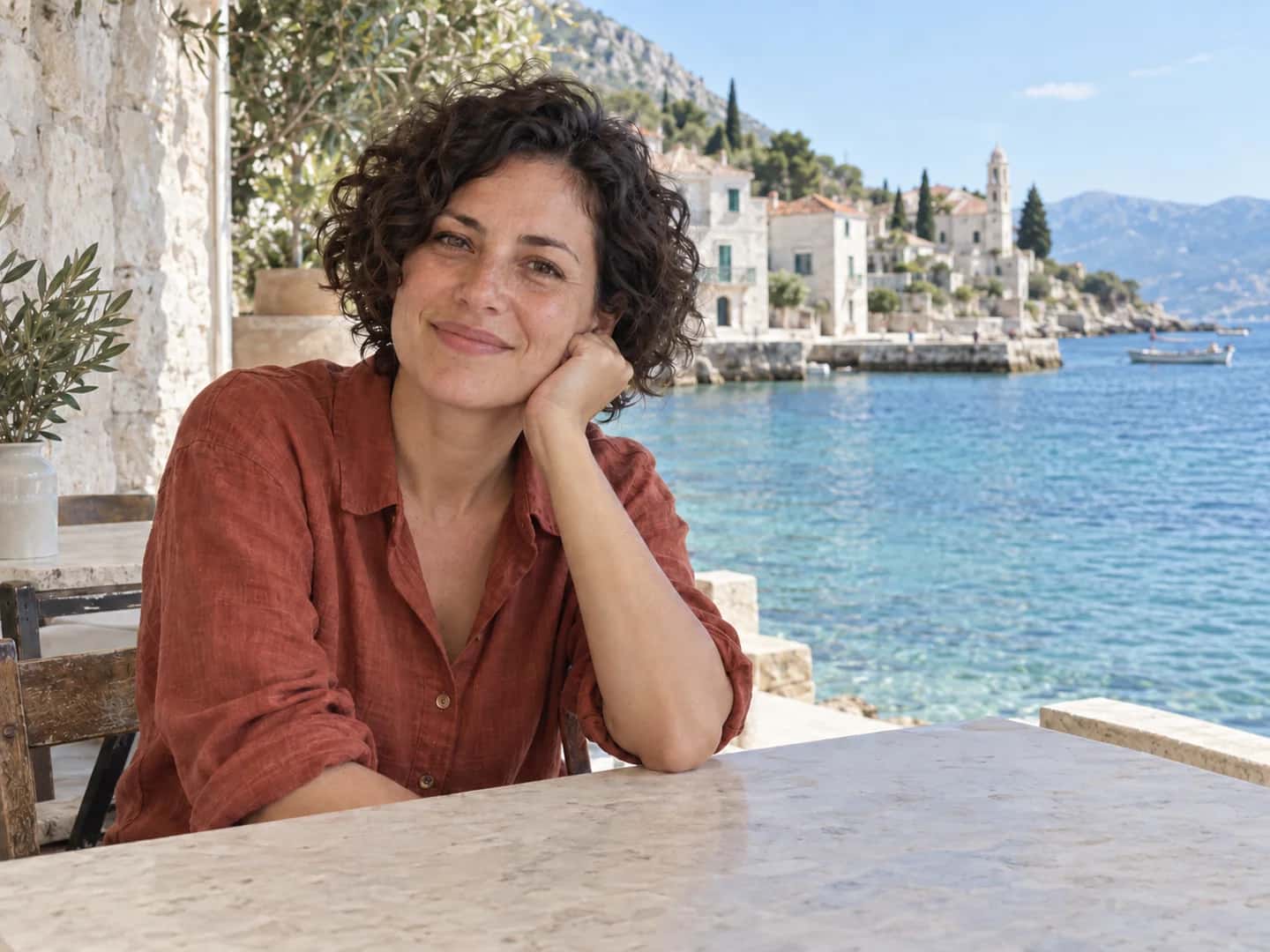
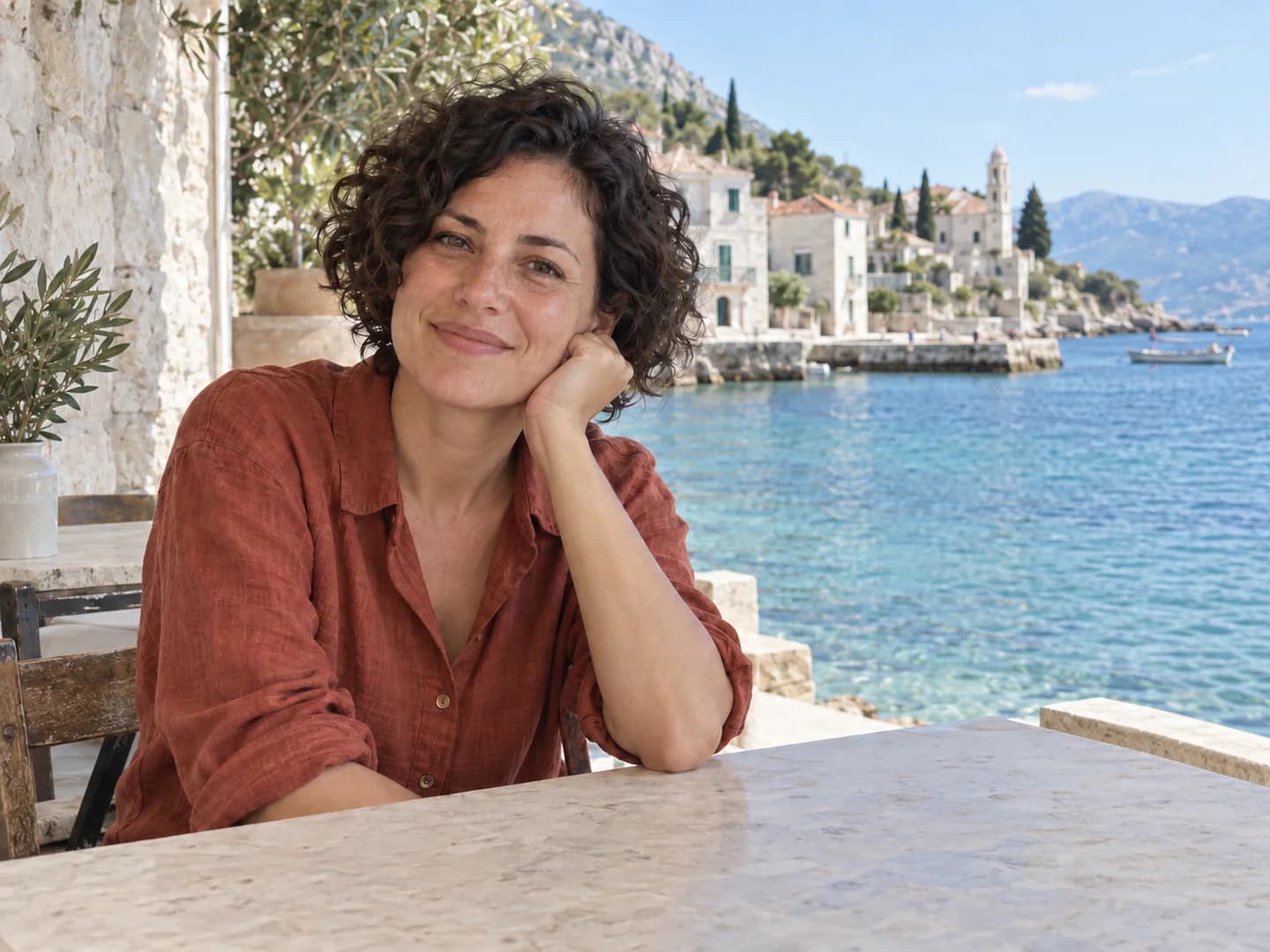
Waterfront portrait with a green bottle and crumpled napkin on the tableThe same waterfront portrait with a clear stone tabletopBeforeAfter

Remove the distraction, keep the memory

Remove the green bottle and crumpled napkin on the right side of the table. Keep the woman, her face, clothing, pose, background, and lighting unchanged. Fill the space with the existing stone tabletop.

Hover or drag to compare · 1 of 3

Choose your editing method

Which photo editing method should I use?

PhotoGenerAI is an online AI photo editor for changing an existing photo with written instructions. Upload a photo, describe the change, and compare the result with the original. It suits object cleanup, lighting adjustments, and new backgrounds when you want to work in words rather than with layers or a brush.

Remove an object or replace a background
Use this photo editor. Name the object or area, describe the replacement, and specify what should stay. For example, remove a bottle from a table while asking to keep the person and the existing light. Review the whole image afterward because the edit can change other details.
Improve lighting, color, or clarity
Use the AI Photo Enhancer when improving the existing photo is your main goal. Its AI mode accepts written instructions; its separate Auto Enhance mode enlarges a photo in your browser without a prompt. Choose this editor when the same request also changes objects or the setting.
Turn a photo or sketch into a different style or scene
Use Image to Image for a broader transformation of a source image, such as reinterpreting a sketch or changing a scene's style. Both pages use a source image and a written instruction. Choose based on your goal: a specific photo edit here, or a broader transformation there.
Keep text, logos, or untouched pixels exact
Use an editor with selections, masks, or layers when precise boundaries matter. PhotoGenerAI's photo editor has no brush or selection mask, and written instructions do not guarantee that untouched areas remain identical. This matters for product labels, document text, and portraits that must stay faithful to the original.
Make an image without an original photo
Use the AI Image Generator for a picture made from a text description. This photo editor requires an uploaded image and a written change request, so it is a better starting point when you already have the photo you want to edit.

Before and after

Small edits that make a photo worth keeping

Start with the part that bothers you: an object in the way, a face lost in shadow, or a busy background. Give each edit a clear target and name the details the AI photo editor should keep. The images below are AI-generated illustrations of these editing tasks.

Waterfront portrait with a green bottle and crumpled napkin on the tableBefore
The same waterfront portrait with a clear stone tabletopAfter

Remove the distraction, keep the memory

A stray bottle can pull attention away from an otherwise good portrait. Name the object and where it sits so the AI photo editor has a clear target.

Edit prompt

Remove the green bottle and crumpled napkin on the right side of the table. Keep the woman, her face, clothing, pose, background, and lighting unchanged. Fill the space with the existing stone tabletop.

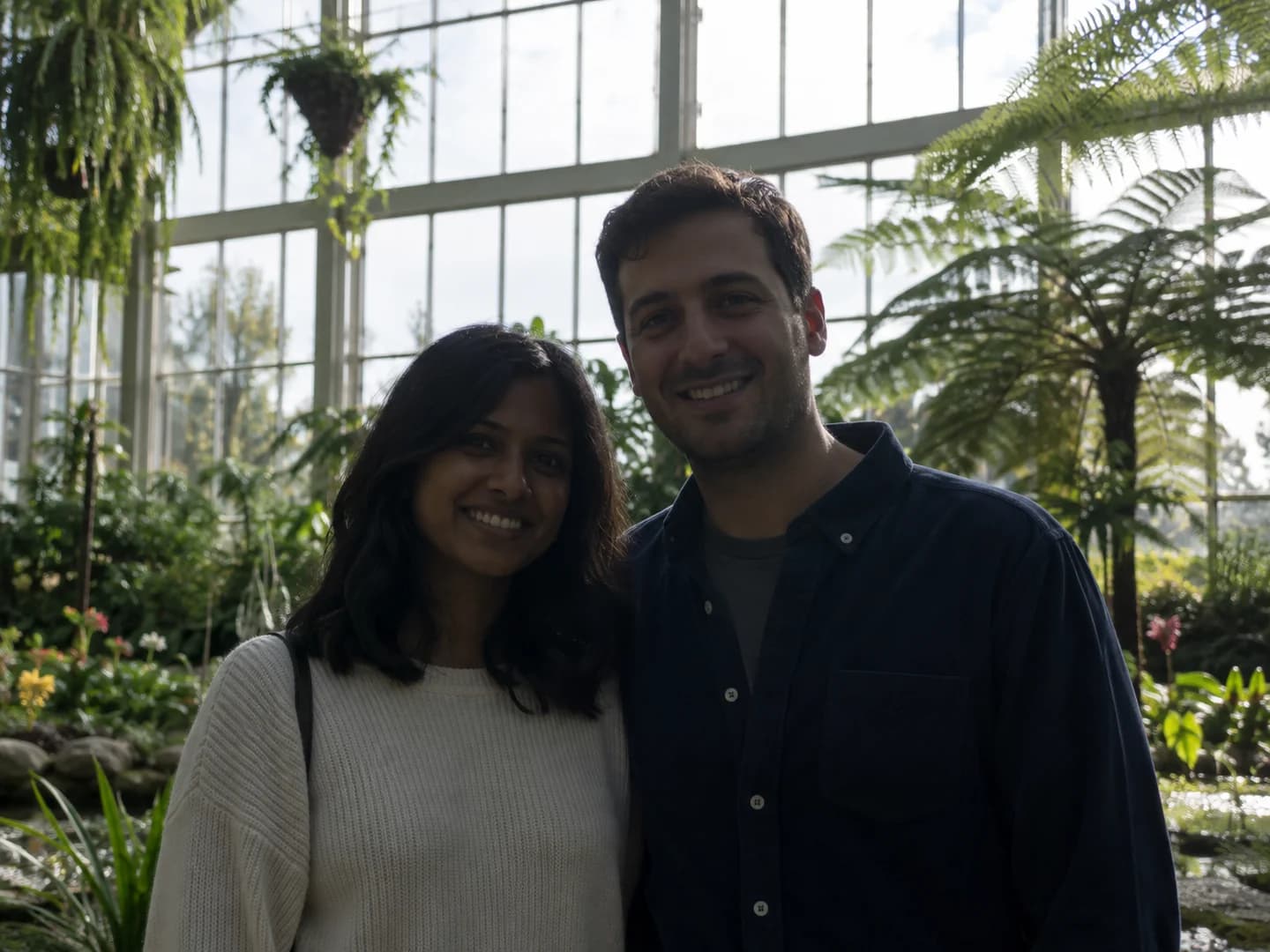
Couple in a greenhouse with their faces underexposed against bright windowsBefore
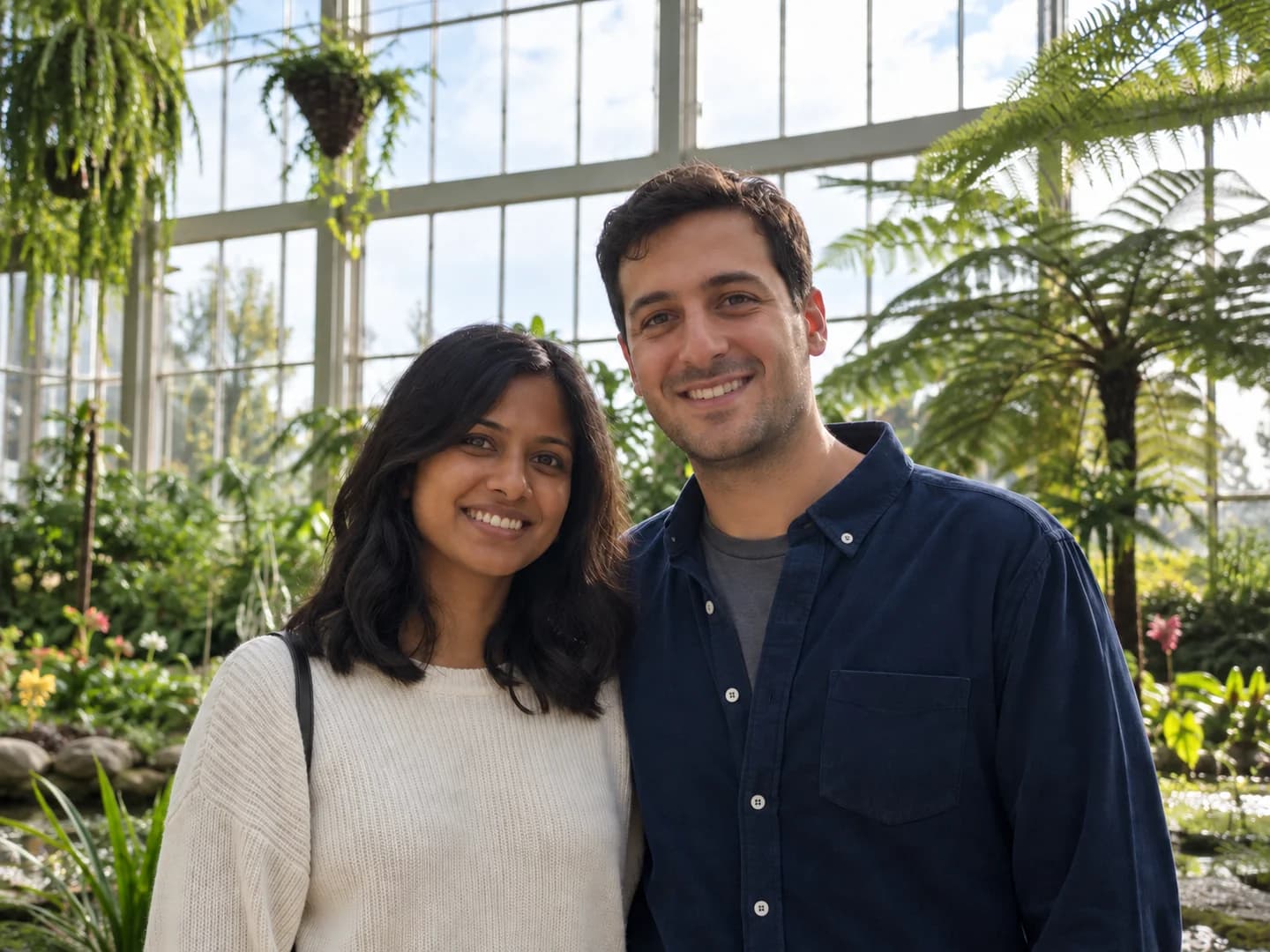
The same couple with brighter faces and natural greenhouse lightingAfter

Bring a backlit photo out of the shadows

Ask the AI photo editor for light where it is missing, instead of brightening the whole frame. Faces should be easier to see without losing the atmosphere around them. If your main goal is to improve lighting, color, or clarity, try the AI photo enhancer.

Edit prompt

Brighten both faces with soft natural fill light. Keep the window highlights, skin texture, expressions, clothing, and background. Do not smooth the skin or change facial features.

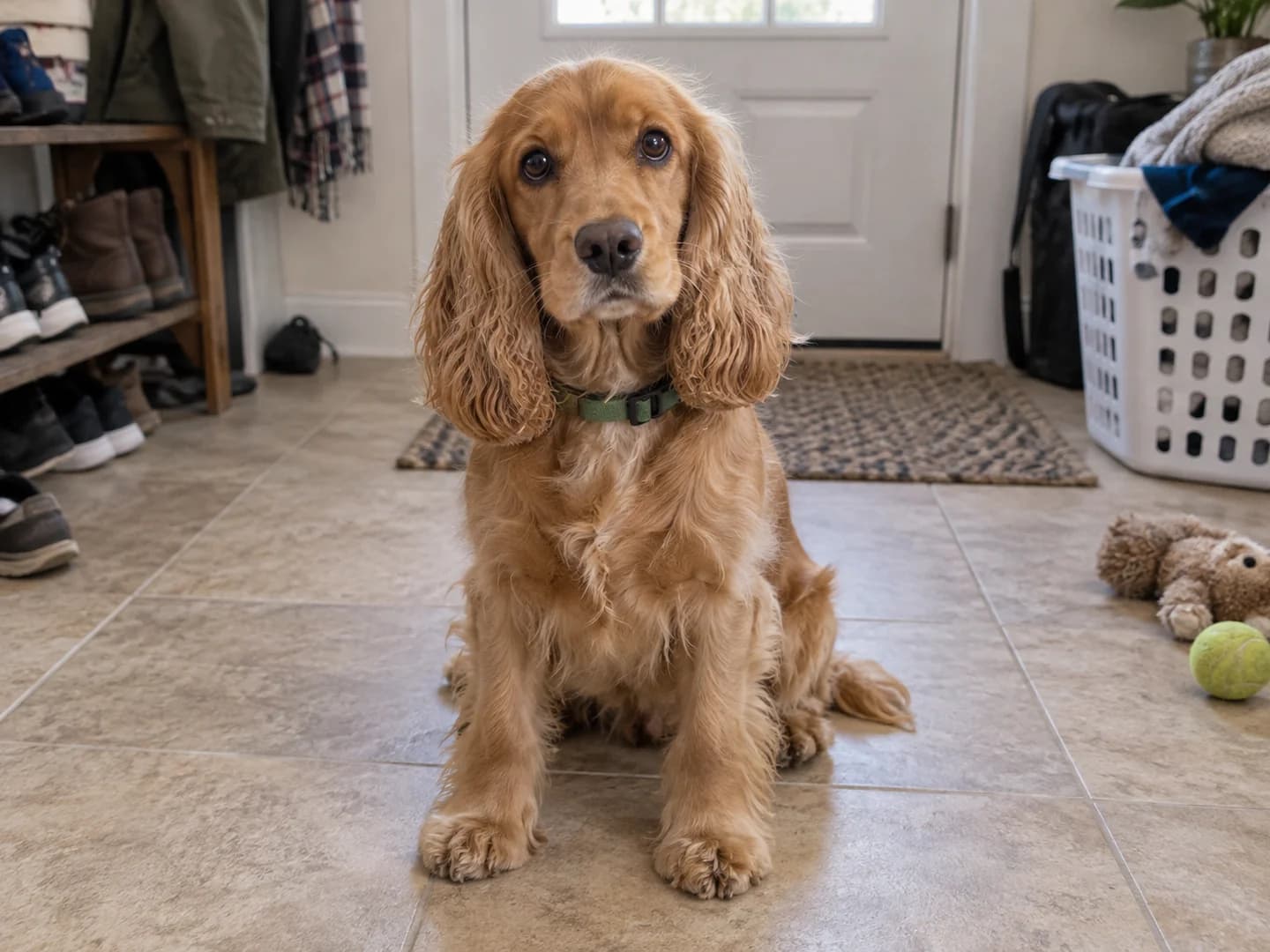
Golden cocker spaniel sitting in an entryway with shoes and a laundry basketBefore
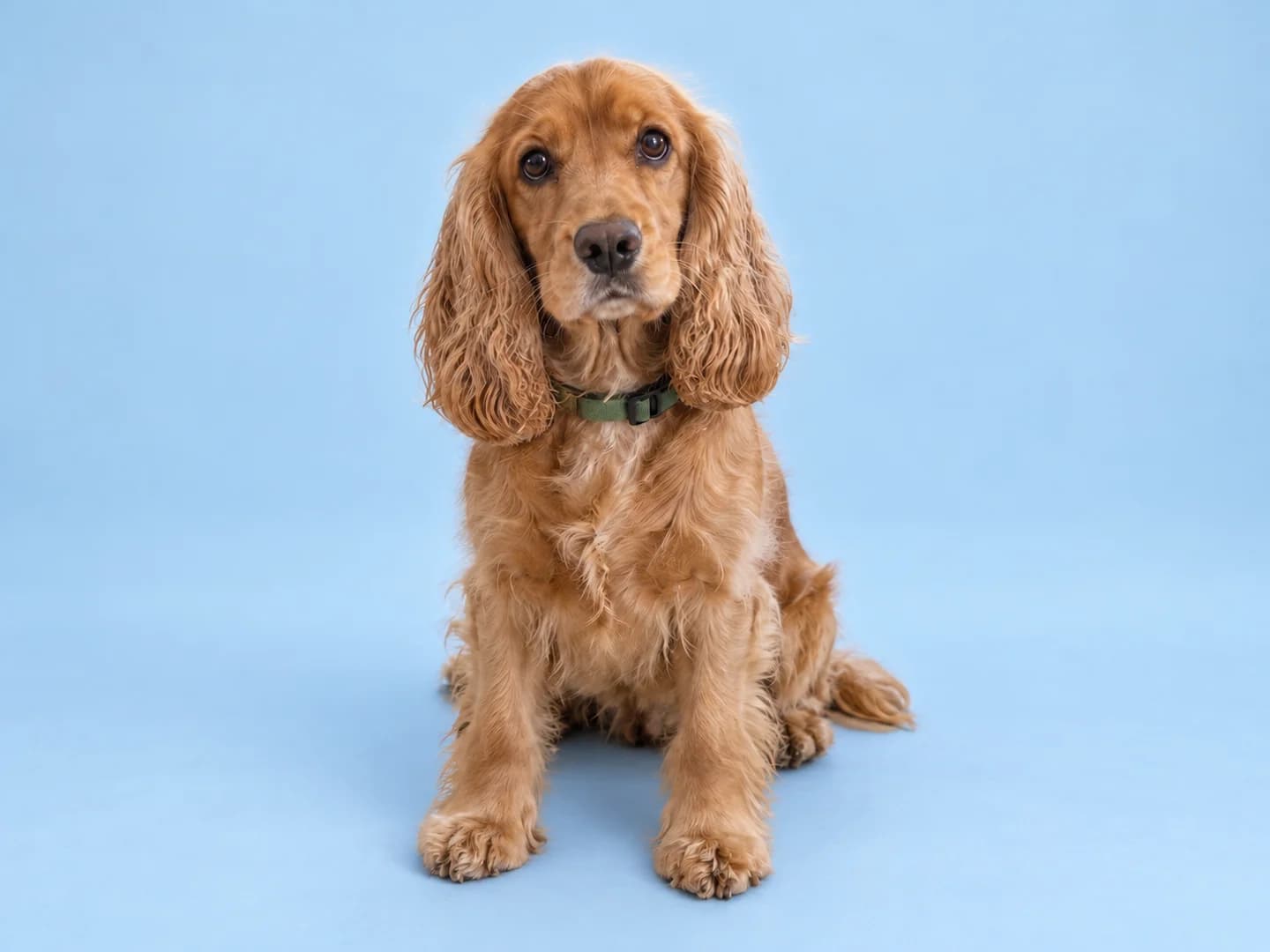
The same golden cocker spaniel against a pale blue studio backdropAfter

Give a favorite subject a simpler background

A calmer setting makes the subject easier to notice. Describe the new backdrop and ask the AI photo editor for a contact shadow so the result does not look like a cutout.

Edit prompt

Replace the entryway with a pale sky-blue studio background and floor. Keep the dog's face, fur, green collar, pose, and framing. Add a soft contact shadow beneath the paws.

Dog photographed in a cluttered entrywayBefore
Dog against a pale blue studio backgroundAfter

From new ideas to finished edits

Start with a photo—or make one

Need to create a photo before editing one? Open our online AI photo generator to build a new image from words or combine visual references. You can return here when you have a photo ready for a focused edit.

Three steps

How to edit a photo with AI

You bring the photo and the direction; the AI photo editor needs no layers or brush selections to set up.

  1. 01

    Upload the original

    Choose the clearest version of your photo. The AI photo editor needs an uploaded image; a text prompt alone will not start an edit.

  2. 02

    Describe one change

    Tell the AI photo editor what needs editing and where it appears. Then say which details should stay, such as a face, outfit, or background.

  3. 03

    Review and download

    Compare the AI result with your original. If a detail changed unexpectedly, refine the instruction and run the AI photo editor again. Download the version you want to keep.

Better AI edit prompts

Tell the AI photo editor what to change—and what to leave alone

“Make this better” leaves too much for the AI photo editor to interpret. A useful edit request names a target, a location, and the parts of the original that matter to you.

Target
The green bottle and crumpled napkin
Location
At the table's right edge
Keep
Her face, pose, and the existing light
Replacement
The same stone tabletop
Waterfront portrait with a green bottle and crumpled napkin on the tableBefore
The same waterfront portrait with a clear stone tabletopAfter

Complete edit prompt

Remove the green bottle and crumpled napkin on the right side of the table. Keep the woman, her face, clothing, pose, background, and lighting unchanged. Fill the space with the existing stone tabletop.

The same couple with brighter faces and natural greenhouse lighting

Know what to check

Keep the person looking like themselves

A better-lit face is useful only if it still looks like the person you photographed. AI may redraw details outside the requested edit, so treat the original as your reference when reviewing what the AI photo editor returns.

  • Compare eyes, teeth, hair, hands, and skin texture at full size.
  • Check the edges around removed objects and replaced backgrounds.
  • Keep your original file. Use a conventional editor instead of the AI editor when exact pixels or untouched areas are essential.

Review and refine

What should I change when an AI photo edit goes wrong?

Compare the edited photo with your original before requesting another change. Identify the unwanted difference, then narrow the next instruction to that problem. Keep the original available so you can restart from it if the result has drifted too far.

The edit changed my face. What should I try?

Return to the original photo and ask for one specific edit. Name the facial details to keep instead of requesting a general makeover. Compare the eyes, mouth, hairline, expression, and skin texture at full size. A preservation instruction gives the model direction; it does not guarantee an identical face.

Prompt to try

Brighten only the shadows on my face. Keep my facial features, expression, hairline, skin texture, clothing, and background. Do not retouch or reshape my face.

The removed object left an odd patch. How do I describe the fix?

Tell the model what belongs in the empty area. Name the surrounding surface, texture, and lines it should continue. Check that table edges, pavement, shadows, or background patterns connect naturally across the repaired area. If the object covered part of a face or hand, the model must invent the hidden detail.

Prompt to try

Remove the green bottle at the right edge of the table. Fill its place with the same stone tabletop, continuing the surface texture and table edge. Keep the person and the rest of the scene.

The new background looks pasted on. What is missing?

Describe the ground, light direction, and shadow as well as the backdrop. A subject standing or sitting in a scene needs a believable point of contact. Inspect hair, fur, and clothing edges for halos, and compare the subject's lighting with the new setting.

Prompt to try

Replace the background and floor with a pale blue studio setting. Keep the dog's pose, fur, collar, size, and framing. Add a soft contact shadow under the paws and match the existing light direction.

A good photo can still need one small fix

Sometimes the photo is already the one you want: the faces are just too dark, or the background pulls attention away. These public editing requests point to a practical need—change the distracting part without reinventing the subject. Here, you can upload that photo, describe the adjustment, and compare the result with your original before saving it.

“Unfortunately, the only photo of my gf and I came out too dark.”

r/PhotoshopRequestRead original

“Please get rid of the background and make it sky blue or whatever will make it look lovely.”

r/PhotoshopRequestRead original

AI photo editor questions

PhotoGenerAI

What would you change about your photo?

Start with one edit in the AI photo editor. Upload your photo and describe the part you want to improve.

Edit a photo