
1. Decide what your lookbook should show
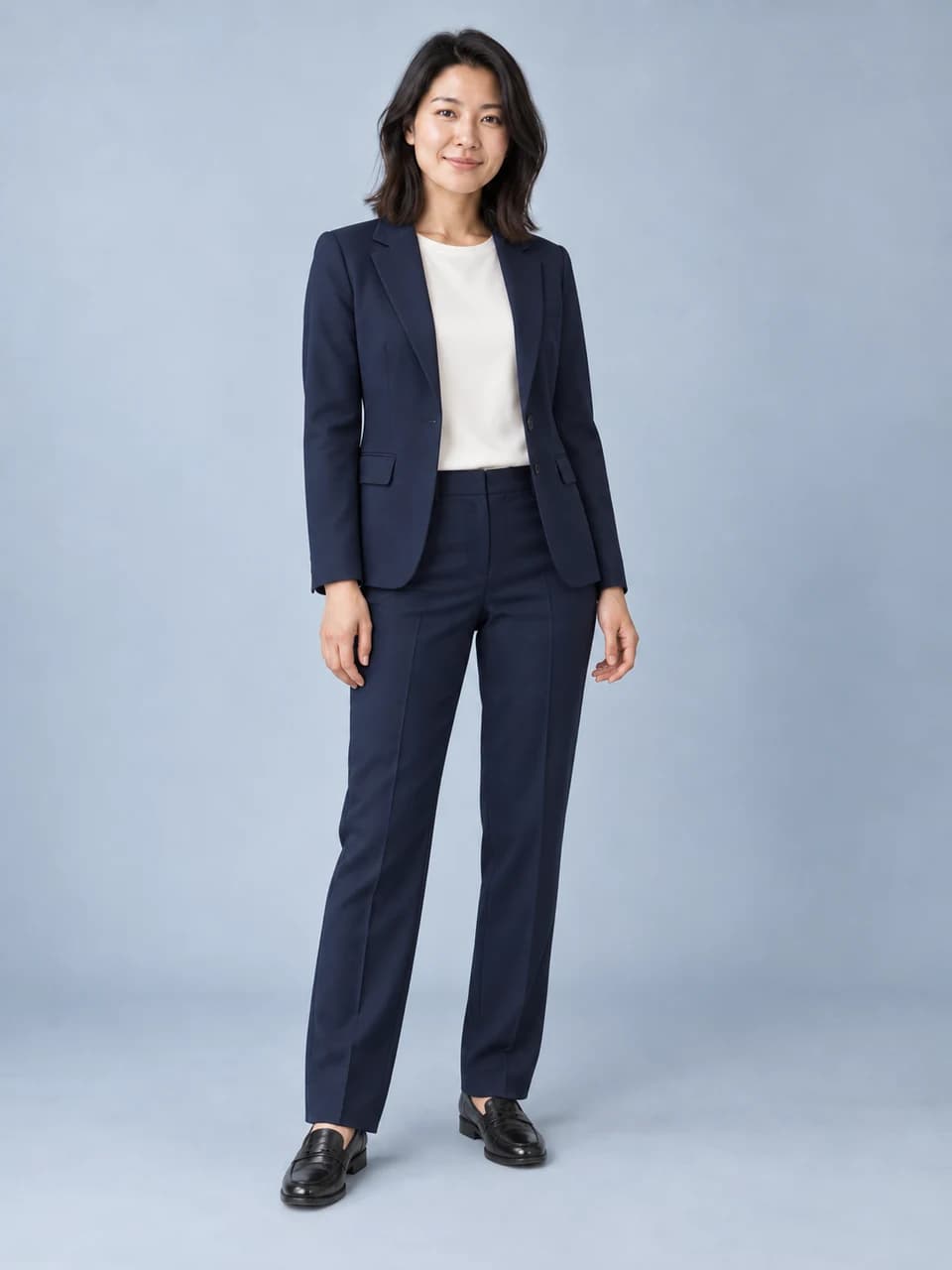
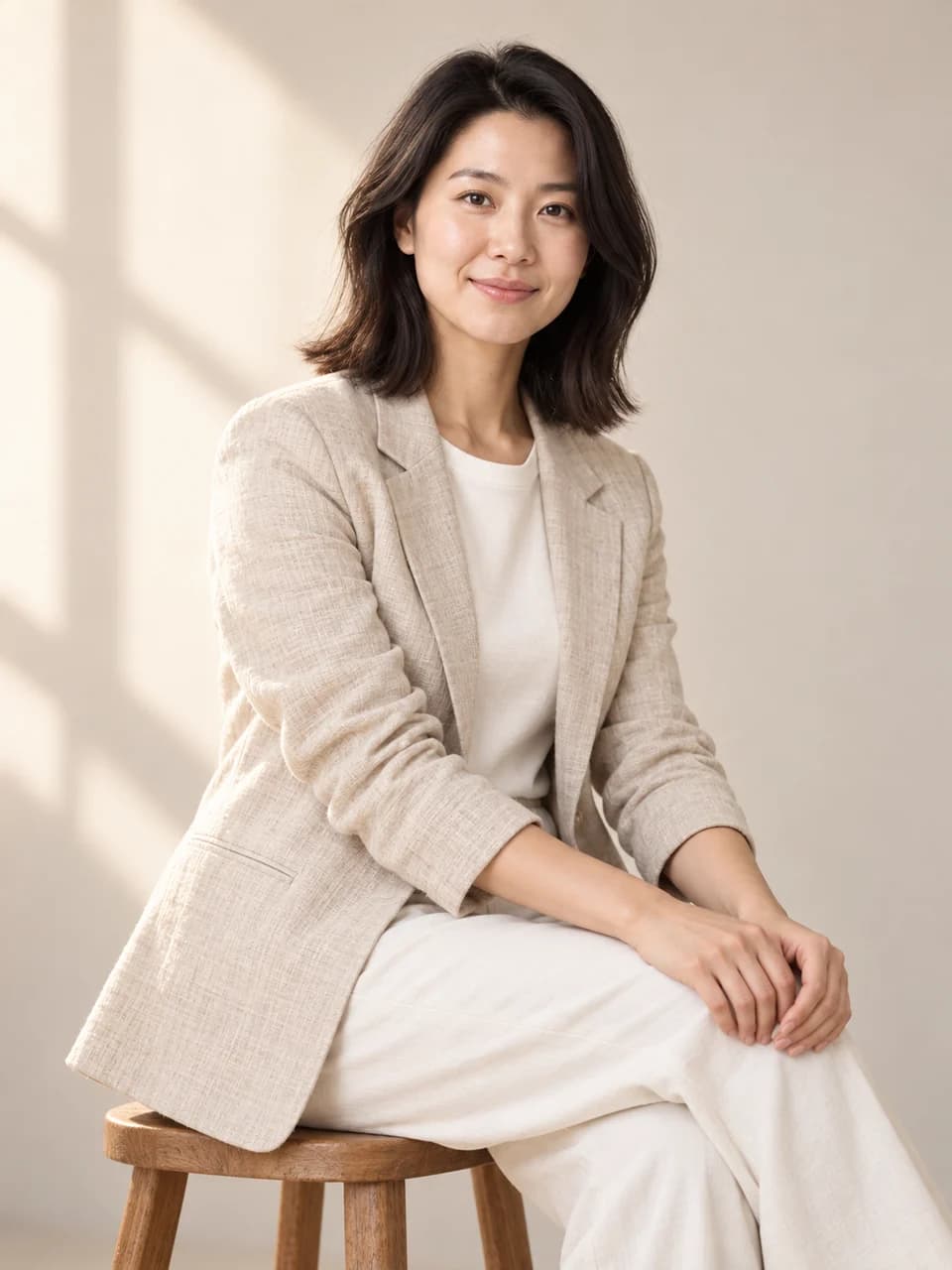
For a personal outfit lookbook, keep your face and build recognizable while trying different clothes. A tailored outfit, a relaxed weekend look and an outdoor layer give you three distinct directions. Keep the background and pose steady if you want to compare the clothes themselves.
For a fashion lookbook of one outfit, do the opposite: keep the garments, shoes and accessories while changing the pose or camera framing. This is useful when you want a front view, a three-quarter view and a walking shot of the same look. Use a full-length original so the clothing is visible from the start.
PhotoGenerAI creates one image per generation. For separate downloadable photos, work through one look at a time. A prompt can also request a multi-pose sheet, but that sheet is a single image whose figures and garment details need their own inspection.
Plan a three-image lookbook before generating
Write a brief for each image before changing the first one. Decide which parts of the source should stay fixed across the set. That gives you a fairer comparison and makes an unexpected change easier to identify.
If you want to compare outfits
Keep the source person, background, framing and basic pose steady. Change the wardrobe description for each image: a tailored look, a relaxed weekend outfit and an outdoor layer. Check that the apparent difference comes from the clothes rather than a different body shape or camera angle.
If you want to show one outfit
- Front view: show the full outfit and both shoes with a relaxed standing pose.
- Three-quarter view: request a small turn while retaining the same garments, colors, shoes and accessories.
- Walking view: add a simple step and check that sleeves, hems and accessories still match the original outfit.
Review the sequence as one set
Place the images side by side. Compare the face and proportions first, then the garments and accessories, then light and framing. Keep an image only when it works both on its own and beside the others. A good first portrait does not establish consistency across every later generation.
For outfit changes, follow the clothing workflow below. For a new pose or a different photography brief, start in the AI photoshoot tool.
2. Choose an original you can reuse
Use a sharp photo with one clear face, natural light and as much of the outfit as you want to show. If shoes and trouser length matter, include both feet. A cropped selfie can guide a face, but it does not show the body, lower garments or accessories you are asking the model to preserve.
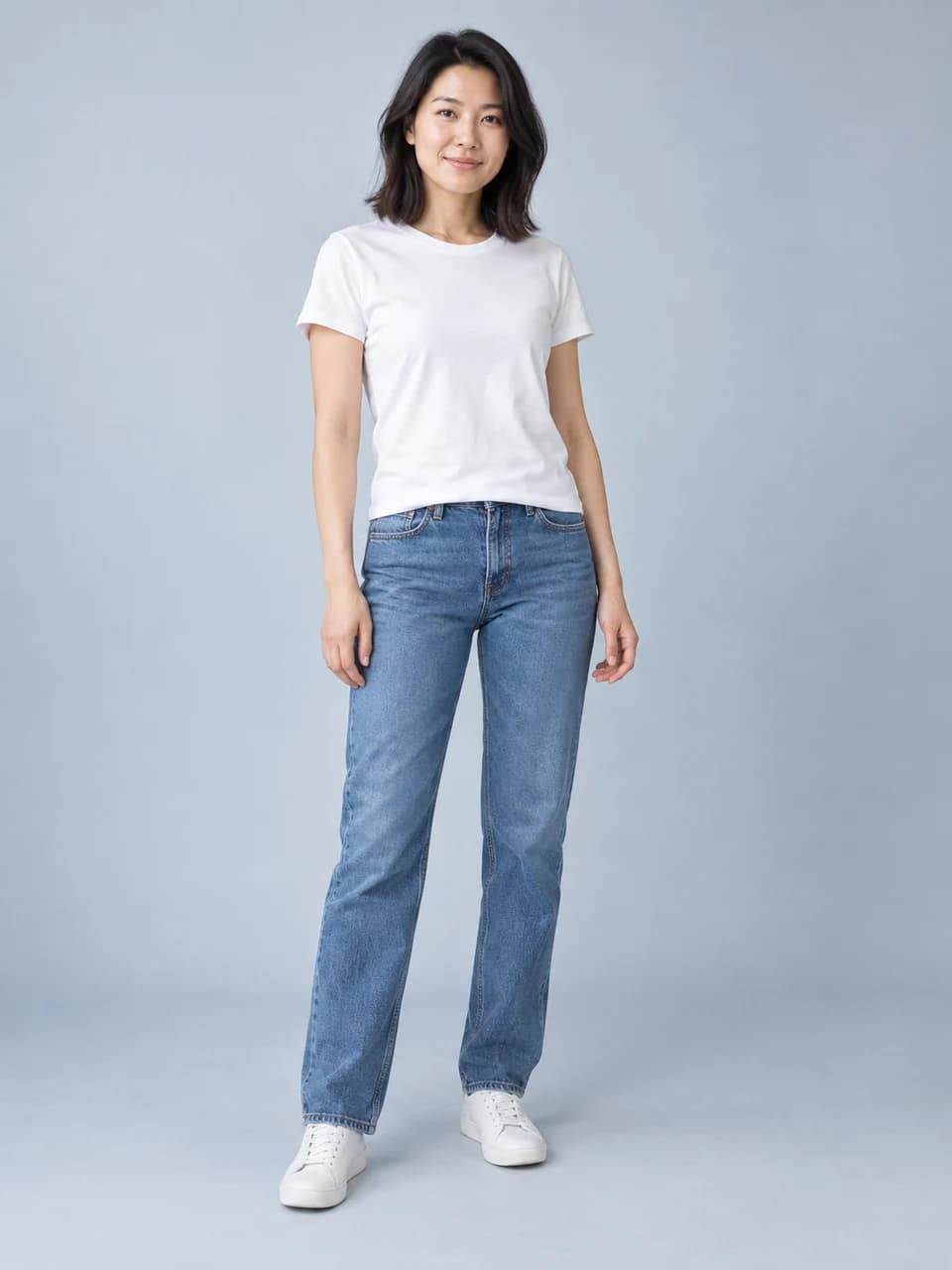
Keep this original as the starting point for each new version. If you repeatedly use the last generated face as the source, an unwanted change can carry into the next image. You can reuse the same uploaded original and change only the instructions or relevant clothing reference.
Open the AI clothes changer. Use Upload your photo for the person. Leave the clothing reference empty when you are describing a new outfit in words. The tool keeps the source and reference roles separate.
3. Create your outfit looks one at a time
In Describe your outfit, name the garments and colors, then list what should stay. Choose a photo shape and review the model and credit cost. Select Change my outfit, inspect the result and download it before moving to the next look.
Look A: a tailored layer
Start with a blazer and shirt if you want a simple polished outfit. The shared preset below keeps the source's trousers, pose and setting. Change that instruction if the whole outfit should be different.
Prompt to try
Replace the top with a tailored charcoal blazer over a white cotton button-up shirt. Keep the trousers unchanged. Keep the person's face, hair, body proportions, pose, hands, framing, background and lighting. Change only the specified clothing, with realistic fabric and folds.
Look B: a lighter everyday shirt
Keep the jeans and shoes, and change the top into a linen shirt. Limiting this look to one garment makes the before-and-after comparison more focused. Check the collar, sleeves and where the shirt meets the waistband.
Prompt to try
Replace only the T-shirt with a pale-blue linen button-up shirt, sleeves rolled to the elbows. Keep the jeans and shoes unchanged. Keep the person's face, hair, body proportions, pose, hands, framing, background and lighting. Change only the specified clothing, with realistic fabric and folds.
Look C: another color of the same top
A color variation belongs in a lookbook too. Ask to retain the garment's cut and material while changing the color. Compare the result around seams and folds instead of judging only the overall color at thumbnail size.
Prompt to try
Change only the T-shirt to forest green. Keep its original cut, material, seams and folds. Leave the rest of the outfit unchanged. Keep the person's face, hair, body proportions, pose, hands, framing, background and lighting. Change only the specified clothing, with realistic fabric and folds.
4. Keep one outfit and change the photoshoot
When the clothes should stay but the pose, framing or setting should change, move to the AI photoshoot tool. Upload the photo with the outfit you want to keep. State that the full outfit, shoes and accessories should remain, then describe one new pose.
Prompt to try
Keep the person and complete outfit from image 1. Create one full-body studio photo with a slight three-quarter standing pose, relaxed arms and both shoes visible. Preserve the face, hairstyle, garment colors, neckline, sleeve length and accessories. Use a light-gray background and a soft shadow beneath the feet.
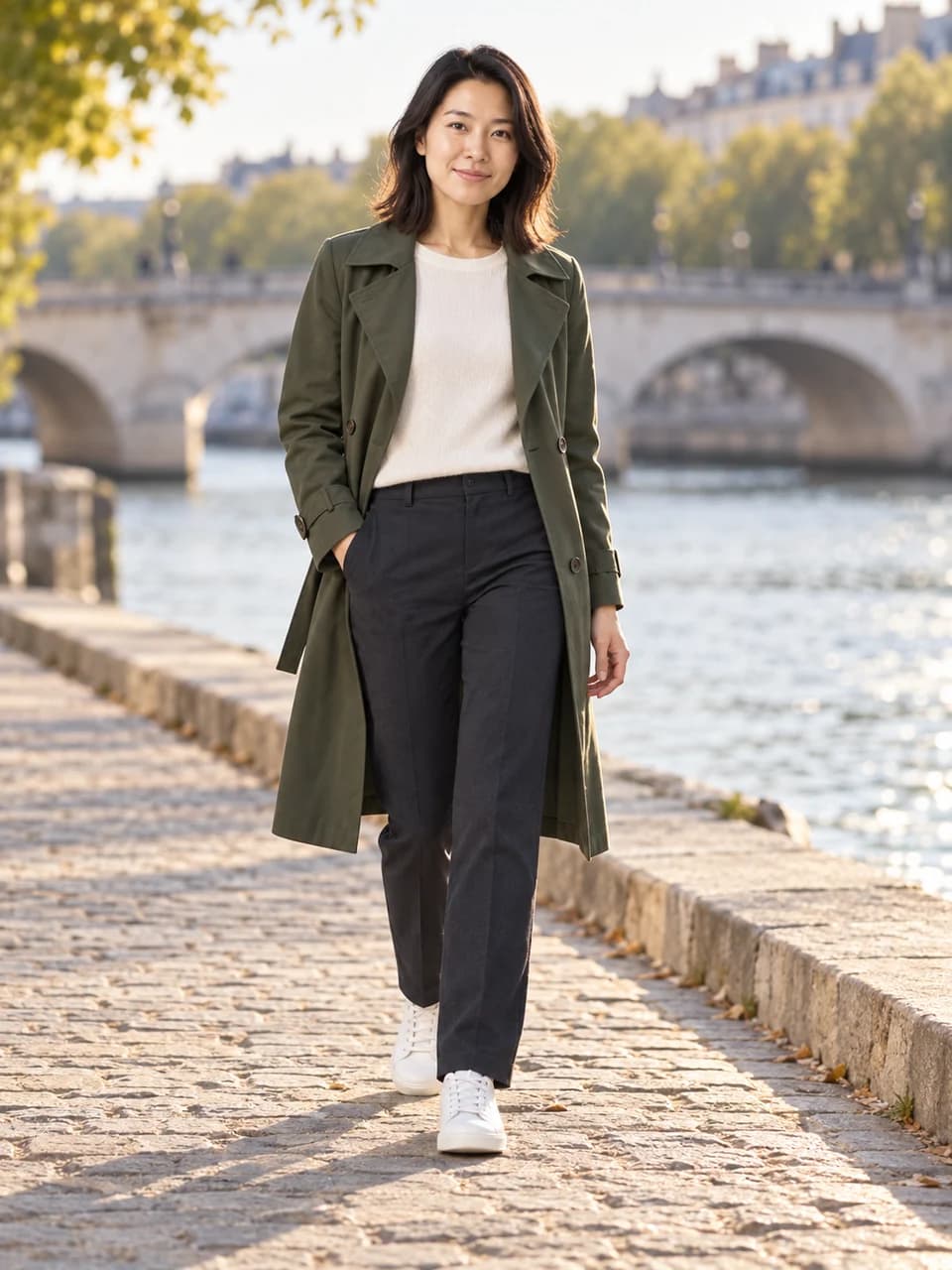
For a collection that changes the outfit and the photography together, write a complete brief. The outdoor preset below changes the clothing and scene; edit it to retain your existing outfit if that is your goal. The pictured editorial looks above illustrate this broader kind of personal lookbook.
Prompt to try
Create a full-length editorial photo of the same person walking along a quiet riverside stone walkway. Forest-green trench coat, ivory knit top, dark trousers and white sneakers. Relaxed expression, late afternoon light, softly blurred stone bridge and trees. Keep my recognizable face, age, hair and body proportions. Include both feet and natural walking posture.
Want a single multi-pose sheet?
Try the following request in Image to Image. It requests one sheet, not three independent files. Inspect every figure for repeated accessories, consistent clothing and a recognizable face.
Prompt to try
Create one fashion lookbook sheet with the same adult from image 1 in three full-body poses on a white background: facing forward with relaxed arms, a three-quarter standing view, and walking naturally. Keep the same face, hairstyle, complete outfit, shoes and accessories across all three figures. Space them apart, keep both feet visible and add soft floor shadows. No labels or text.
5. Add a reference for a specific garment
If you have a particular dress, jacket or outfit in mind, add it under Clothing reference. A clear product photograph can communicate the neckline, sleeves, length and pattern more directly than a long description. Explain which reference supplies which garment when you attach several photos.
Prompt to try
Dress the person in the first photo in the garment shown in the clothing reference. Match its color, neckline, sleeves, length and pattern. Replace the relevant clothes and keep the shoes. Keep the person's face, hair, body proportions, pose, hands, framing, background and lighting. Change only the specified clothing, with realistic fabric and folds.
For the next look, remove a reference that no longer applies and add the new garment. A lookbook is easier to keep coherent when each image has a clear brief. Clothing references guide visible appearance; they do not verify an actual item's fit, hidden construction or size.
For the full upload and garment workflow, follow how to change clothes in a photo. If the reference is meant to supply colors and brushwork rather than clothing, use the style reference guide instead.
6. Compare the collection before sharing
Review identity first: eyes, nose, smile, hairline, age and skin tone. Then inspect the outfit: neckline, sleeves, garment length, shoes, accessories and patterns. Check hands, feet and contact shadows, particularly after a pose change. The three images should work individually as well as together.
If the face changes, return to the original and simplify the scene or pose. If the outfit changes when it should stay, name the exact garment details to keep and reuse the appropriate reference. Adjust one issue at a time so you can tell whether the next result addresses it.
Download the versions you want to keep. Continue editing adds the current result to your inputs; it does not automatically replace the original. Review the attached images before another generation, and remove old outfit references that would conflict with the new brief.
Lookbook questions
Does a lookbook have to show different clothes?
No. One useful version compares outfits. Another shows one outfit in several poses and camera framings. Decide which details should stay consistent, then choose the tool and prompts around that goal.
Can I generate three separate looks in one click?
The current workflow generates one photo at a time. Repeat it for separate files, or request a single multi-pose sheet. A sheet is one generated image and does not provide independent photo exports or editable layout panels.
Which model and photo shape should I use?
Start with the eligible free setting if you want to try the workflow with free credits. Review the cost for another model or quality setting. A vertical shape gives full outfits more room; a square can suit a closer portrait. Keep settings steady when comparing only the clothes.
Sources and next steps
The two common lookbook goals are illustrated by RSP Editing's lookbook tutorial and its same-outfit, multiple-pose example. This guide adapts those task distinctions to PhotoGenerAI's own controls. The example collection here uses AI-generated illustrations, not a model comparison or a promise of exact identity preservation.
Build a new photography scene with AI Photoshoot, focus on one garment in the clothes changer, or keep the pose and use the background changer to try a different setting.