
1. Decide what you want to borrow
Start with a specific visual property. Perhaps a painting has a restrained palette, a poster uses rough paper texture, or an illustration has broad, flat brushstrokes. Naming those properties gives you a clearer brief than asking the model to “make it like this.”
Separate the picture's content from its treatment. Content includes the person or object, pose, setting and arrangement. Treatment includes color, medium, edges, grain and contrast. For our example, the cat photograph supplies the content. A gouache still life supplies the treatment.
Adobe's style-reference documentation also describes using a reference to guide visual style. Controls differ between products: the instructions below use PhotoGenerAI's image uploads and written brief.
2. Choose a clear source and one style reference
Use a source whose subject you can inspect: a clear face, a recognizable product or a well-lit scene. Keep the original file nearby. After generation, you will compare the result against it rather than judging the new image from memory.
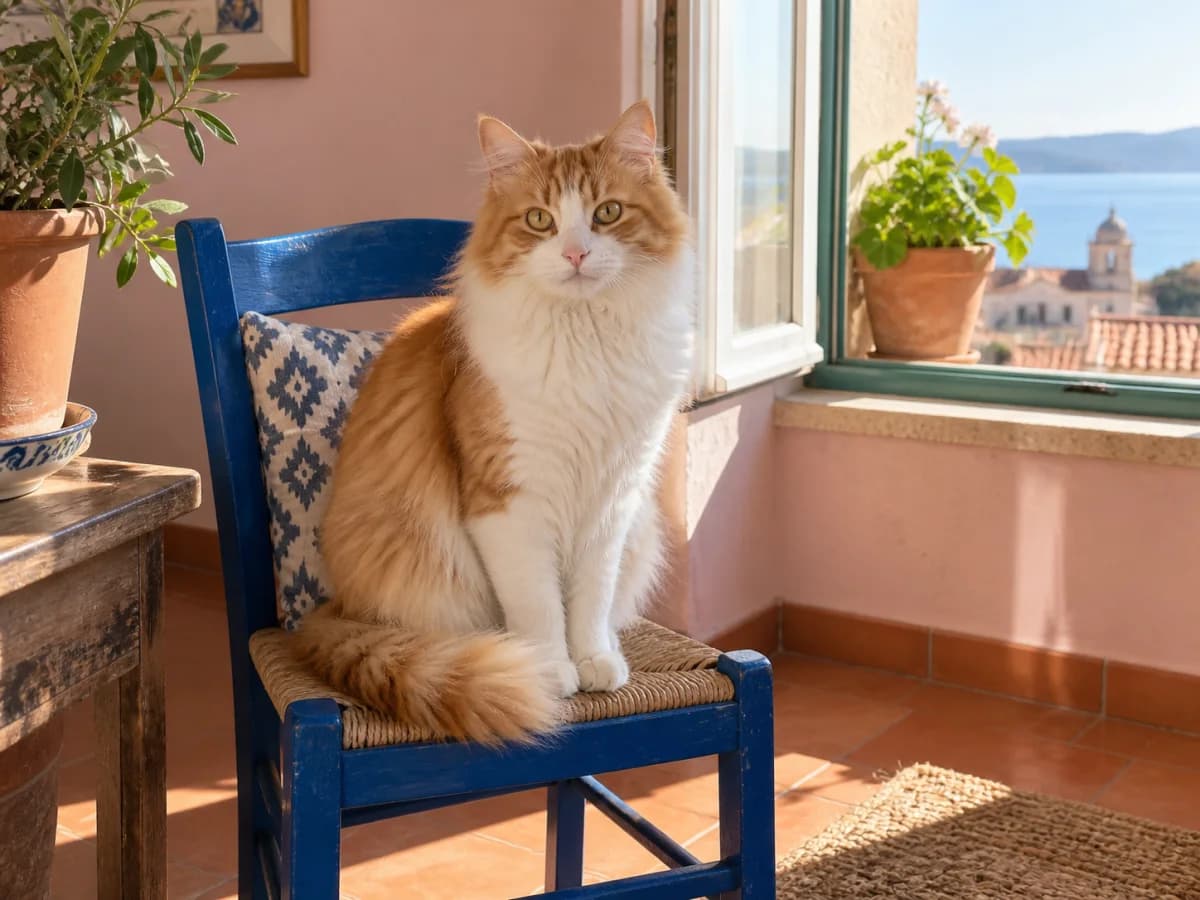
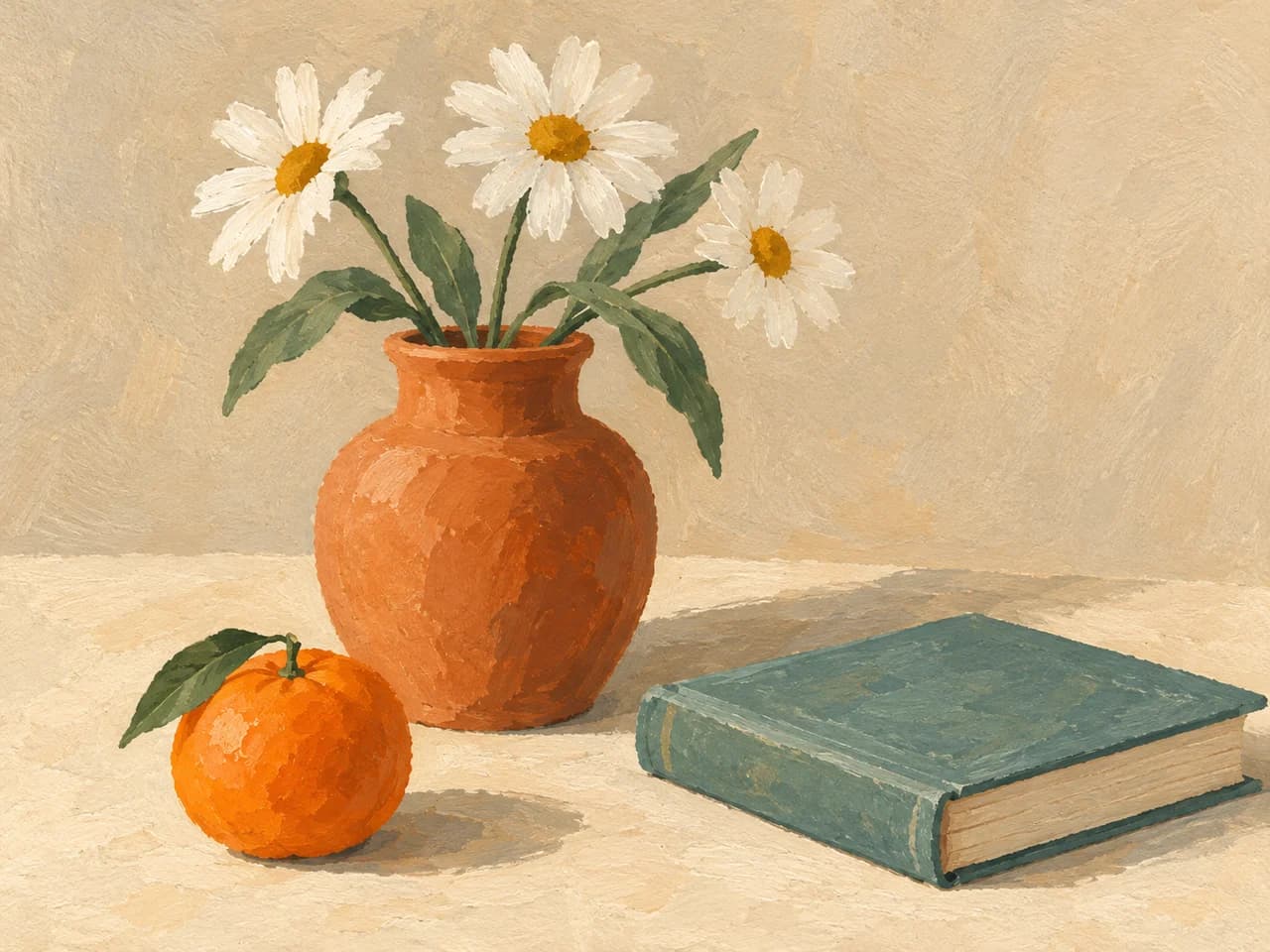
Choose a reference that makes the desired treatment easy to see. A busy mood board containing several conflicting styles makes that job harder. Start with one reference and one source. Use your own artwork or an image you have permission to upload.
The examples in this guide are AI-generated illustrations of the brief. They show what to inspect; the selected model and your own inputs will affect the result.
Choose the visual properties you want to borrow
Give the reference one clear role before uploading. A source image supplies the subject and arrangement. A style reference can guide color, surface texture or the way the whole scene is rendered. Separate these choices so you can judge what changed.
Palette: borrow the colors
Use a palette-only request when you like the reference colors but want to keep a photographic appearance. Name important subject colors or markings that should remain recognizable.
Prompt to try
Keep the subject, pose, objects, composition and photographic detail from image 1. Borrow only the broad color palette and warm-versus-cool balance from image 2. Preserve the subject's distinctive markings. Do not add objects, lettering, paper grain or brushstrokes from image 2.
Texture: borrow the surface
Paper grain and visible strokes change the surface treatment. A texture-only request can keep the source palette and layout while asking for those qualities; use the texture prompt later in this guide as a starting point.
Medium: restyle the complete scene
A gouache or illustration brief changes how forms and edges are drawn throughout the image. Inspect both the subject and background so the treatment feels consistent. Restyling can reinterpret fine details, which is why the source comparison matters.
Composition stays with the source
If the cat should stay on its chair beside the window, say so. The reference vase, flowers and book are separate objects that do not belong in that scene. If they appear, return to the original pair and restate which image supplies the content.
3. Upload the source first, then the reference
Open the image-to-image editor. Under Source and reference images, upload the picture you want to transform first. Add the style image second. Keep that order aligned with “image 1” and “image 2” in your instructions.
The editor accepts images together with a written request. It does not have a separate style-strength slider. Expand the model and settings controls to choose a model and output shape, and read the credit cost before generating. For this example, choose a landscape shape close to the source's 4:3 composition.
The button below opens the editor with the example instructions filled in. Upload your two images there, or replace the cat-specific details with your own subject before you generate.
4. Give each image an explicit role
Put the content rule first: identify the source and list the features that matter. Then identify the style reference and name the visual properties to borrow. Finish with a short instruction about reference objects that should stay out.
Prompt to try
Use image 1 as the content source. Keep its orange-and-white cat, face markings, seated pose, blue chair, open window, plants and sea-view composition. Use image 2 only as a style reference: borrow its warm cream, terracotta, muted teal and sage palette, opaque gouache brushwork and matte paper grain. Apply that treatment consistently across the scene. Do not introduce the vase, daisies, book or orange from image 2. No text or watermark.
“Keep the cat” alone leaves a lot open. The white chest, face markings, seated pose and location each give you something concrete to inspect. Likewise, “gouache, matte paper grain and muted teal” is easier to evaluate than “beautiful artistic style.”
Avoid stacking several unrelated transformations into the first request. A new pose, new background, new costume and new medium all at once make it hard to tell which instruction caused an unwanted change. Establish the style treatment first, then decide whether another edit is needed.
5. Check the subject before judging the style
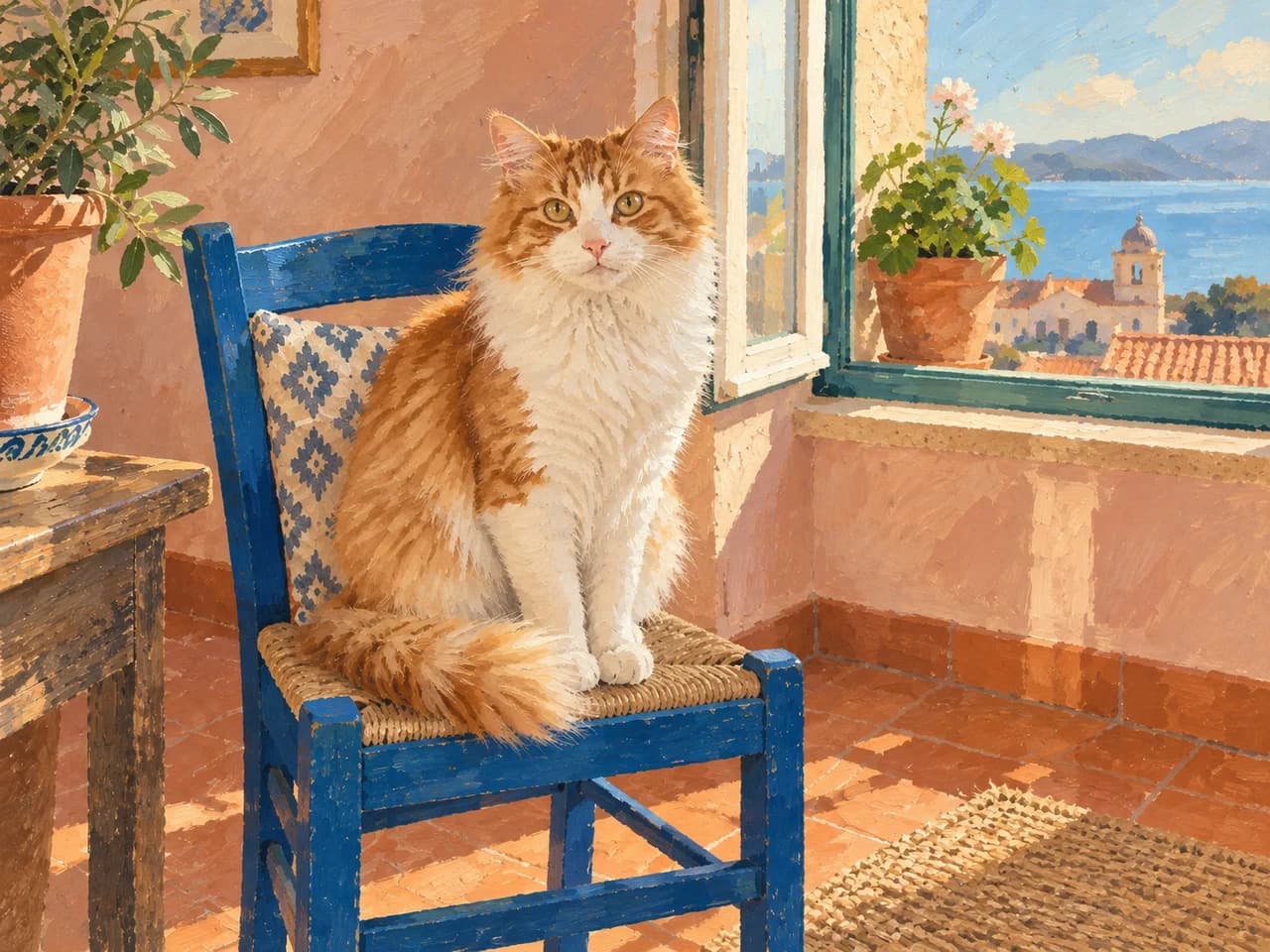
First compare the content. Does the cat still have the same markings? Are the paws, chair and window in the intended places? Have the reference's vase or book appeared? A convincing painting can still be the wrong picture.
Then compare the treatment. Look for consistent brushwork on the subject and background, rather than a painted cat sitting in an otherwise photographic room. Check whether the reference palette is present without erasing distinctive colors you wanted to retain.
View the full composition and then zoom into important details. Once the content and treatment both work, download the image. Keep the source, reference and prompt together if you plan to create a matching series.
6. Refine one property at a time
If the reference contributes unwanted objects, return to your original two uploads and clarify their roles. Name the objects that must stay out and restate the source composition. This gives the next attempt a clean starting point.
If the color shift is too strong, narrow the instruction to texture alone. Here is a lighter treatment that keeps the source palette:
Prompt to try
Keep the subject, colors, objects and composition from image 1. Borrow only the matte paper grain and visible brush texture from image 2. Keep the original lighting direction. Do not transfer any objects, layout or lettering from image 2.
If the image barely changes, replace vague adjectives with visible traits: broad opaque strokes, simplified edges, limited colors or a rough paper surface. Request one change and compare again. The instruction is a brief for the model, so it cannot guarantee exact preservation of every pixel.
For a series, reuse the same reference and the same treatment paragraph. Change the content paragraph for each source. Check the whole set side by side for differences in saturation, contrast and texture before publishing it.
Choose the workflow that matches your goal
A style reference helps when the subject should stay and the visual treatment should change. If the goal is to place two people into one scene, use the AI image combiner, where each person has a separate upload.
If you want the same subject on a new setting while keeping a photographic appearance, use the AI background changer. For personal portraits with new poses or clothes, the AI photoshoot tool gives you a more useful starting brief.
Try your own style referenceCommon questions about style references
Can the reference show a different subject?
Yes. Our cat source and flower still life deliberately have different subjects. Describe the properties to borrow and explicitly keep the source content. Check the result for accidental object transfer.
Will it preserve a face or product exactly?
Image generation can reinterpret details. Use a clear source, name important features and compare them afterward. For a product photo, inspect shape, color, labels and small components before using the image in a listing.
Can I use Midjourney's --sref syntax here?
Use ordinary written instructions in PhotoGenerAI. Upload the reference as an image and state its role. Commands and strength settings from another image tool do not become PhotoGenerAI controls.
Do I need more than one reference?
Start with one. It is easier to identify where the colors and texture came from and to refine the result. Add more images only when each supplies a distinct, necessary part of your brief.