


1. Choose a photo that shows the clothes
Start with a well-lit photo of one person. You should be able to see the edges of the garment you want to replace. A bag across the chest, folded arms or hair covering the neckline makes the edit harder to describe and check.
- For a shirt or blazer: a waist-up portrait is enough. Include both shoulders and the whole top.
- For a dress or complete outfit: use a full-body photo with the legs and shoes visible.
- For a color change: choose a photo where the fabric is clearly lit, so you can compare the new shade.
Open the AI clothes changer and select Upload your photo under 1. Your photo. If you want to learn the controls first, select one of the sample photos instead.
2. Describe the new outfit
Under 3. Your outfit idea, choose a starting idea such as Business suit or Swap a shirt. This fills Describe your outfit with an editable prompt. You can also write your own instructions in that box.
A useful outfit prompt says three things: which clothes to replace, what the replacement should look like, and what to keep. Include the color, material and cut when they matter. “A charcoal blazer over a white cotton shirt” gives the model more direction than “make me look professional.”
For the business look pictured above, start with this built-in prompt:
Prompt to try
Replace the top with a tailored charcoal blazer over a white cotton button-up shirt. Keep the trousers unchanged. Keep the person's face, hair, body proportions, pose, hands, framing, background and lighting. Change only the specified clothing, with realistic fabric and folds.
Adapt “top” and “trousers” to the photo you are using. The preservation instructions describe the goal; still compare your face and the surroundings with the original after generating.
3. Add a reference for a specific garment
Have a dress, jacket or shirt in mind? Add its image under 2. Clothing reference using Add clothing photos. Leave this section empty if you are describing a new look from text alone.
Keep the person in Your photo and the garment in Clothing reference. A clear product shot or flat lay makes the neckline, sleeves, hem and pattern easier to identify. If you use an outfit photo, say exactly which garment to take from it.
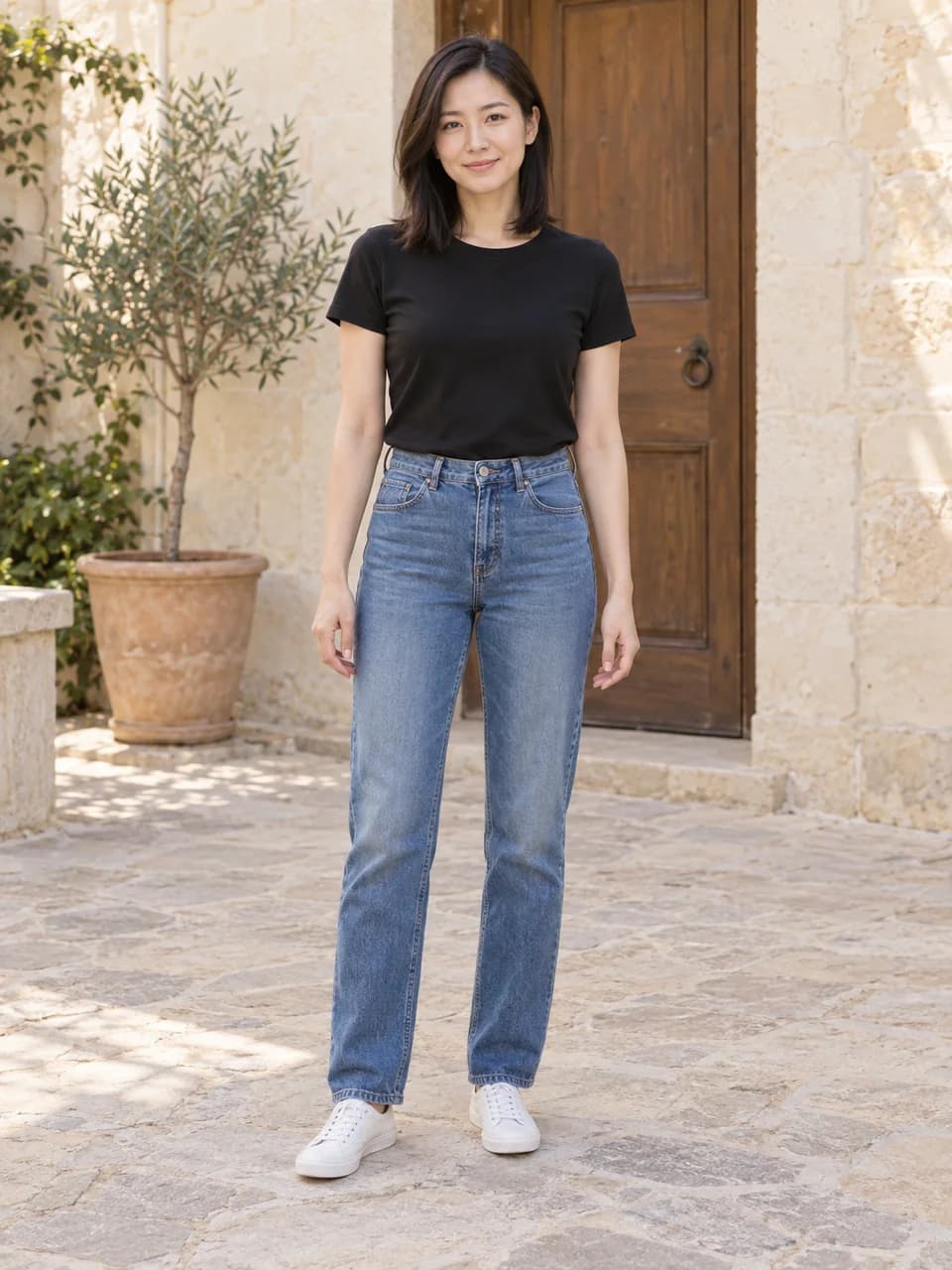
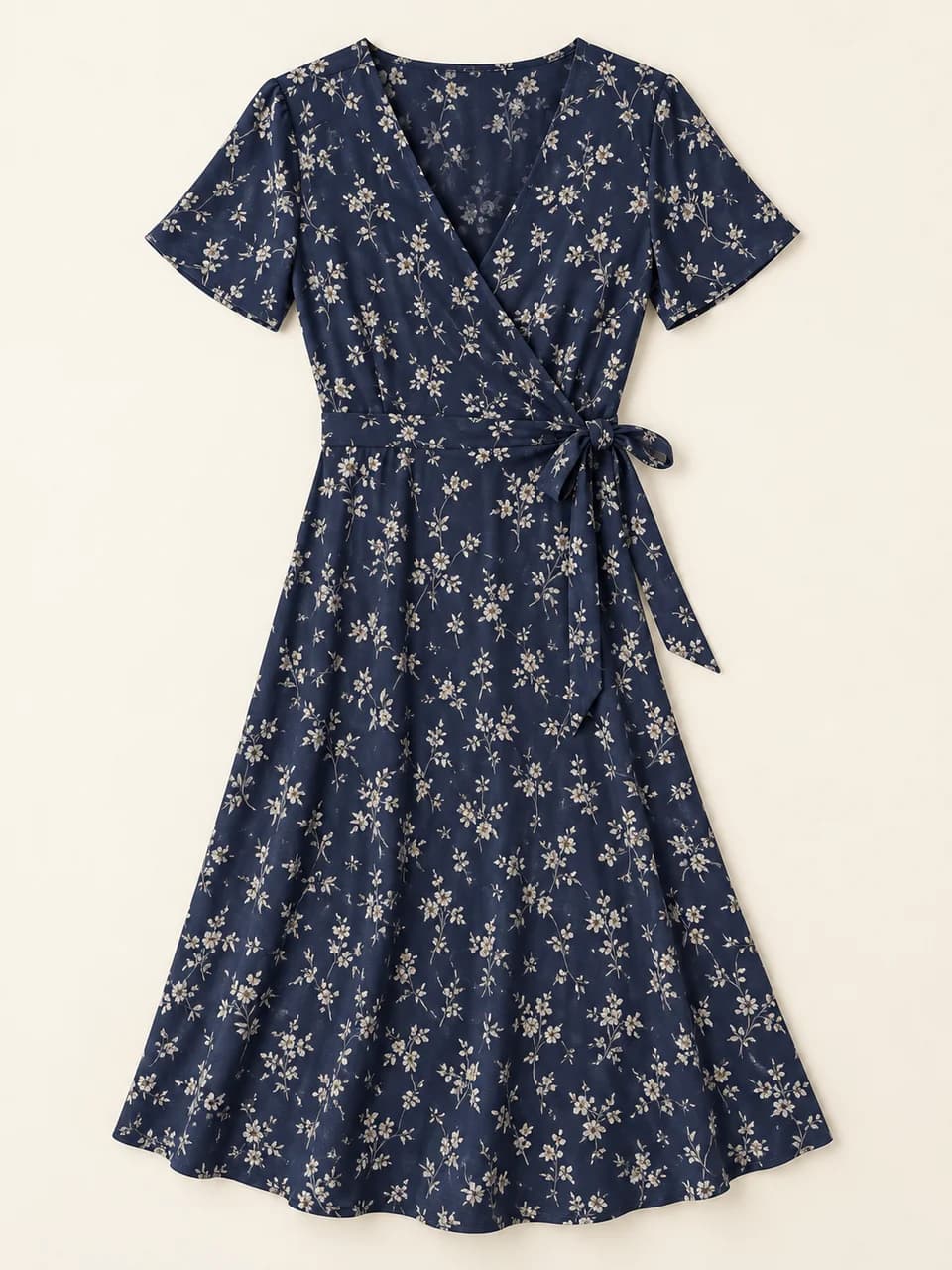
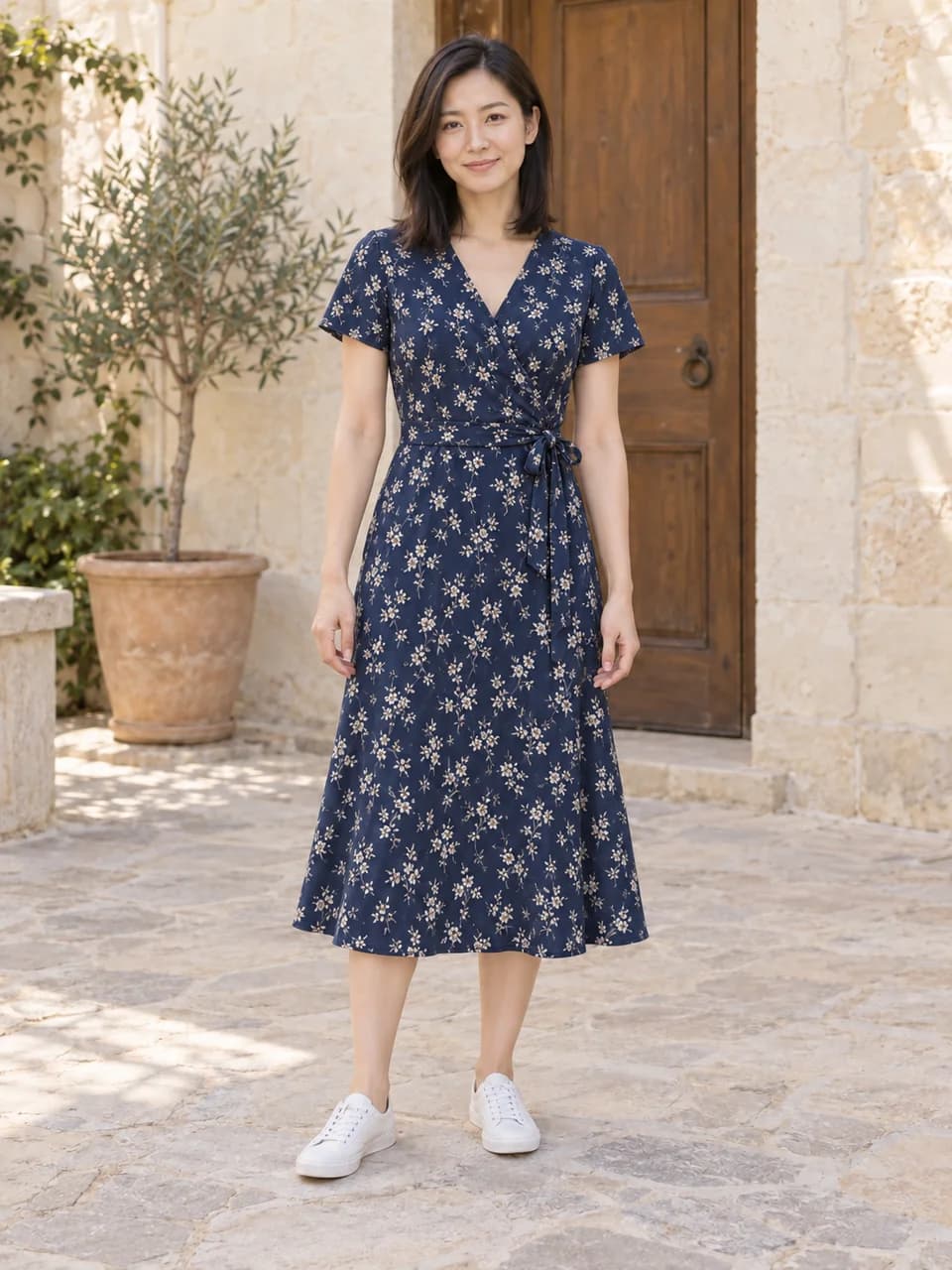
Choose Clothing reference as your outfit idea, then edit the details you want to match:
Prompt to try
Dress the person in the first photo in the garment shown in the clothing reference. Match its color, neckline, sleeves, length and pattern. Replace the relevant clothes and keep the shoes. Keep the person's face, hair, body proportions, pose, hands, framing, background and lighting. Change only the specified clothing, with realistic fabric and folds.
With several references, identify the source for each item: for example, “Use the jacket from the second image and keep the jeans from the first.” Check small prints, logos and lettering closely in the result, since they may be redrawn.
4. Generate, check and download
Open Model, photo shape & credit cost to review the model and output settings. The button shows the cost before you generate. Select Change my outfit and wait for your new image to appear.
Compare it with your original before downloading. Check your eyes and smile, fingers, the neckline, sleeve edges, and where the new clothes meet your body. For a reference outfit, also compare its color, print and length with the garment photo.
If the result works for you, download it. To make another change, use Continue editing, which adds the result to your photo inputs. Make the next instruction clear about which image to edit. For a fresh attempt that should preserve the original face and setting, use the original photo as your only person image.
Prompts for other outfit changes
Once you have tried one edit, change the garment description to suit the next look. Keep the preservation instructions at the end. These prompts also appear as outfit ideas in the tool.
Change just the color
Choose Change a color when you like the cut and only want another shade. Replace “T-shirt” if you are editing a different garment.
Prompt to try
Change only the T-shirt to forest green. Keep its original cut, material, seams and folds. Leave the rest of the outfit unchanged. Keep the person's face, hair, body proportions, pose, hands, framing, background and lighting. Change only the specified clothing, with realistic fabric and folds.
Swap one shirt
Choose Swap a shirt for a single item. Naming the clothes to keep gives the request a clear boundary.
Prompt to try
Replace only the T-shirt with a pale-blue linen button-up shirt, sleeves rolled to the elbows. Keep the jeans and shoes unchanged. Keep the person's face, hair, body proportions, pose, hands, framing, background and lighting. Change only the specified clothing, with realistic fabric and folds.
If the outfit edit needs another pass
Start by identifying the one detail that missed your request. Keep the next edit focused so you can tell whether it helped.
- Your face or background changed
- Return to the original photo and request one garment change. Keep the face, hair, pose and background in the preservation instructions. Avoid adding a new hairstyle, lighting setup and outfit in the same request.
- The old jacket is still there
- Name the layer to remove: “Replace the denim jacket and T-shirt with a teal hoodie. Keep the trousers.” Asking only for a new top can leave it underneath the old outer layer.
- The reference garment looks different
- Choose a clearer reference and name the missing details, such as short sleeves, a V neckline or a midi hem. Compare with the original garment before using the image to show a product.
- Hands or objects overlap the new clothes
- Try a source photo with the garment unobstructed. If a hand covers the waist or a bag hides the chest, another angle can give you a clearer starting point than a longer prompt.
Before you start
Can I try it for free?
Start with free credits. No account required. The cost depends on the model and quality setting and appears before you generate. Some settings require paid credits. Check the cost before each attempt.
Will this tell me which size to buy?
The result is a visual outfit preview. It does not measure your body or calculate garment size, comfort or physical fit. Use the retailer’s size chart and measurements for a purchase decision.
Where do my photos go?
Generating an outfit does not publish your photos to a public gallery. Generated images, prompts and settings are stored privately for 30 days; uploaded source photos and references are not saved in generation history. Download any result you want to keep. Read the Privacy Policy for the processing and storage details.
Try one change on your own photo
Start with a shirt, a jacket, or one color. You can explore the rest of the outfit once you have a look you like.
Try it with your photoThis guide follows the PhotoGenerAI clothes changer controls and built-in prompts. The example images illustrate outfit ideas. For other edits, see the AI photo editor or browse the blog.