PhotoGenerAI

New words for an existing image

Edit Text in Image

Replace words already in a photo, poster or graphic. Enter the old text and its replacement to update a headline, date, price or typo.

Try it free without an account. Sign in for up to 10 free credits per week.

Source photo

Or try a sample photo

Starting points

Type the words exactly as you want them to appear, including capitals and punctuation.

Your edited image
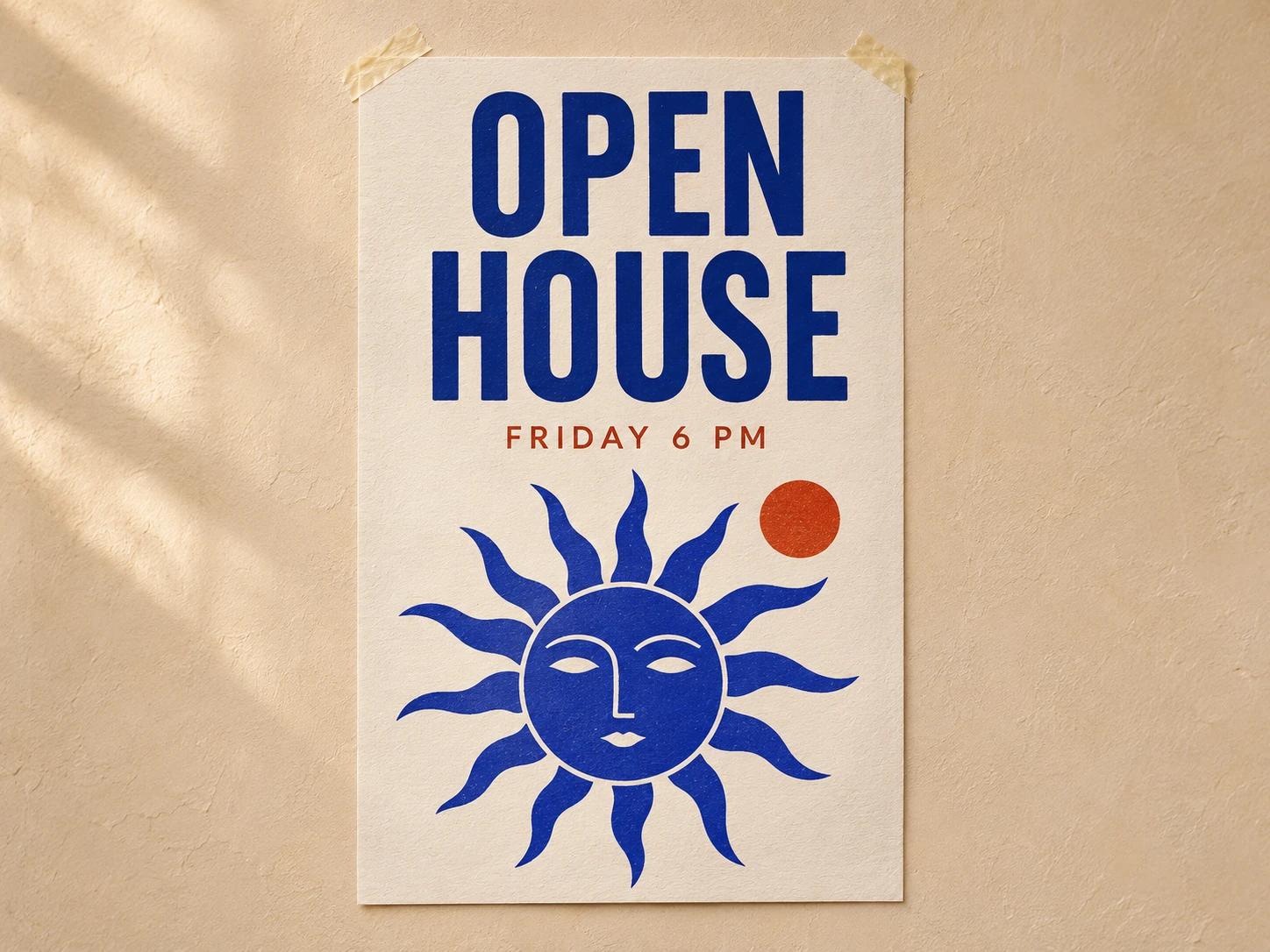
A blue OPEN HOUSE poster with a red FRIDAY 6 PM date line and sun illustration
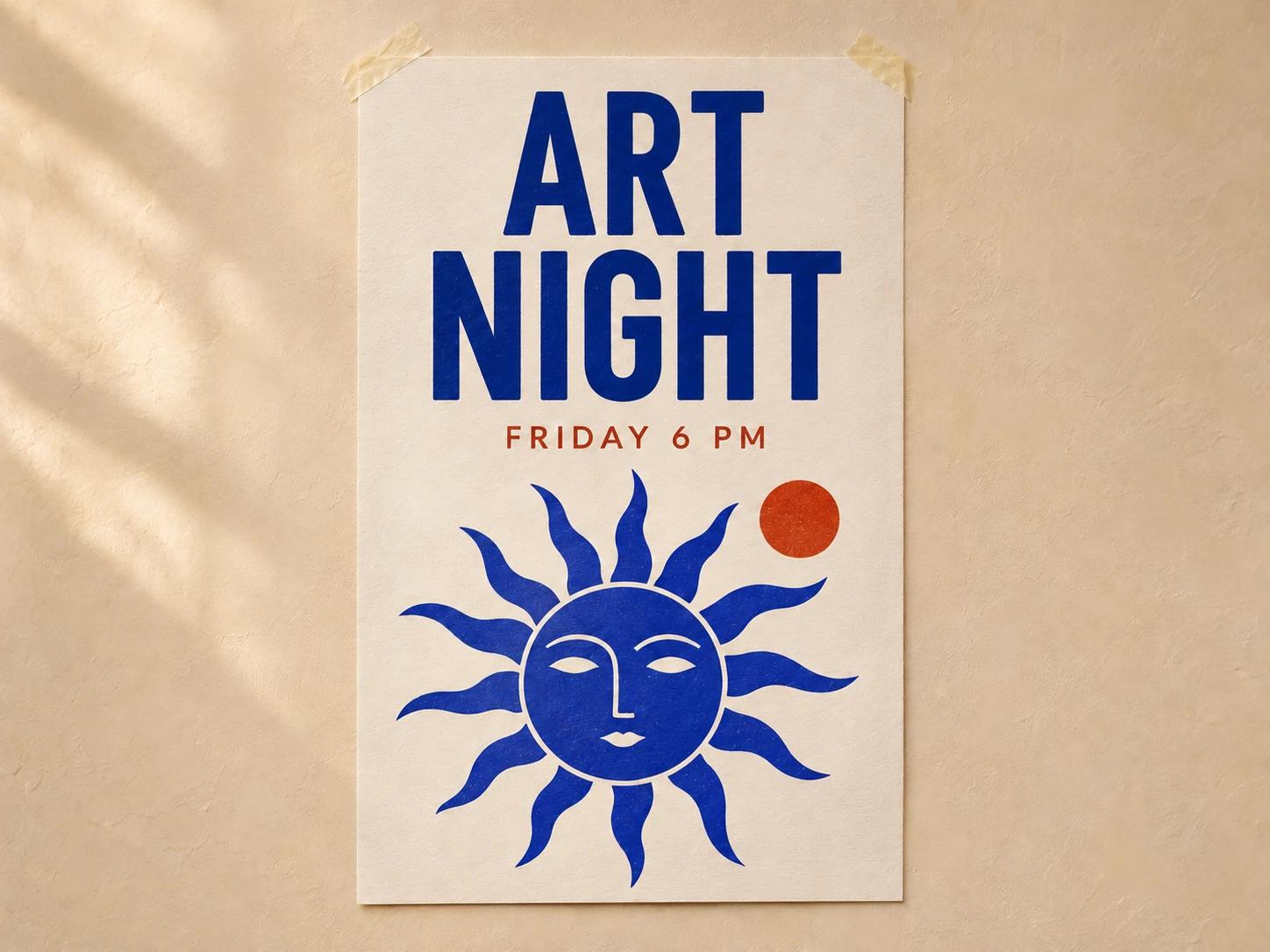
The same poster with ART NIGHT replacing OPEN HOUSE while the date line and sun remain
Original photoA new event headline

Replace a headline or update a price

These examples show two focused text edits. Compare the new words with the original, then check the small text, illustration and surface around them. Try a sample photo in the tool or apply an example to fill the replacement fields.

A blue OPEN HOUSE poster with a red FRIDAY 6 PM date line and sun illustration
The same poster with ART NIGHT replacing OPEN HOUSE while the date line and sun remain
Original photoA new event headline

A new event headline

Give the AI both the original headline and the exact new words. The location identifies the large blue heading, so the smaller date line has a separate role and should remain. A replacement with a similar length is easier to fit into the same space. After generating, read both lines and check that the illustration, poster edges and paper texture still make sense.

Prompt for this photo

Replace "OPEN HOUSE" with "ART NIGHT" in the large blue headline. Keep the two-line layout, blue print, small date line, sun illustration, paper and wall.
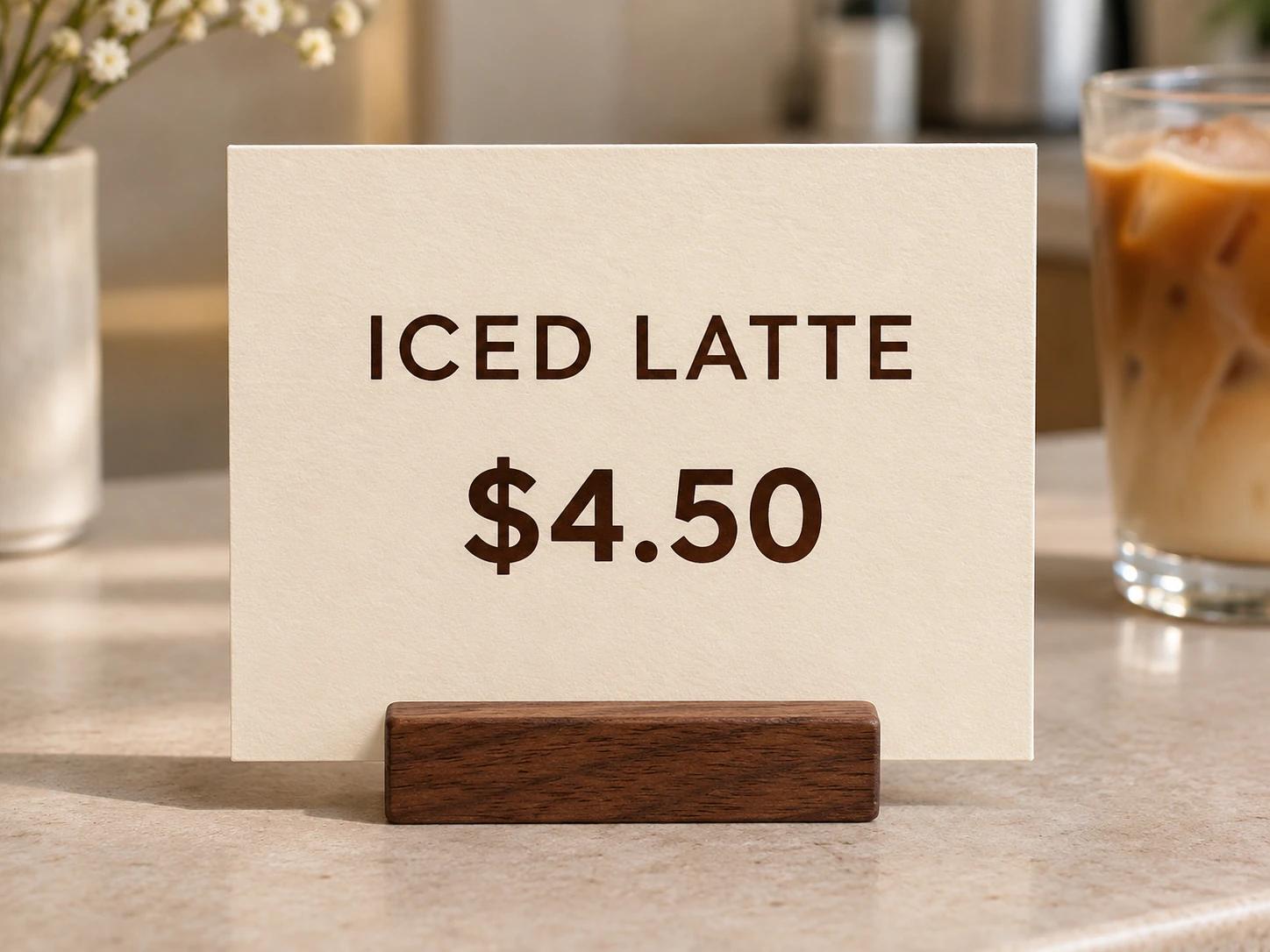
A cream ICED LATTE menu card showing a price of $4.50 in a wooden holder
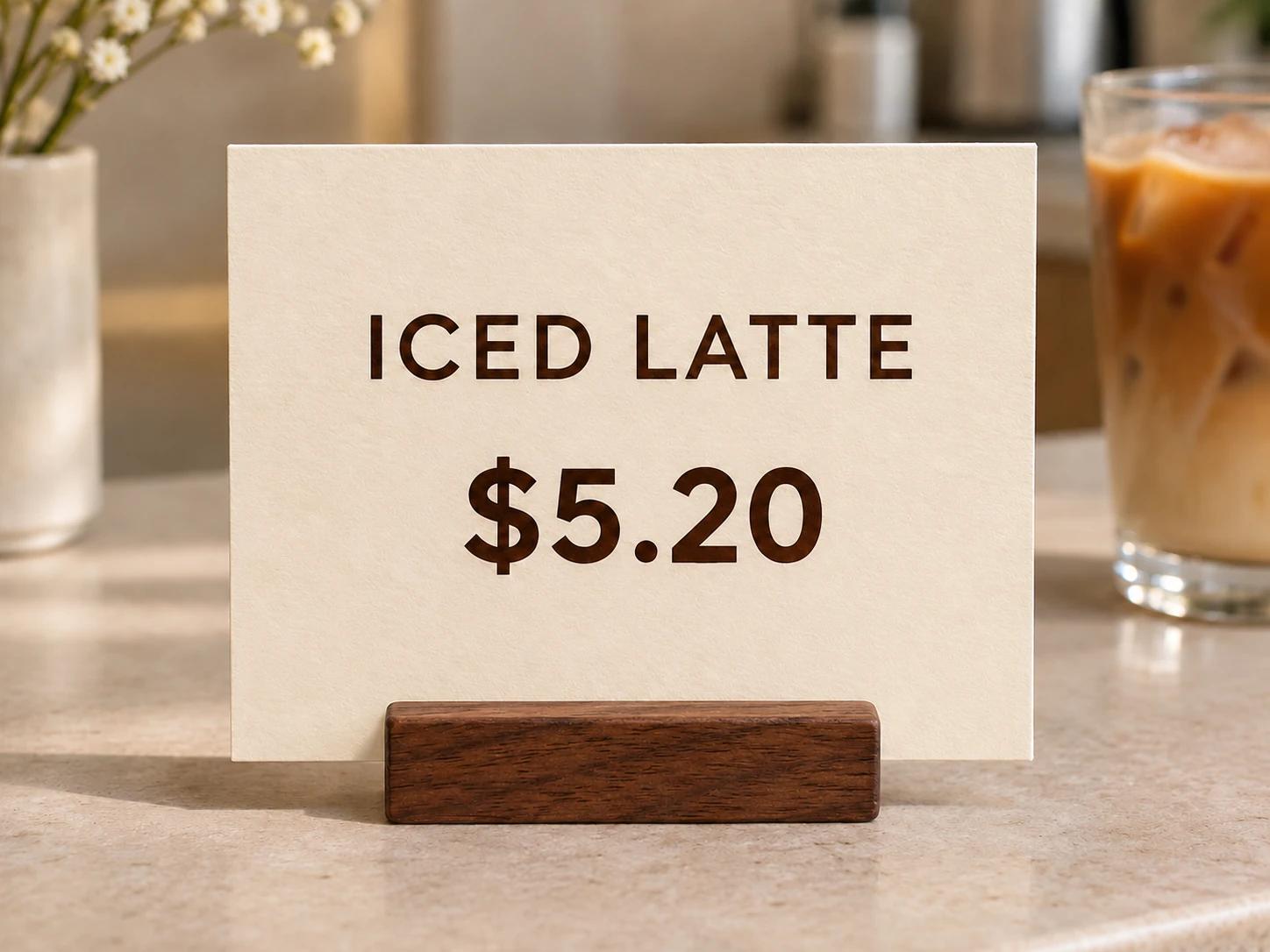
The same ICED LATTE menu card with the price changed to $5.20
Original photoAn updated menu price

An updated menu price

A price edit needs an exact currency symbol, decimal point and digit order. Enter the full old price and new price, rather than asking for a small increase. The description below ICED LATTE points to the intended line. Inspect the result at full size, especially the currency sign and decimal, before using it in a menu or promotional image.

Prompt for this photo

Replace "$4.50" with "$5.20" in the large price below ICED LATTE. Keep the drink name, cream card, brown type, wooden holder, counter and coffee unchanged.

How to use Edit Text in Image

  1. 01

    Upload the image to edit

    Choose a sharp photo or graphic where the original words are readable. Keep the whole sign, card or poster visible so the AI can see the surrounding design. You can use a sample image if you want to try a headline or price change before uploading your own.

  2. 02

    Enter the old and new text

    Type the text currently in the image and the exact replacement. Include capitals, punctuation and numbers. Add a location when a word appears more than once, such as the top blue headline or the price below the drink name. The starting points fill these fields for the sample images.

  3. 03

    Generate and read the result

    Check the model, photo shape and credit cost, then choose Replace the text. Open the edited image at full size and read every changed character. Check nearby text and artwork too. Download the result, or use Continue editing when you want to make another change to that version.

Edit text that is already part of an image

A photograph or exported graphic often has its text baked into the picture. You may have an event poster with the wrong time, a menu photo with an old price or a sign that needs a different heading. This tool asks AI to replace that existing text and rebuild the small area around it so the words belong on the same surface.

Start with one short text replacement. If you still have the original editable design file, changing its text layer gives you more exact control. When all you have is a photo or flat image, enter the original words here and describe the replacement. For a new caption placed over an image, use the meme editor and its browser-based text controls instead.

Help the new words fit the old design

Text length affects the layout. A short heading may fit where the original heading sat, while a long sentence may need smaller letters or another line. Choose replacement words with a similar footprint if you want the design to stay close. Keep the original line breaks in mind, and use the location field to describe a two-line heading when that matters.

The AI text editor uses the surrounding image to infer letter style, color, spacing and perspective. It does not identify an installed font or expose editable text layers. Compare the output with the source at the same size. If the letters feel too wide or the baseline has moved, narrow the requested edit and try a shorter replacement before changing other parts of the image.

Change dates, numbers and repeated words

For an event date or price, enter the complete text you want to replace. FRIDAY 6 PM is less ambiguous than just FRIDAY when several lines contain dates. A complete price also gives the model a currency symbol and decimal position to follow. Use the replacement field for the final wording, not an explanation of how you want the date or amount to change.

When the same phrase appears twice, describe the intended occurrence. The headline at the top, the sticker on the left bottle or the bottom date line is more useful than asking for that text somewhere in the image. Make separate edits when several replacements belong to different parts of a busy graphic, then read the untouched text after each result.

Choose a source where the letters are clear

A clear, front-facing photo gives the AI better evidence for the text and its surrounding surface. Avoid a tiny screenshot inside another screenshot. Keep paper edges, sign borders or nearby objects in the source, since they explain scale and perspective. If the words are too small to read yourself, start with a larger original when one is available.

Curved packaging, glass reflections, handwriting and heavily stylized logos need closer inspection than a simple printed headline. For a photographed sign, check whether the replacement follows the original angle and light. For a poster, compare the margin and adjacent illustration. Download the edited image only after the wording and the rest of the design are ready for your intended use.

Edit Text in Image questions

Read the Privacy Policy for photo processing and storage details.

Keep working on your photo

Add a caption

Place new text over a photo with browser-based caption controls.

Change the light

Give a photographed sign, product or portrait a different lighting treatment.

An OPEN HOUSE poster before a headline replacementBefore
The poster with an ART NIGHT headlineAfter

Beyond the words

Make the rest of the image your own

Keep working with the AI photo generator to change a background, adjust a photo or create a new visual from your idea.

Try your own photo

Keep the design. Update the words.

Edit text in an image with AI. Upload a photo, enter the original and replacement words, and change a headline, date or price while keeping the surrounding design.

Replace the text