PhotoGenerAI

PHOTOGENERAI · VIDEO STUDIO

Image to Video AI Generator

Turn a photo into a short AI video. Upload an image, describe the motion, and choose your clip settings. Or start with a scene written in words.

A few more seconds with your favorite photos

A shared laugh, a glance back, a curious pet, a breeze by the lake. Four original AI images and their actual generated videos to help you choose what happens next.

All four clips: Seedance 2.0 Mini · 4 seconds · 480p · 9:16

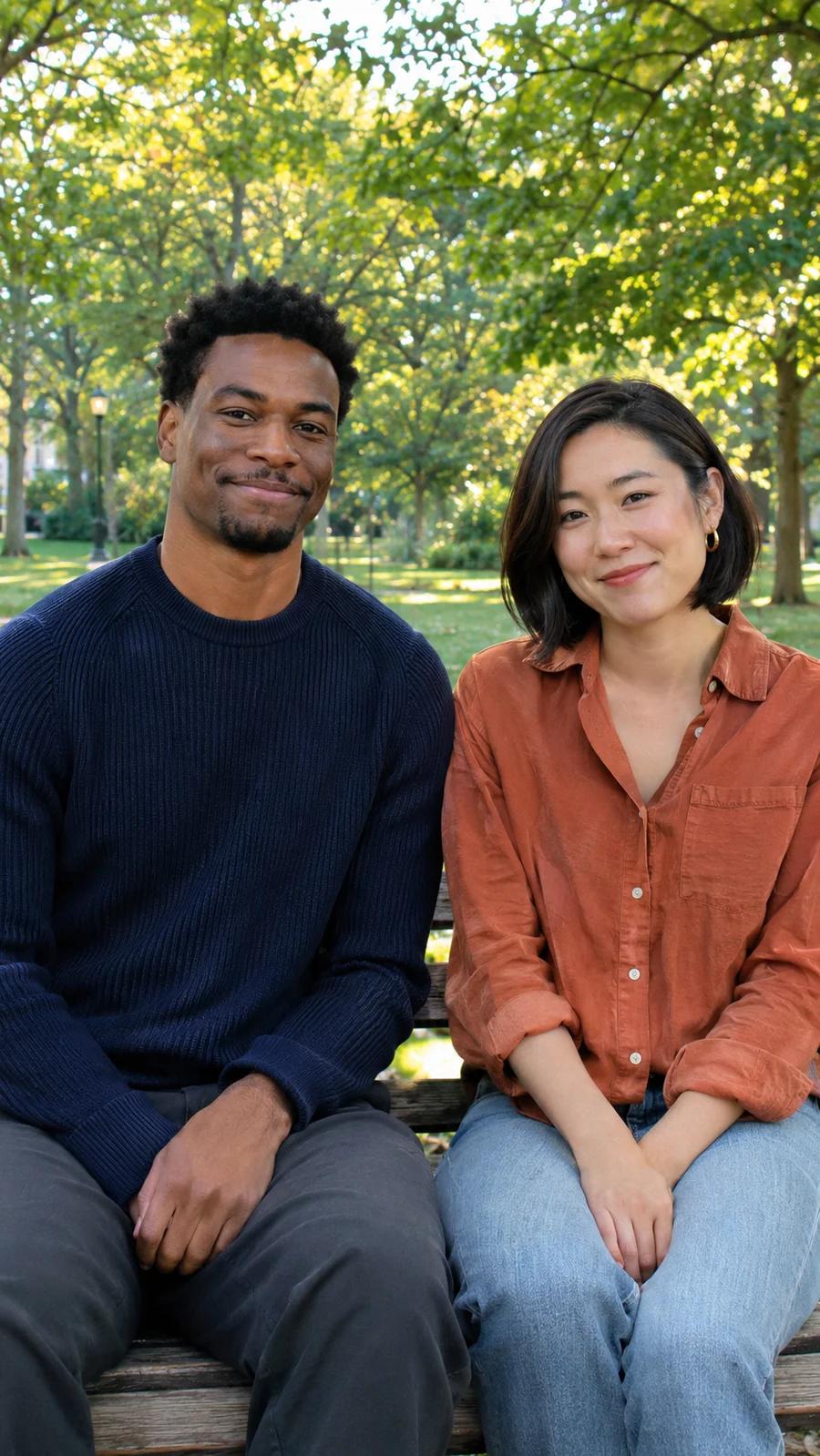
Two adult friends smiling toward the camera on a park bench
Starting image
Generated video

The laugh after the group photo

The best bit of a photo with friends can be the second everyone stops posing. Add a glance at each other and a shared laugh to keep that moment going.

Prompt used for this video

The two friends stop holding their pose, glance at each other and share a spontaneous laugh. Small natural shoulder and head movements, hands relaxed, camera steady, one continuous shot.

Replaces the motion prompt. Your uploads and settings stay in place.
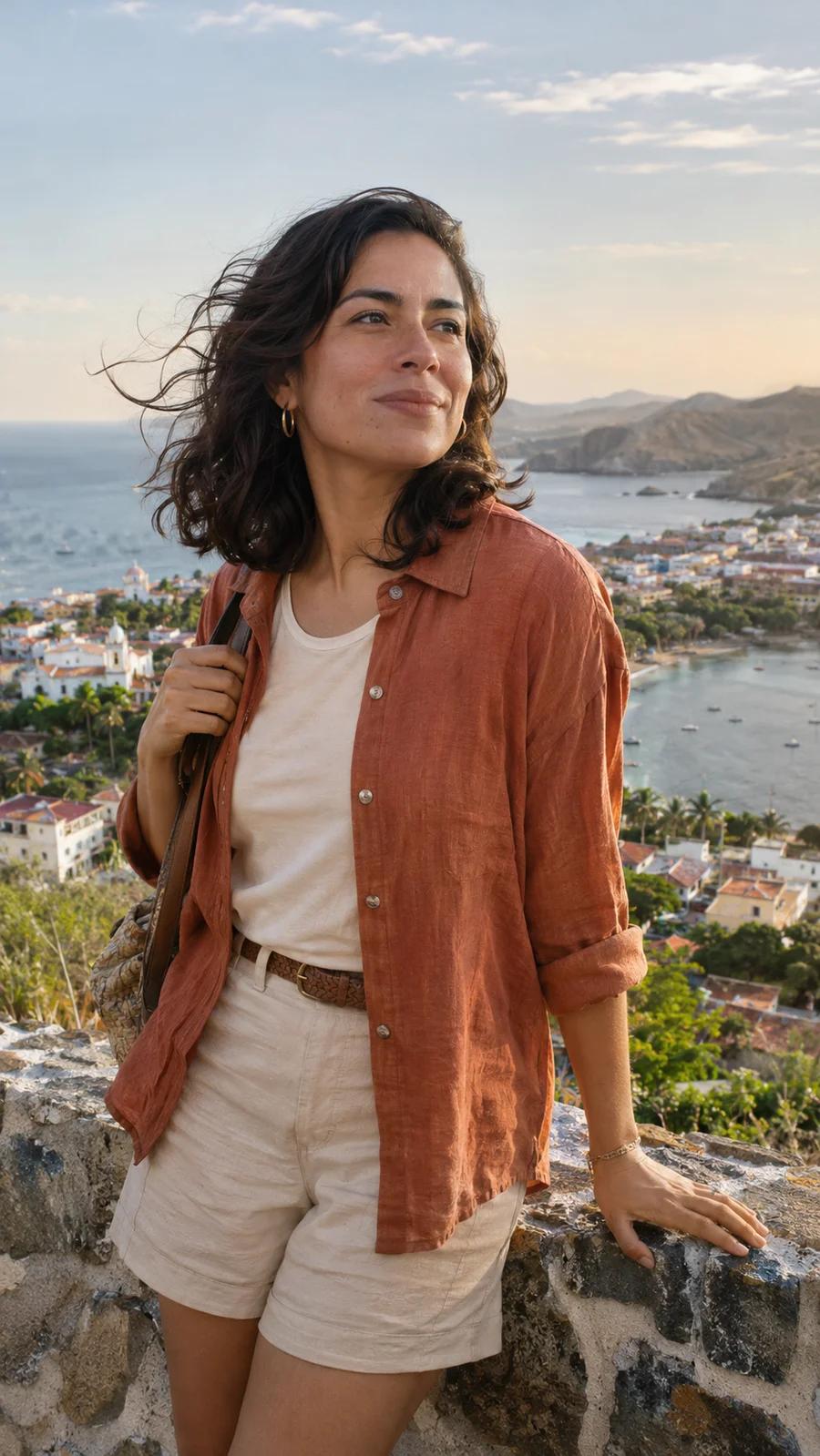
A traveler in a terracotta shirt overlooking a coastal town
Starting image
Generated video

A glance back from your trip

Turn a favorite travel portrait into a short clip for your trip recap. A look toward the camera, a smile and a little wind give the photo a natural next moment.

Prompt used for this video

A light breeze moves her hair and overshirt. She turns toward the camera and breaks into a natural smile. A gentle camera push-in, continuous motion, one shot.

Replaces the motion prompt. Your uploads and settings stay in place.
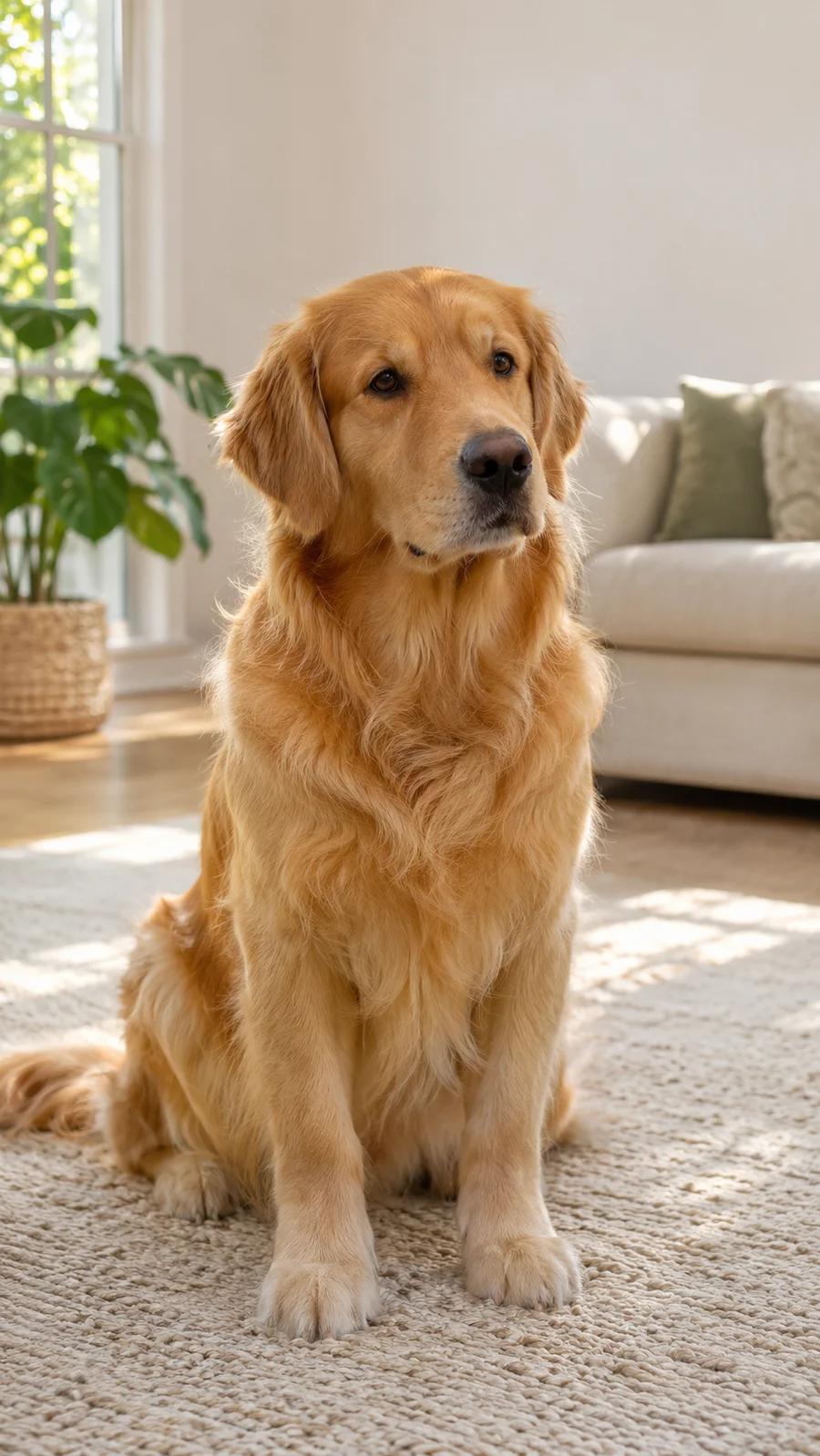
A golden retriever sitting on a cream rug beside a sofa
Starting image
Generated video

That look when you call their name

Give a pet photo a little of the personality you see every day. An attentive look and a curious head tilt can say more than a big action.

Prompt used for this video

The dog notices the person behind the camera, lifts its gaze, tilts its head with a curious expression and leans a little closer. Subtle ear movement and natural breathing. Keep the camera at the dog's eye level.

Replaces the motion prompt. Your uploads and settings stay in place.
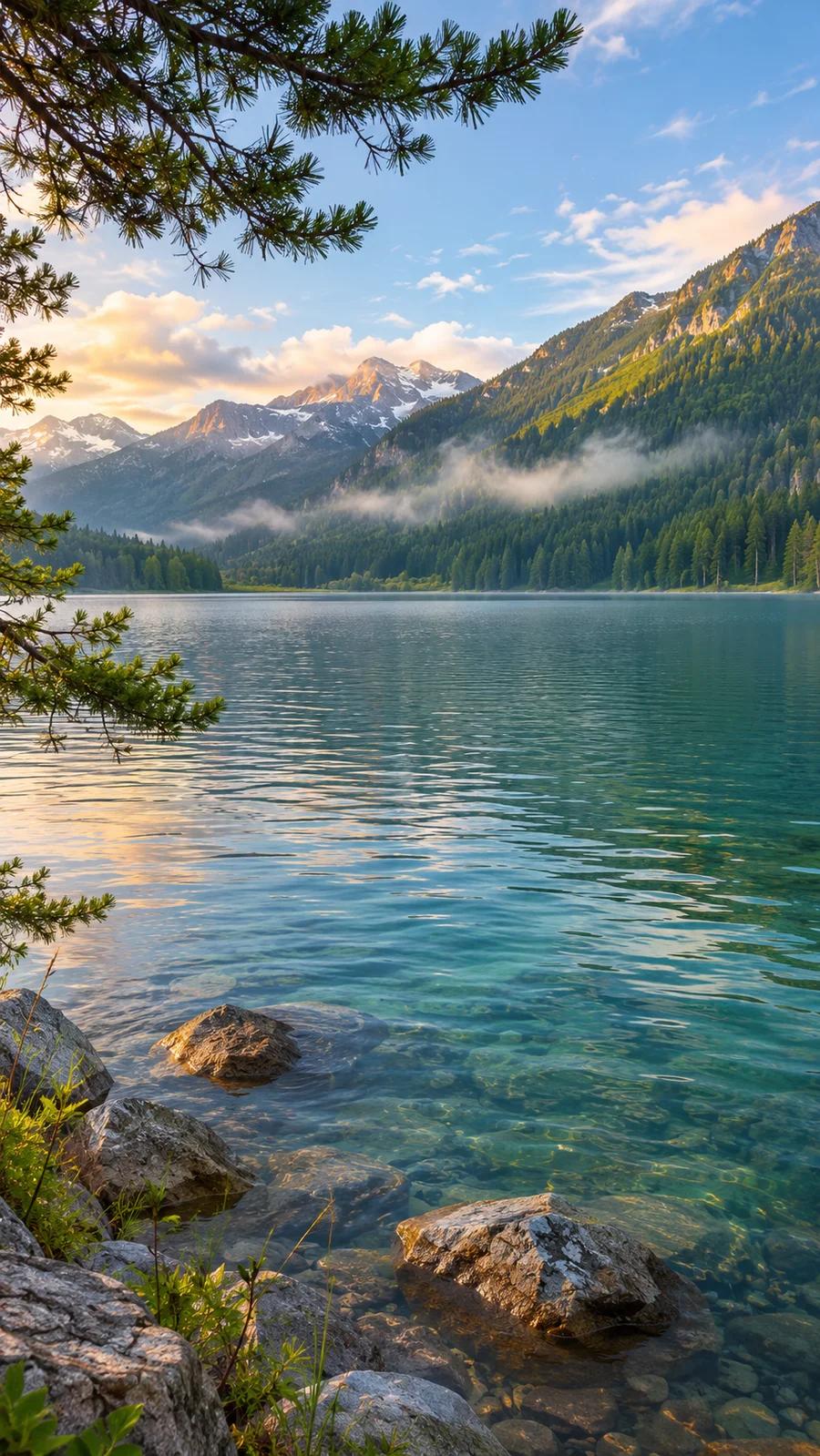
An alpine lake with pine branches, mountains and morning mist
Starting image
Generated video

A few quiet seconds by the lake

Bring a place you visited into your travel album as a moving scene. Ripples, drifting mist and a slow camera move add motion while keeping the view at the center.

Prompt used for this video

Small ripples travel across the lake while the pine branches sway gently in the breeze. Morning mist drifts slowly over the water. The camera glides forward very slowly, preserving the landscape and its natural proportions.

Replaces the motion prompt. Your uploads and settings stay in place.

Choose how your video starts

The image to video AI tool opens with Text/Image mode. Use a single photo for a clear starting point, or choose another input method when your scene needs more direction. The modes share the same video settings and credit quote.

ONE IMAGE OR A PROMPT

Animate a photo

Choose Text/Image to Video and add a starting image. Describe a gesture, a camera move or a change in the scene. Portraits, product photos and AI images each give the video model a visual starting point. You can also leave the image empty and describe a scene for text to video generation.

TWO IMAGES

Guide the opening and ending

Choose Keyframes to Video and upload both a start frame and an end frame. These images guide the two ends of the clip. Describe how the scene should move between them. Closely related images give the AI a more focused transition than unrelated subjects, backgrounds and camera angles.

REFERENCE MEDIA

Give the scene more context

Choose Reference to Video to guide a scene with supported images, video or audio. Use the reference labels shown in the tool when describing their roles. The available combinations and media limits depend on your chosen Seedance model; keep each reference relevant to the movement you want.

How to turn a photo into a video

  1. 01

    Choose a clear image

    Upload a JPG, PNG or WebP photo in Text/Image mode. Pick an image where the subject and surroundings are easy to see. For a portrait, keep the face and hands in frame. For a product, use a legible shape and label. Crop or edit the image first if the background distracts from your subject.

  2. 02

    Describe the movement

    Tell the AI what should happen during the video. Start with one action, then add a camera instruction if it matters. A small head turn, gentle fabric movement or a slow push-in is easier to describe clearly than several unrelated events. Use the motion prompts above as editable starting points.

  3. 03

    Review the video settings

    Select a Seedance model, aspect ratio, duration and resolution. The credit amount changes with the selected configuration. Check the format for where you will use the video, then sign in and generate with paid credits. For a first attempt, a short clip gives you a focused result to review.

  4. 04

    Watch and download

    Your accepted video task continues in the background. Watch its status under Your videos, then play the finished result and download the MP4 or creation record. Review the movement before sharing. If you want another version, adjust the motion prompt or starting image and review the next quote before generating again.

Describe what should move

An image already supplies much of the scene. A useful photo to video prompt adds what the still image cannot show: action, timing and camera movement. Write a short direction you can check when the AI video finishes.

Give the subject one action

Name the person or object and give it a specific movement. For a portrait, describe a slight turn or a smile. For a product image, a camera move may be enough. Keep the action small when the original photo has a tight crop or little room around the subject.

“The friends glance at each other and laugh.”

Direct the camera

Say whether the camera stays still, moves closer or moves to the side. A steady frame puts attention on the subject; a slow push-in creates a sense of depth. Choose the camera direction that helps your photo rather than adding movement to every part of the image.

“Slow camera push-in. Keep the background steady.”

Name what should stay

Mention the visual details that matter to your video: the outfit, product shape, setting or lighting. These directions help describe your target. Check the actual clip for faces, fingers, labels and unexpected background changes before deciding which part of the prompt to revise.

“Keep the outfits and park setting recognizable.”

When reviewing an AI video, watch the whole clip once, then check the details that matter to your use. If the motion feels too large, try a gentler action. If the image changes too much, simplify the scene and adjust one instruction at a time. Each new generation uses the credits shown in the tool.

Start with an image you want to animate

PhotoGenerAI connects image creation and editing with video generation. Use the Image tab above to make a starting image; its result includes Animate this image to bring it into the video tool. You can also prepare a photo with a dedicated image tool, download it, then upload it here. Choose the composition and visual style before adding movement.

Prepare an existing photo

Edit the background, lighting or composition before animating. A clear starting image gives you fewer details to correct in the video.

Create a new starting image

Describe an original scene or character, choose the image you want, then bring that image into the video generator.

Questions about image to video AI

Ready to animate your photo?

Choose one image, give it one clear movement, and review your video settings. Your next scene starts with the photo you already have.

Start image to video