
Plan three photos with different jobs
A useful product-photo set answers different questions: what the item looks like, where it belongs and how it fits a layout. Use one clear source and make each version separately so you can compare the actual item after every edit.
Clean studio image: show the item clearly
Keep the entire product and original camera angle visible. Ask for a quiet surface, a simple background and a contact shadow. The outline, color, markings and small components should be easy to inspect.
Lifestyle image: show a believable setting
Choose a setting connected to the product and describe the surface it rests on. Check relative size, perspective, light direction and contact. Avoid adding accessories or packaging that could imply they are included with the item.
Vertical image: leave room for the layout
Choose 9:16 and specify where the product and clear space should be. Add the final headline, price or logo afterward. Review the image at its intended display size as well as full resolution.
Use two separate acceptance checks
- Product accuracy: does the result match the source item in shape, color, markings, materials and components?
- Scene realism: does the surface, perspective, lighting and shadow make sense together?
A realistic scene can still contain an inaccurate product. Resolve the product mismatch before choosing an image for a listing, then check the current requirements of the marketplace where it will appear.
1. Start with the product you want to show
Choose a photo of the actual item, or a product image you have permission to edit. Keep the whole product visible and in focus. Soft, even light makes colors and surface details easier to read. Avoid a screenshot of a small thumbnail when you have access to the original file.
This guide uses the same blue sneaker as a visual example throughout. Its color, mesh, mint laces and off-white sole are the details to compare. The images are AI-generated illustrations of the three compositions; they are not photographs of a real SKU or a controlled model benchmark.
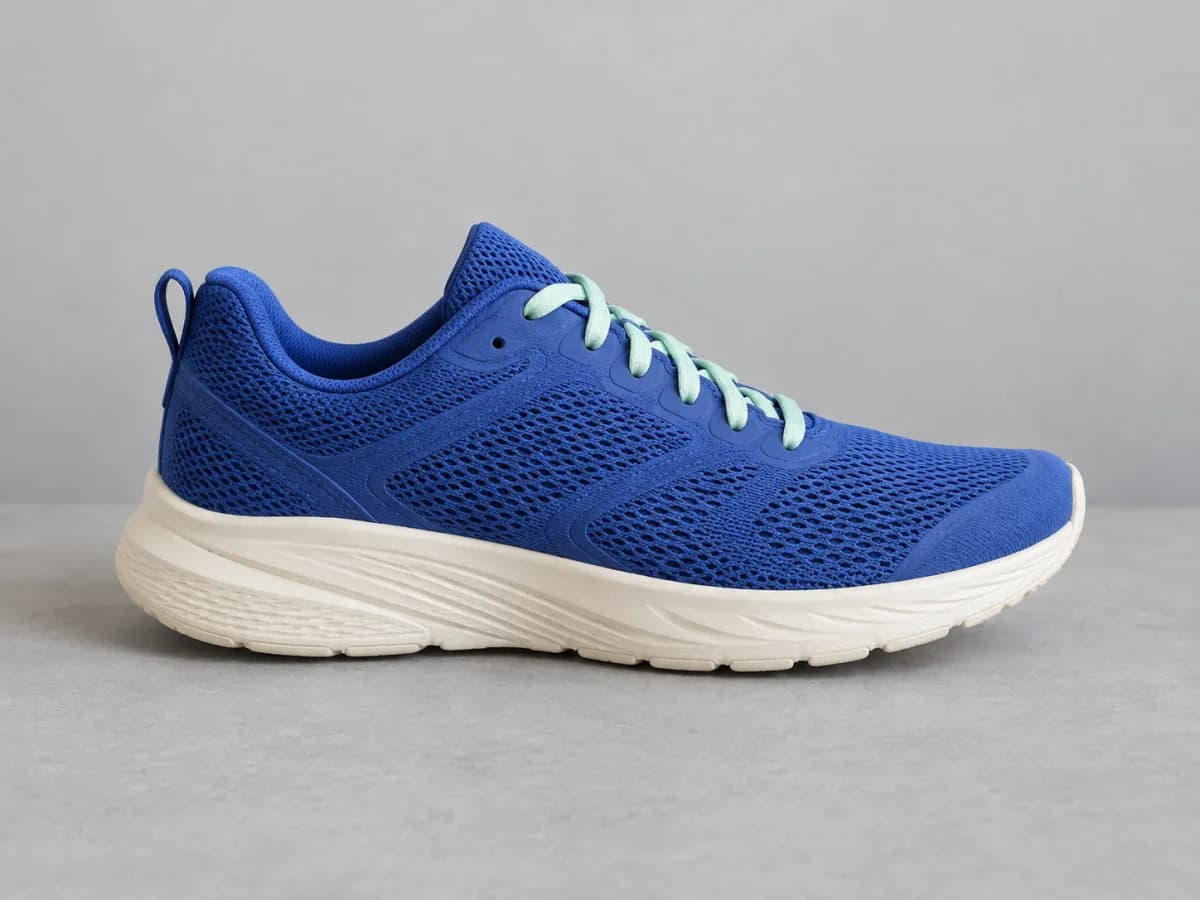
Open the AI background changer and use Upload your photo under Your subject photo. You can also use Image to Image for a broader transformation. In either case, make the product image the first source, with any scene references added afterward.
2. Write down what must stay accurate
Before describing a background, identify the product's visible outline, color, material, markings and components. A shoe's lace pattern and sole are part of its identity. For a bottle, it might be the cap, label and glass shape. For a mug, it could be the handle, glaze and printed artwork.
Put these details into the request. Then describe only the scene you want to change. If the purpose is a new background, keeping the source camera angle makes comparison easier. A newly generated angle can invent details that were not visible in the source.
Use the original product photo again for each version. Starting the next image from an edit with a changed label or distorted shape can carry that error forward. Keep the product source steady while varying the scene, light or framing.
3. Create a clean product photo
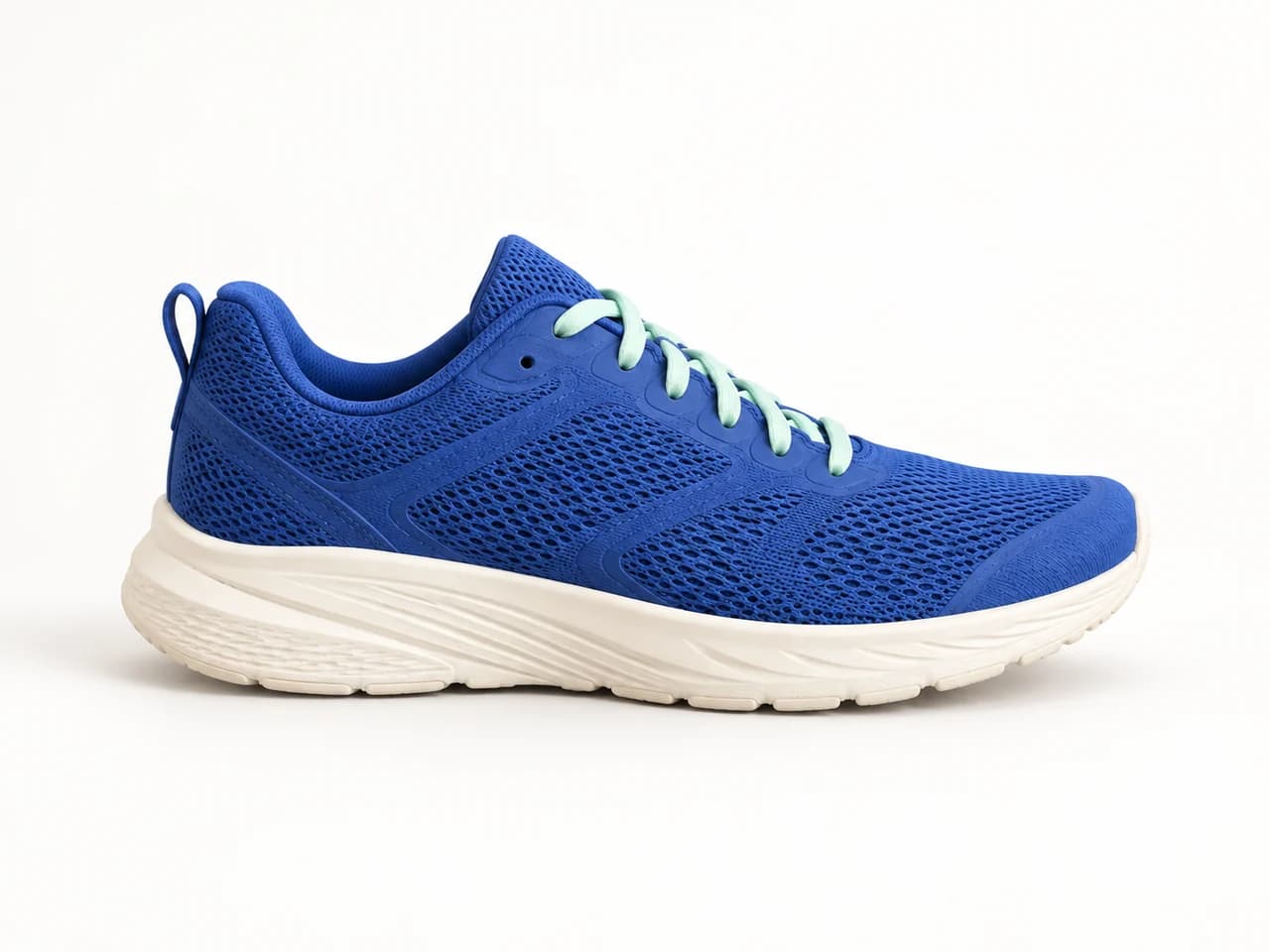
Start with a simple studio background so you can inspect the item without a busy scene. Choose Clean product photo in the background changer. The prompt below requests an off-white surface and a subtle shadow while keeping the whole product and original camera angle.
Prompt to try
Keep the product's visible shape, colors, materials, markings and components. Replace only the background and surface with a seamless pale off-white photography sweep. Keep the camera angle and the entire product visible, with a subtle contact shadow beneath it. No extra objects, packaging, text or invented logos.
Open Model, photo shape & credit cost and review the selected model and quality. A square can work for a centered product image; a landscape frame gives a wide item more breathing room. These are composition choices, not a promise to meet a particular marketplace's image rules.
Select Change my background. When the result appears, open it at full size and compare the product before downloading. A contact shadow should support the product rather than make its outline difficult to judge.
4. Put the same product in a lifestyle scene
Keep the original source attached and change the scene request. Describe where the product rests, what is behind it and where the light comes from. For this sneaker, a stone step beside a running path gives the scene a clear physical setting without needing a person or extra accessories.
Prompt to try
Keep the exact product from image 1, including its shape, colors, materials, markings and components. Place it on a clean pale stone step beside a running path with softly blurred grass and warm morning light. Keep the original side-on camera angle, the whole product visible and a realistic contact shadow. No people, extra products, packaging or lettering.
Keep the surrounding props restrained. An attractive scene is less useful if it adds a second product, invents packaging or makes the item hard to see. If you upload a background reference, explain that it supplies the setting and light, while the first image supplies the product.
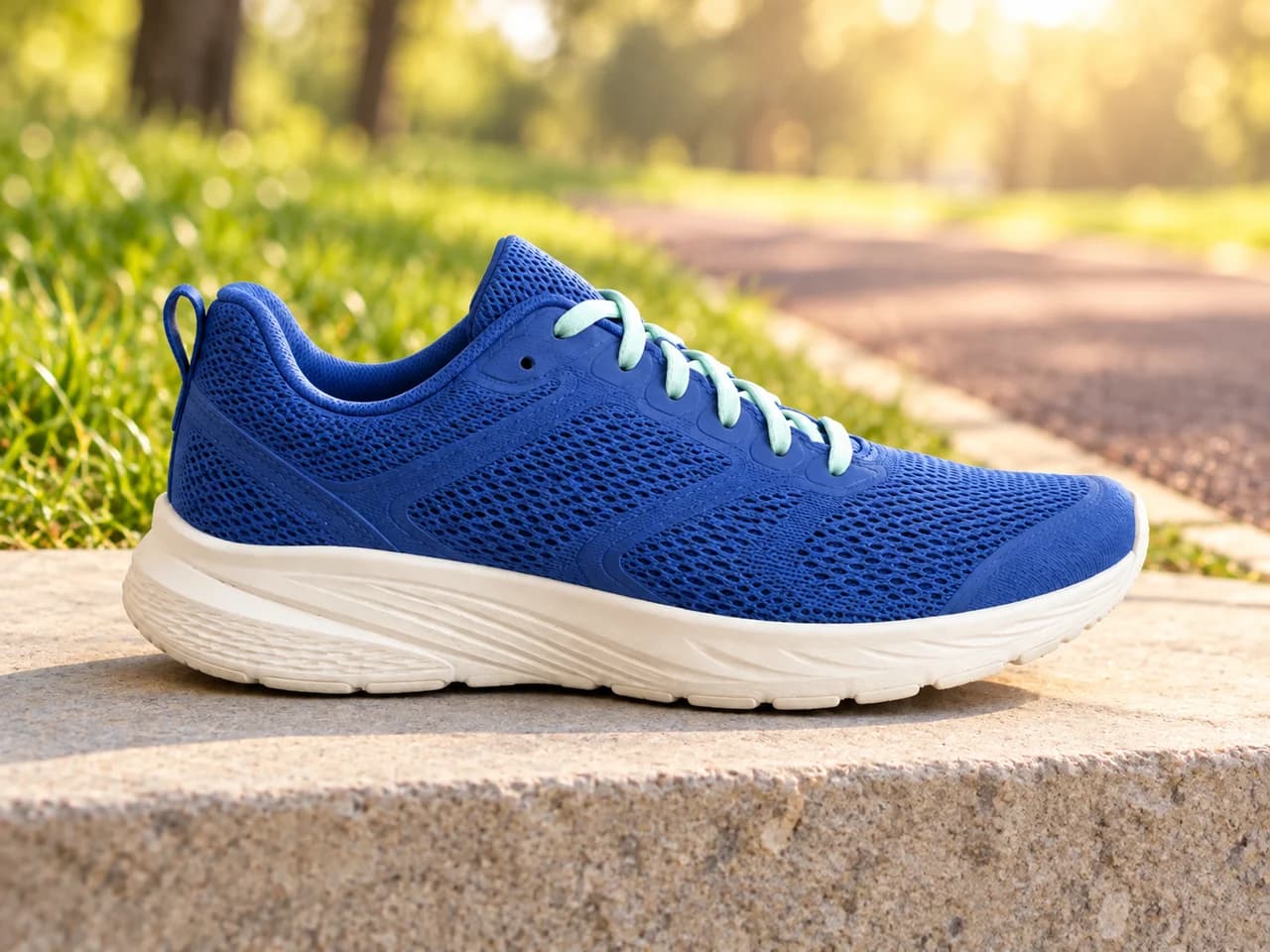
Inspect the meeting point between product and surface. The shadow, scale and camera perspective should agree. A product that floats above the step needs a more explicit surface instruction, even when the background itself looks convincing.
6. Check product accuracy and scene realism separately
First ask whether it is still the same product. Compare the silhouette, number of items, colors, labels, surface texture and components against the original. Look closely at small print, stitching, transparent materials and reflective edges. A nice background does not compensate for an incorrect item.
Then check the photography: light direction, contact shadow, perspective, scale and reflections. The product should sit on the surface and belong to the scene. A photo can pass this realism check while failing the product check, so review both before using it to represent something you sell.
If the product changed, return to the original and reduce the scope of the edit. Keep the camera angle and list the visible details to preserve. If an important marking is still wrong, keep the accurate original for that use rather than treating the new version as a faithful product photograph.
Download each accepted version and keep the source alongside it. Saved creations remain in private history for 30 days. If you use Continue editing, the result is added to the inputs; review which image is the source and remove references that no longer belong in the next request.
Product-photo questions
Can I use a phone photo?
Yes. Use a clear photo with the whole product visible, soft light and readable details. The quality and visible information in the source matter more than the camera label. Remove distracting references that could be mistaken for the product you want to show.
Can I create product photos without a product source?
A text-to-image tool can help explore a concept, but an invented product image cannot establish the appearance of an actual item. For photos intended to represent your product, start with that product and compare the generated result with it.
Will logos and labels remain exact?
They can change during generation. Request that they stay, then inspect them at full size. This workflow does not provide a locked label layer or an automatic guarantee that every product marking is preserved.
Does one generation create all three versions?
No. Generate and download each version separately. This gives you a chance to catch a product error before carrying the idea into another composition. The button shows the credit cost for the current model and setting.
Sources and related guides
Photoroom's product-image guidance distinguishes convincing scene realism from accurate product details. That distinction informs the two checks above. The controls and prompts in this article follow PhotoGenerAI's own workflow.
Use the photo editor for focused cleanup or lighting edits. To carry a color palette or illustration treatment across a product collection, read how to use a style reference image and keep the product source's role explicit.
5. Make a vertical version with room around the product
For a vertical composition, choose a vertical photo shape such as 9:16 before generating. Keep the original product source, place the item lower in the frame and request clear space above it. If you plan to add a headline later, leave that space free of generated lettering and busy objects.
Prompt to try
The prompt describes the composition, but you still need to select the photo shape in the tool. Review the entire item in the result and try the crop you will actually use. A shoe that is complete in the generated photo can lose its toe when a later layout crops the image.