Give a portrait a new setting
Choose an outdoor or studio setting that supports the existing pose. Describe the light and the distance between the person and the background.
Keep in focus: Face, hairstyle, outfit and body position.
Keep the subject. Choose the setting.
Replace the background around a person, pet or product with a scene you describe. Try a simple studio backdrop, a natural outdoor setting or a clean product photo. Add a reference when you have a particular background in mind, then compare the subject and light before saving.
Free credits to start · Credit cost shown before generation
 OriginalNew photo
Move a portrait into a natural setting. Your new photo appears here.
Decide whether the new setting should support a person, explain a product or leave room for a layout. Keep the subject as the anchor and give the surroundings one clear job.
Choose an outdoor or studio setting that supports the existing pose. Describe the light and the distance between the person and the background.
Keep in focus: Face, hairstyle, outfit and body position.
Start with the actual item and keep its camera angle. Request a clean surface or a contextual scene, then compare every visible component.
Keep in focus: Product outline, colors, materials, markings and components.
Place the subject to one side or in the lower third. Say which area should stay uncluttered for a headline or design element added later.
Keep in focus: A complete subject and enough clear space for the intended layout.
Start with a photo. Give it a new direction.
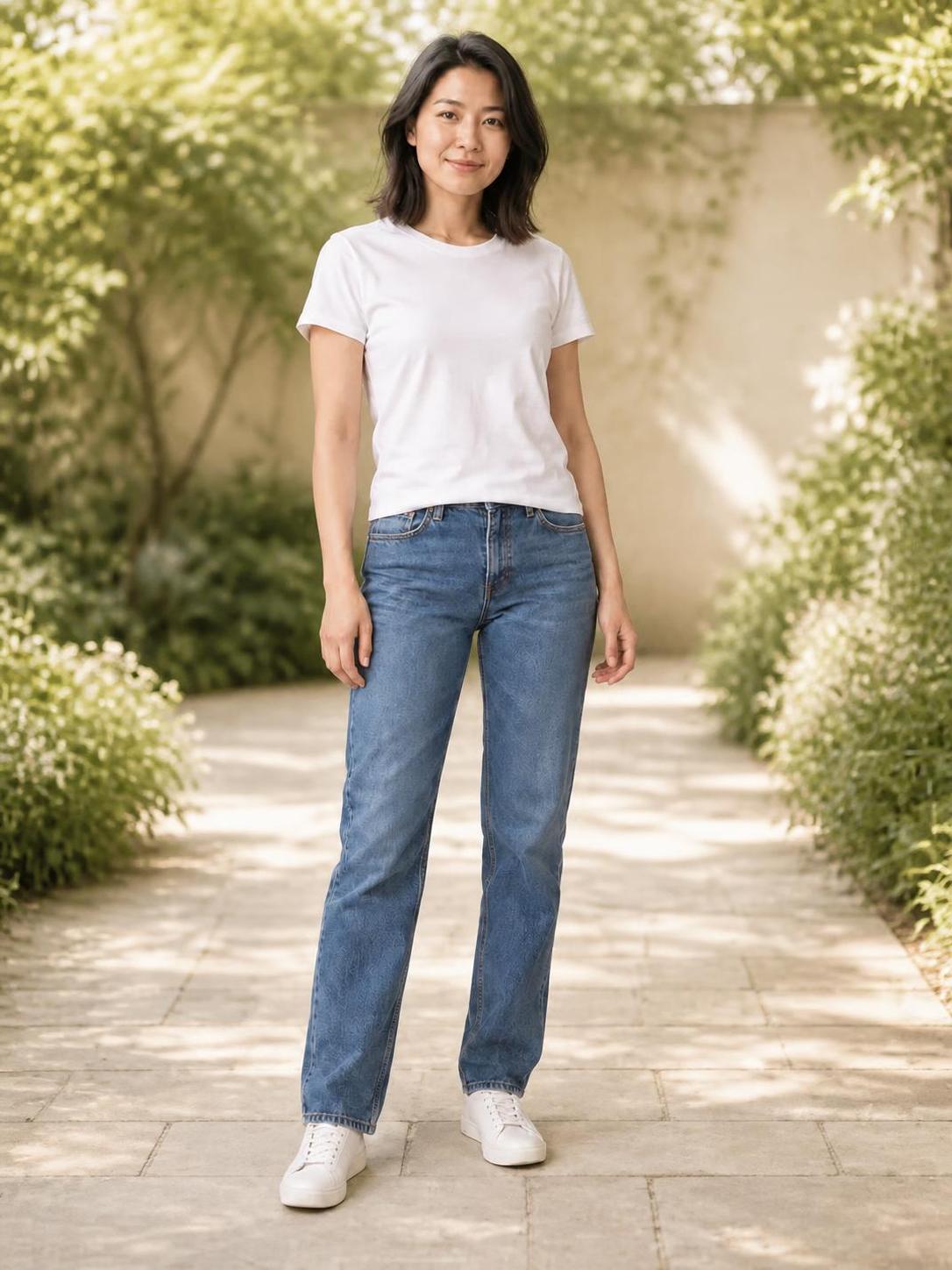
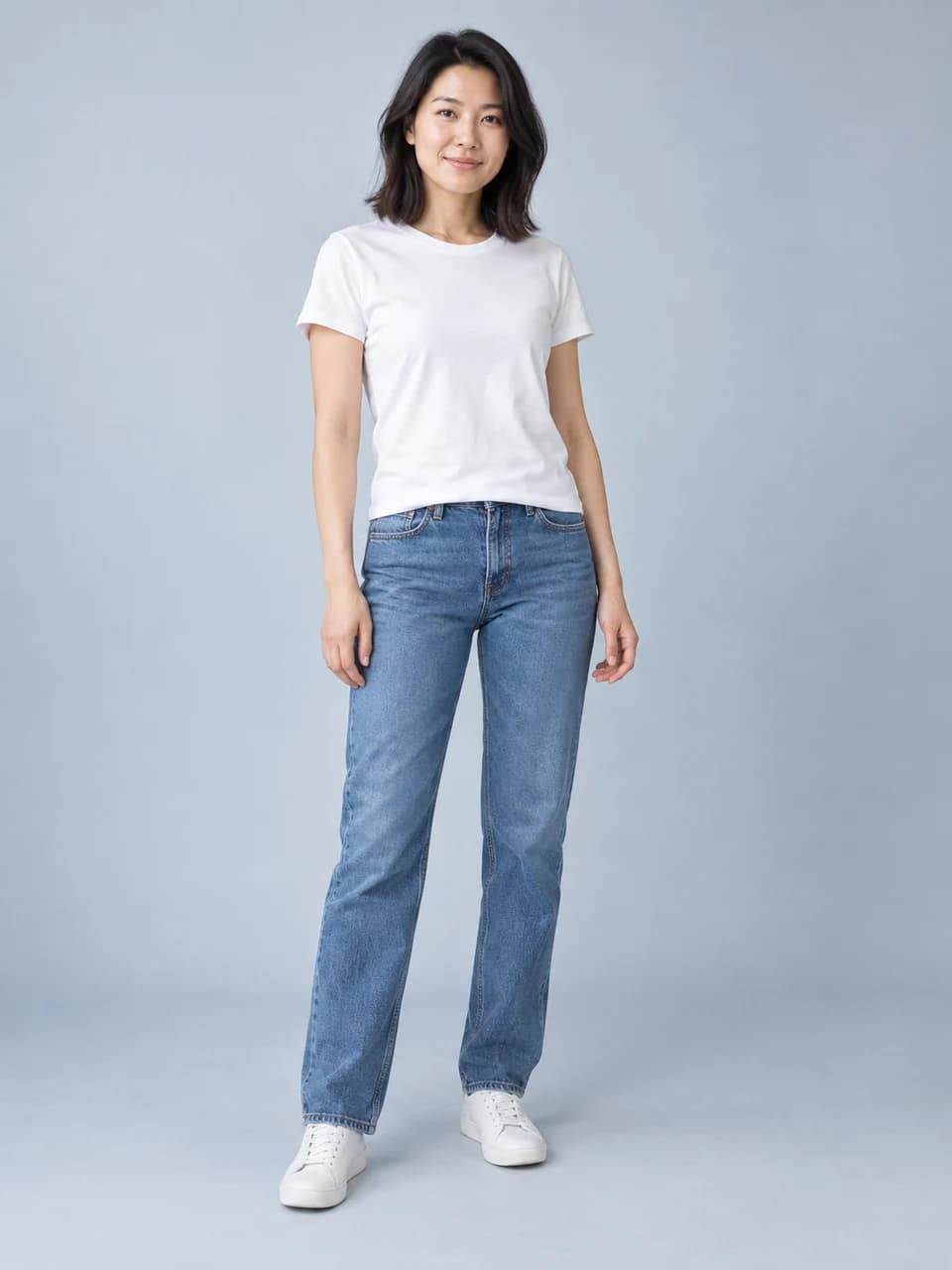
OriginalNew photoKeep the same outfit and standing pose while replacing the plain backdrop with a garden. Describe a surface for the subject to stand on, then look at the hair, sleeve edges and shadows under the shoes. The background should support the person rather than compete with them.
Replace only the background with a calm sunlit garden courtyard, a pale stone path and softly blurred greenery. Keep the subject's face, hair, clothes, pose, proportions and framing. Match the light and contact shadows to the scene. Keep fine hair and clothing edges natural, with no extra people or objects.
 OriginalNew photo
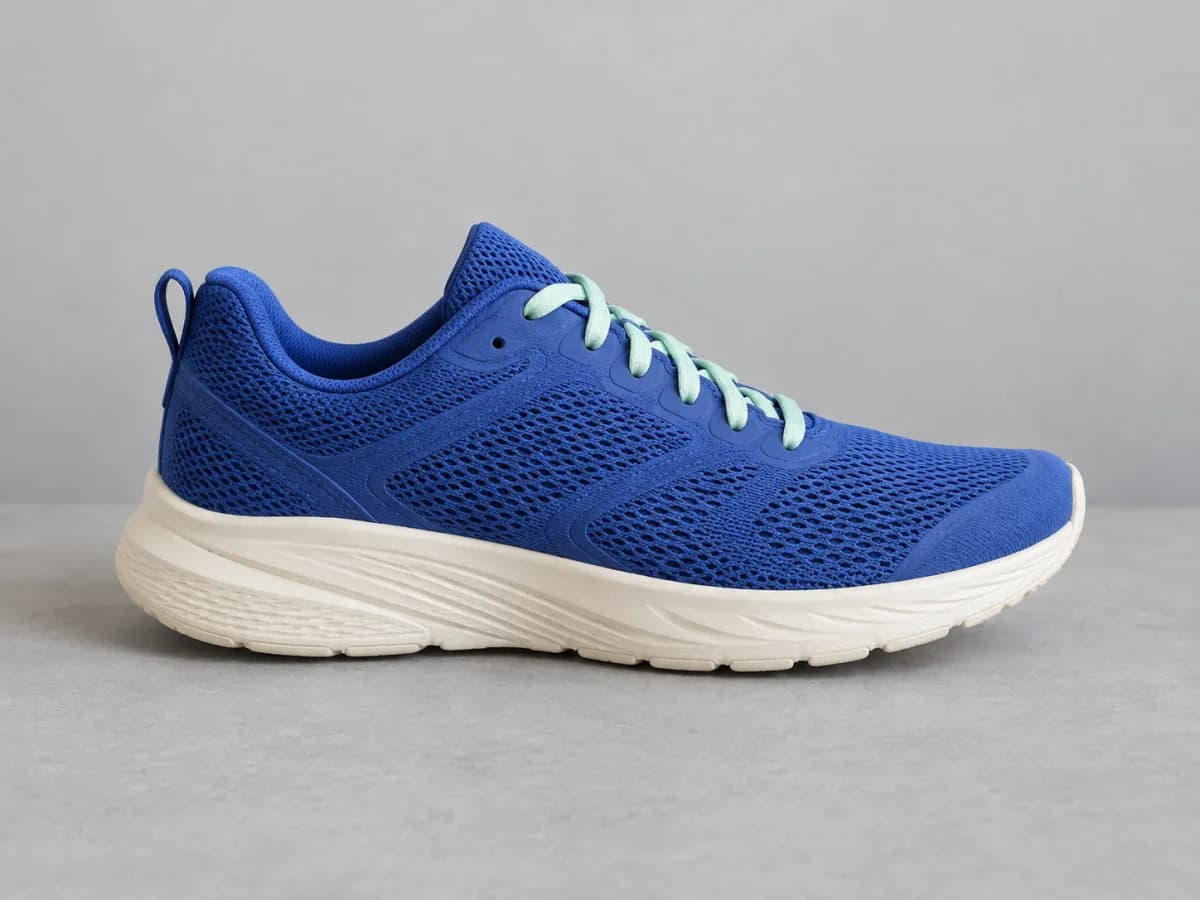
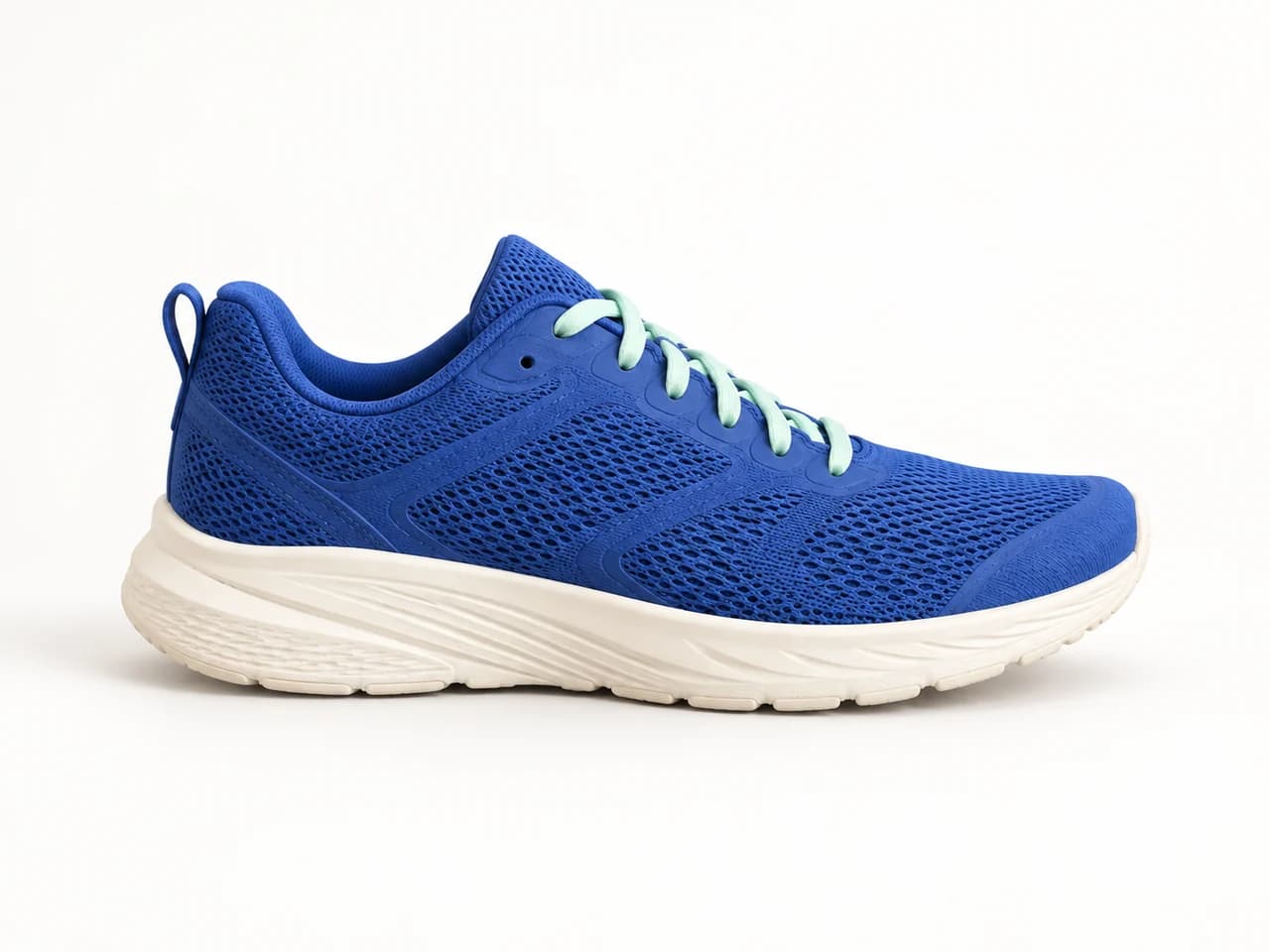
A simple background helps you inspect the product itself. Keep the original camera angle and ask for a soft contact shadow. Compare the material, colors, seams and visible parts with the source before using the new photo to represent an actual item.
Keep the product's visible shape, colors, materials, markings and components. Replace only the background and surface with a seamless pale off-white photography sweep. Keep the camera angle and the entire product visible, with a subtle contact shadow beneath it. No extra objects, packaging, text or invented logos.
 OriginalNew photo
Recorded in PhotoGenerAI ·
The recorded result moved the standing subject into a garden courtyard while retaining the white T-shirt, jeans and front-facing pose. Compare the source and result at the face, fingers and shoe edges. Use the source comparison to inspect where the garden light meets the subject and the ground.
The source people are fictional. The returned image below can be downloaded at its recorded resolution.
Replace only the background with a calm sunlit garden courtyard, a pale stone path and softly blurred greenery. Keep the subject's face, hair, clothes, pose, proportions and framing. Match the light and contact shadows to the scene. Keep fine hair and clothing edges natural, with no extra people or objects.
01
Choose an image with a clear subject and enough space around its edges. For a person, keep the face and hair visible. For a product, show its outline and important details. The background changer uses this photo as the source for the edit, so start with the best version you have.
02
Choose a background idea or write your own. Include where the subject stands or rests, what appears farther away and how the scene is lit. If you add a background reference, say that it guides the surroundings and which people, objects or lettering should be left out.
03
Review the model, photo shape and credit cost, then select Change my background. Check the subject against the source, including face, clothing, product shape and fine edges. Look at the light and contact shadows. Download a result you want to keep, or adjust one instruction for another version.
A useful background prompt describes three visible things: the place, the surface and the light. Instead of only asking for a beautiful background, try a pale stone courtyard, a path beneath the subject and soft morning light. These details help you judge whether the new photo puts the subject in a believable setting.
A studio background can be deliberately simple. Name a backdrop color and ask for a natural contact shadow. A product background might use a clean tabletop with a distant room softly blurred. For an outdoor portrait, choose a setting whose light is close to the light already visible on the face and clothing.
Keep the subject's role clear. Ask the AI background changer to preserve the face, hair, pose and outfit in a portrait, or the shape, color and material of a product. If those details change, compare the new image with the original and narrow the request before using the photo.
A reference image is helpful when describing a location in words is difficult. Upload your subject first and add the background reference afterward. In the prompt, identify the first image as the photo to edit and the second image as guidance for the setting, colors or light.
Explain what should not come across from the reference. If it contains another person, a product, text or a large foreground object, say that you only want its background qualities. The AI background changer interprets the reference when generating the scene; it does not provide a layer that pastes the background pixels behind a cutout.
Use fewer, clearer references when they disagree. A bright beach, a dark studio and a softly lit room suggest different shadows and perspectives. Start with the one setting you want, then inspect how the subject meets the scene. A coherent background is usually more useful than a complicated description that asks for several places at once.
Fine hair, pet fur, glasses and loose fabric can reveal a background edit. Open the result at full size and look for light halos, missing strands, broken edges or color spilling onto the subject. Check both sides of the outline, especially where a dark subject meets a bright new background.
Then inspect the point of contact. Shoes should rest on the ground, and a product should have a plausible shadow on its surface. A subject can look sharp and still appear to float when the floor, perspective or shadow does not agree with the new scene. Describe the support surface explicitly in a correction.
Finally compare the subject itself. A background that looks natural is not enough if the face, garment, label or product components have changed. Keep your original file and save the versions that meet your goal. For a product collection, use the same original for each new background rather than building on an inaccurate edit.
A white background is a visible part of the finished photo. It is useful when you want a clean studio look with a contact shadow. A transparent background removes the visible surroundings and needs an output file with an alpha channel. Replacing a background with white does not make it transparent.
This page is built for generating a complete new background around your subject. The downloaded format follows the model and settings you use. If you need a precise cutout, a separate editable subject layer or unchanged pixels around the subject, choose a tool that explicitly provides that output rather than treating a generated scene as a cutout.
Choose the brief closest to your goal. Use it with your uploaded photos, replace the scene details and review the request before generating.
A neutral scene keeps attention on the subject. Begin here when you want a portrait or object to read clearly without a busy environment.
Replace only the background with a warm light-gray seamless studio backdrop. Keep the subject's recognizable features, colors, hair or fine edges, clothing, shape and framing. Use soft studio light and a natural contact shadow. Do not add props, text or other subjects.
Keep the original camera angle so you can compare the product accurately. Inspect labels, shape and color before using the new image in a listing.
Keep the product's visible shape, colors, materials, markings and components. Replace only the background and surface with a seamless pale off-white photography sweep. Keep the camera angle and the entire product visible, with a subtle contact shadow beneath it. No extra objects, packaging, text or invented logos.
Ask for a clear area when composing a vertical post. Set the photo shape to 9:16 before generating, then add the final headline in your layout tool.
Create a vertical product scene with the exact product from image 1 in the lower third on a pale cream stone surface. Preserve its visible shape, colors, materials, markings and components. Leave the upper half uncluttered with a soft sage-green background for text I will add later. Soft daylight, a realistic contact shadow, no generated lettering and no extra product copies.
Compare the result with the originals and identify the main mismatch. Change that part of the brief first so the next image is easier to evaluate.
BeforeAfterMore ways to create
Try another edit with the AI photo generator. Change a style, combine references or create a new photo from a written brief.
Read our Privacy Policy for image processing and storage details.