
Choose by your photo task
A new portrait and a faithful edit of an existing portrait ask different things of a generator. For a new scene, judge the light, composition and physical detail. For an edit, also judge what stayed the same. A convincing face is not enough if it is no longer the face you uploaded.
The app is where you work. The model produces the image. Apps with several models can give different results, controls and costs depending on the model you select. The following choices reflect documented workflows, rather than a ranked image-quality test.
ChatGPT
Talk through an image and keep refining it
You can describe a new image, upload a photo to edit, and request further changes in the conversation. This fits a process where you discover the final brief through follow-up instructions rather than write it all at once.
OpenAI notes that selected-area edits are not always precise and can affect the surrounding image. Check the whole result after a local change.
OpenAI's Images in ChatGPT guideGemini
Build a scene with references and photographic direction
Google documents prompts for lighting, camera angle and focus, plus reference images for texture, color and style. It also describes combining photos. These controls are relevant when you can show what a scene should contain as well as describe it.
Separate the camera direction from the reference's role in your prompt. Say whether a reference supplies the subject, a texture or the overall look.
Google's Gemini image generation overviewMidjourney
Explore the photographic look of a new image
Midjourney's Raw setting reduces its automatic styling. Its documentation says Raw can produce more photo-like results with simple prompts. That makes it a setting to try when you want your lighting, setting and subject description to guide the look.
Raw changes how Midjourney interprets the prompt. It does not establish that an image preserves a particular person's face or a product's details.
Midjourney's Raw documentationLeonardo
Generate a photographic concept and refine it in creative tools
Leonardo describes photography generation with prompts and references, model selection, canvas editing and upscaling. Consider this workflow when generating the first image is one part of a longer creative process.
Use the photography controls to describe light, depth of field and composition. Check fine details again after editing or upscaling.
Leonardo's AI photography pageKrea
Choose among several image models in one workspace
Krea's model overview explains intended uses, speed and approximate credit costs for the models it offers. That information helps you choose a configuration for the next attempt instead of treating every generation as the same purchase.
Compare the actual model and settings you plan to use. A platform's range of models is a reason to try it, not a quality score for every model in it.
Krea's model overviewAdobe Firefly
Continue an image workflow across Adobe apps
Adobe describes image generation, plain-language edits, object and background changes, and image expansion. It also documents continuity between Firefly on the web and desktop. Consider it when the work needs to continue in your Adobe workflow.
Check the particular app and plan for the handoff you need. A generated image still needs a review of its content and intended use before publication.
Adobe's Firefly app overviewPhotoGenerAI is another choice for creating and editing photos with several models in a browser. The next section explains its fit and links to the controls and results you can inspect yourself.
When PhotoGenerAI fits
Choose PhotoGenerAI when you want to create a photo from a description or edit an uploaded image, then try another model without moving to a different website. The generator offers GPT Image 2, Nano Banana 2, FLUX and Qwen models. The model directory explains the available options and labels where its example images came from.
For an existing photo, describe a change to the background, light or clothes in the AI photo editor. Use image-to-image when a source image or reference should guide the result. Reference limits and output settings depend on the model. For a new scene, the realistic photo generator has guidance on photographic briefs, lighting and materials.
If you prefer follow-up instructions, the photo agent supports conversational edits and a canvas for workflows you can save and run again. The agent currently generates with GPT Image 2 Low; the main generator is where you choose among the wider model range.
Start with free credits for GPT Image 2 Low. Other models and higher quality settings use purchased credits. Review the selected settings and displayed credit cost before generating. If your job requires exact masks, brushes or layers, include a dedicated photo editor in your workflow.
A believable photo can still miss the brief
PhotoGenerAI recorded 48 outfit-editing attempts on October 20, 2026: four model configurations, six tasks and two attempts per task. There were 42 image outputs and six failed attempts. The public comparison keeps the source images, prompts, outputs, failures, elapsed generation times and credit costs together.
One task asked the model to change only a white T-shirt to forest green while preserving its cut, material, seams and folds, along with the person and setting. Below are the source and the first attempts from two configurations in that record.
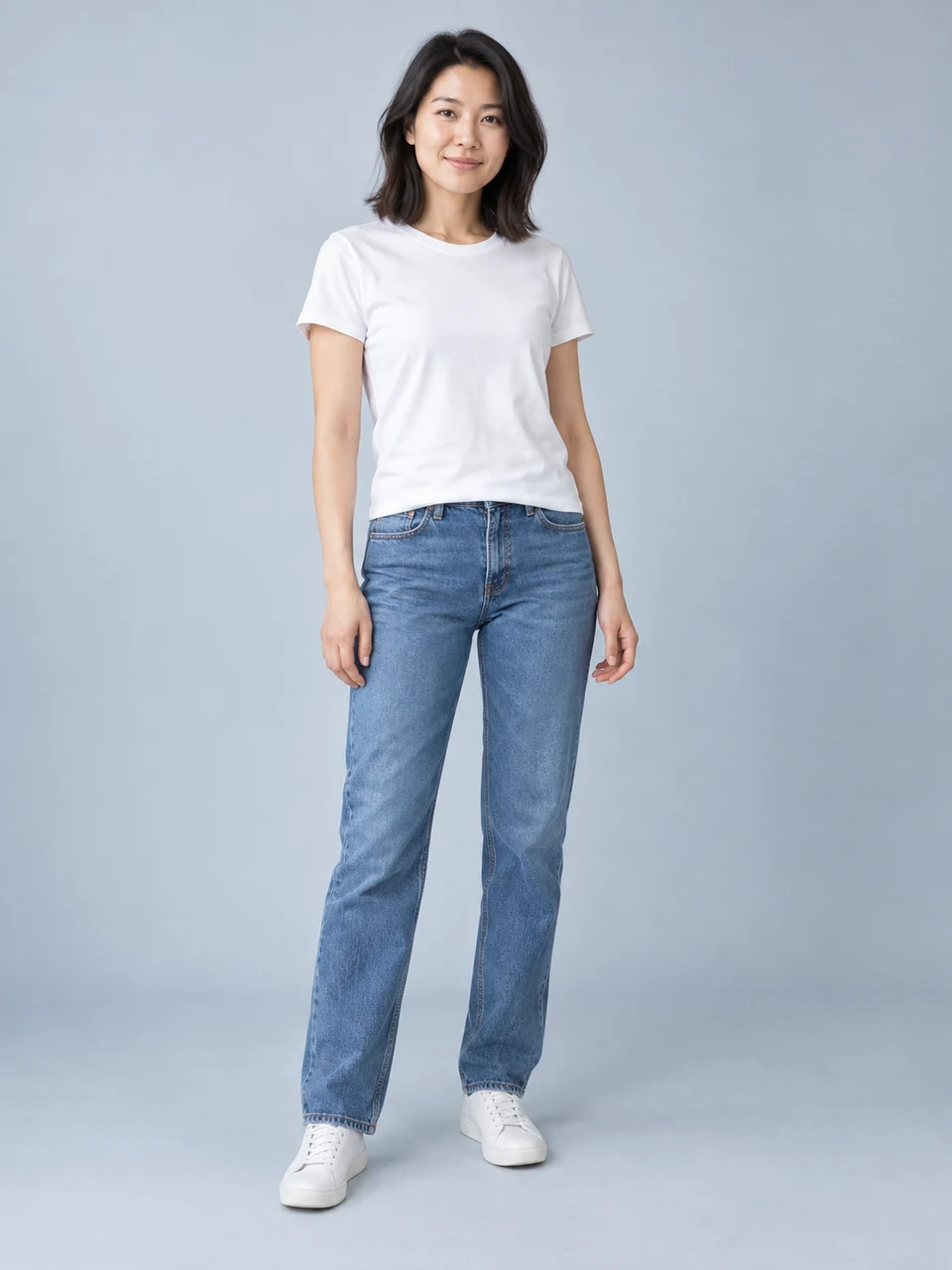
Source image
AI-generated reference
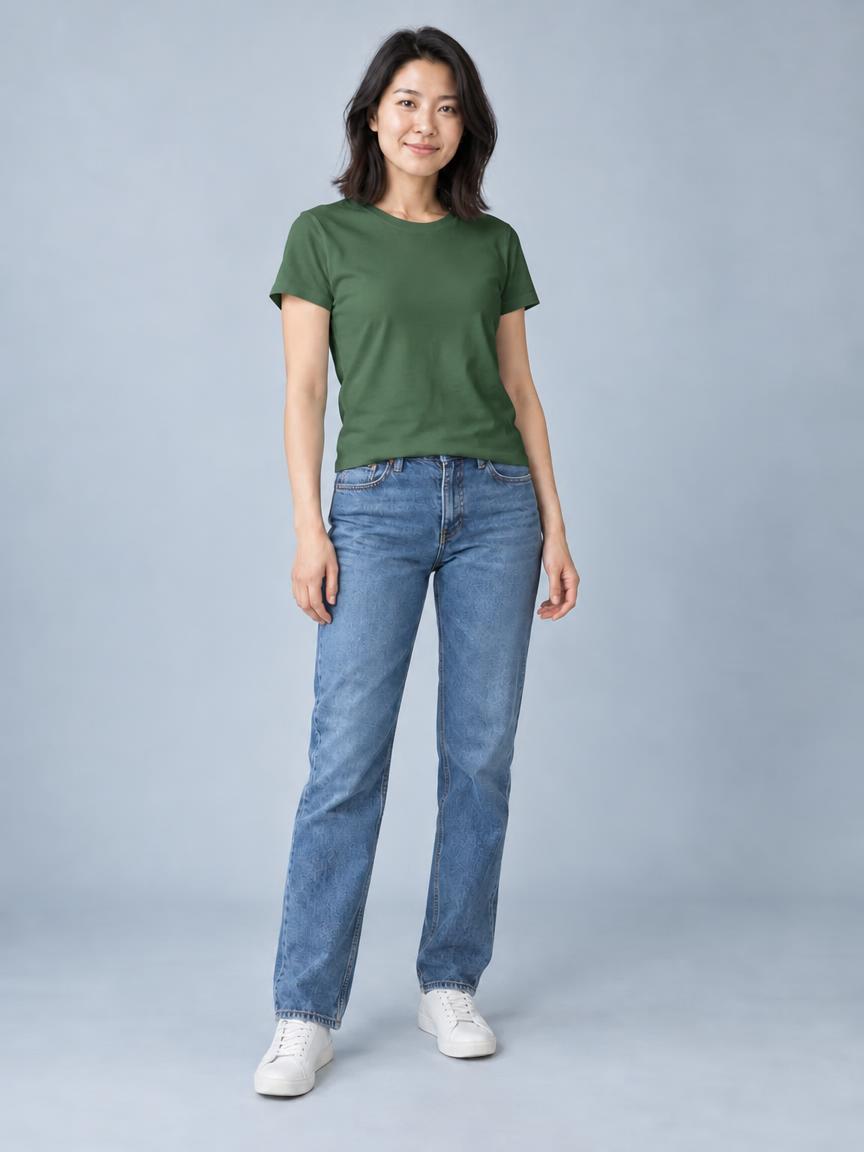
GPT Image 2 Low
Attempt 1 · 864 × 1152
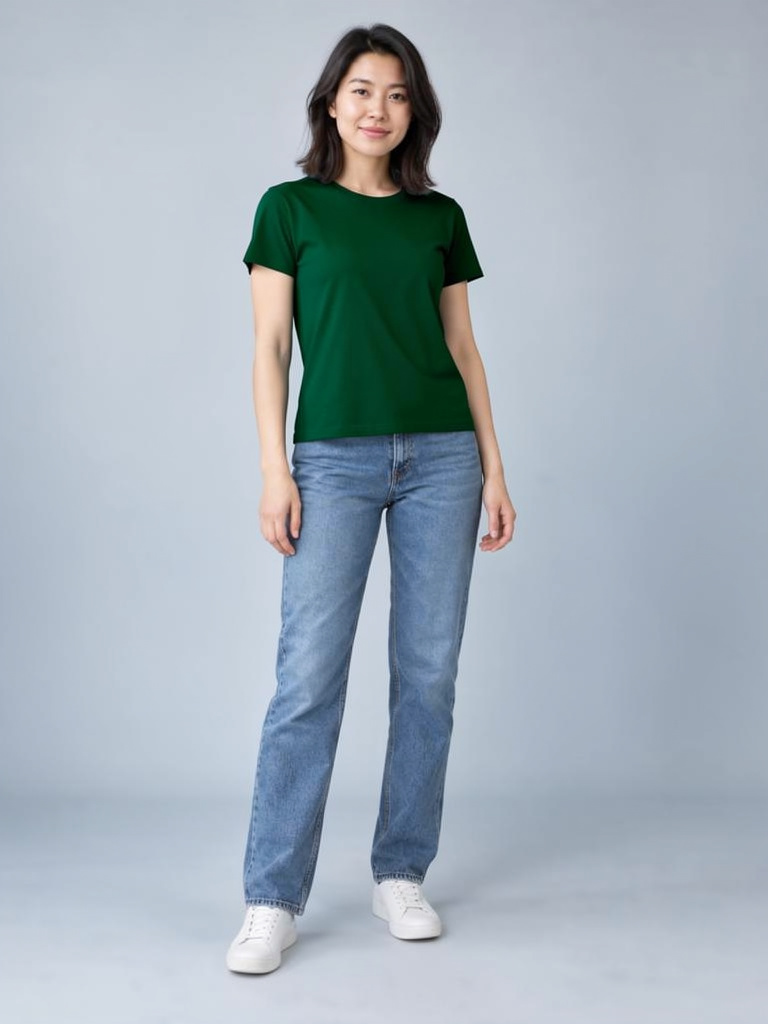
FLUX.2 Pro
Attempt 1 · 768 × 1024
Both outputs have plausible fabric folds and a green shirt. Look at the hem, though. GPT Image 2 Low keeps a partly tucked shape, while the FLUX.2 Pro output has a straighter, untucked hem. That difference matters when the instruction is to preserve the original cut. Visual realism and instruction following need separate checks.
These examples illustrate a specific edit. The full experiment used different quality and resolution settings for each model, fixed the output shape at 3:4, and used an unblinded, AI-assisted editorial assessment with no independent human rating. Its results do not rank the apps in this guide or establish a winner for realistic photos. The recorded times cover the generation attempts, not an entire editing session.
Inspect all 48 attempts and their settings. The comparison includes the complete method and individual results, so you can check more than the two examples selected here.
Follow an edit from input to result
What does editing an existing image actually involve? These three worked examples show the input, the controls used and the displayed result. We reviewed Adobe's video and the official Midjourney and Krea screenshot tutorials on October 24, 2026. The images below come from those publishers' demonstrations.
Firefly: Put a product into a new scene, then refine the lighting
The task is to take a shoe photo on a white background and give it a new setting. Ramirez uses Firefly's Edit workspace with the Google model shown as Gemini 3 with Nano Banana Pro. The app and the selected model both matter when you repeat a tutorial.
Adobe tutorial by Jesús Ramirez, published August 8, 2026
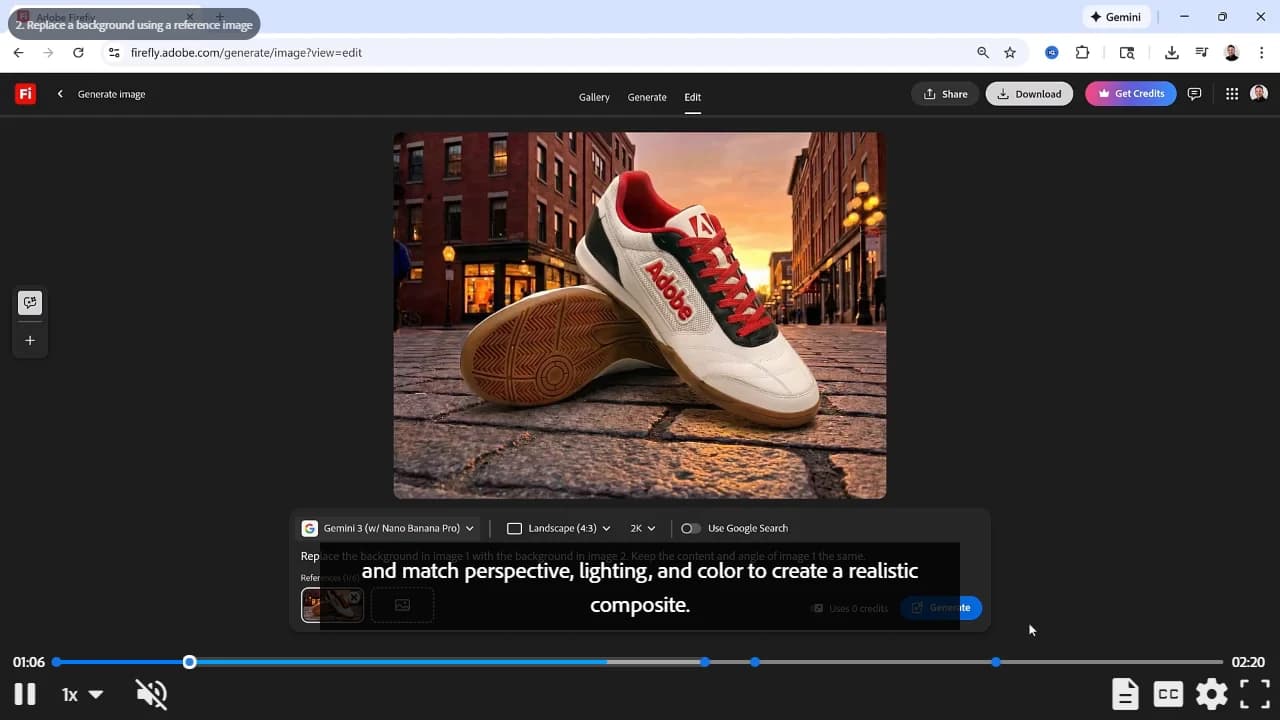
Loading the player connects to Adobe. The 2:20 tutorial has English captions.
Upload the product and a background reference
At 0:24, choose Your device and open the shoe photo. Add the street image as another reference. At 0:47, the request assigns a role to each image: use the second image for the background and retain the shoes and camera angle from the first.
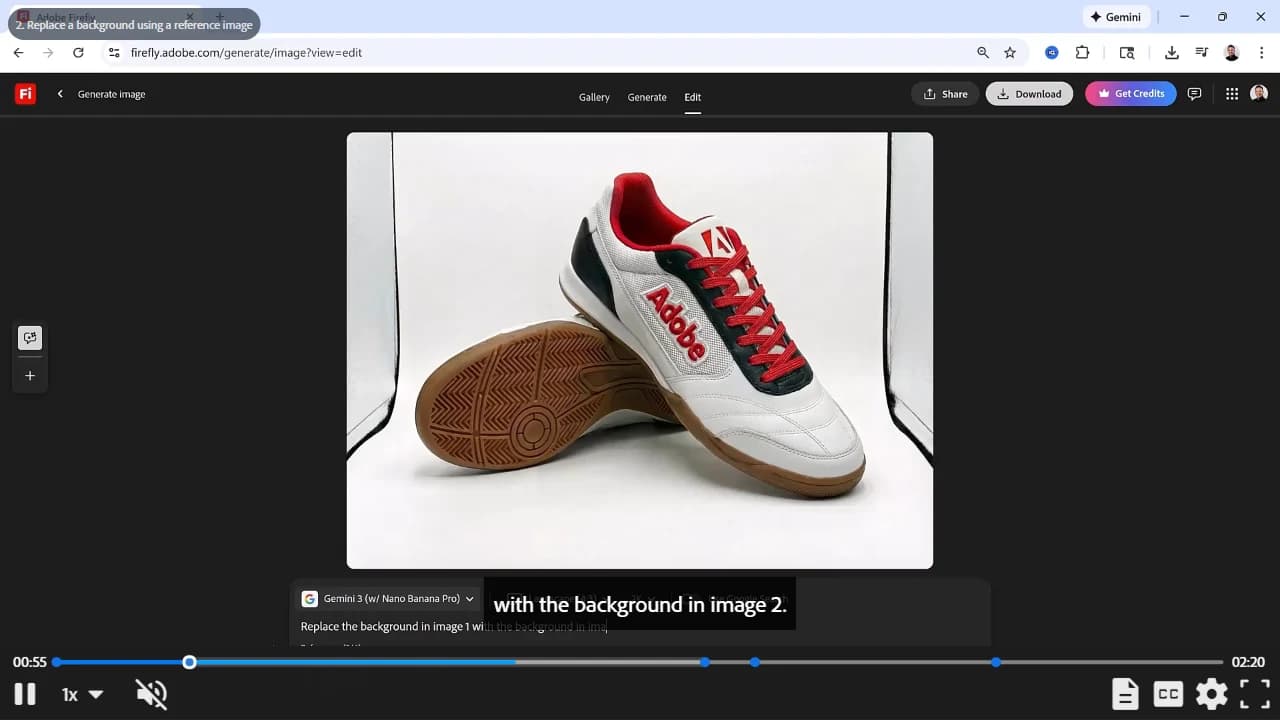
0:55 · The original product, reference thumbnails and instruction appear together before generation. Source: Firefly. Select the screenshot to enlarge it. Generate and review the new setting
At 0:59, select Generate. The result shown around 1:06 places the shoes on a cobbled street at sunset. At 1:18, Ramirez uses the filmstrip to compare variations. Compare the shoe details as well as the background before choosing one.
1:06 · First background replacement. The street, warm light and contact shadows all need a review. Source: Firefly. Select the screenshot to enlarge it. Make a follow-up request on the chosen variation
The next request starts at 1:35. It asks for removal of a foreground line, background blur and a night scene with arena lights on the shoes. By 1:50, the displayed result has changed to a dark indoor setting. Review this as a second edit with its own brief.
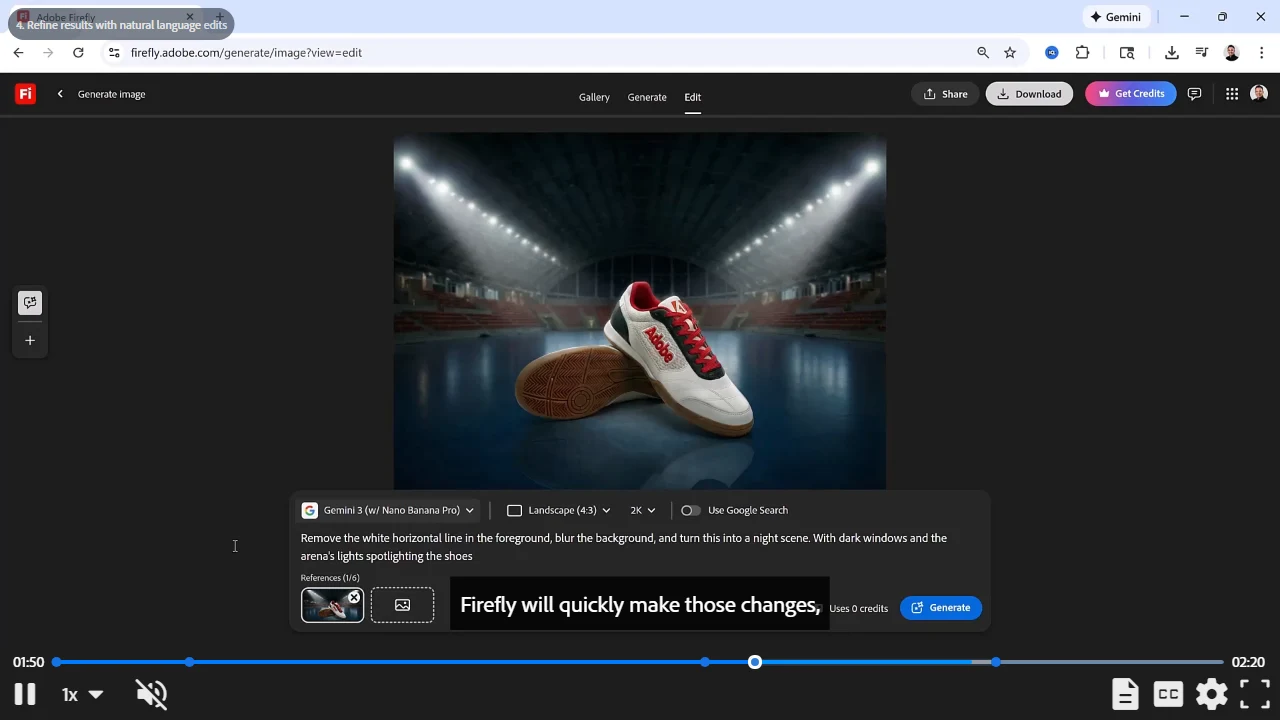
1:50 · The follow-up changes the scene again. Check the displayed instruction against this result. Source: Firefly. Select the screenshot to enlarge it.
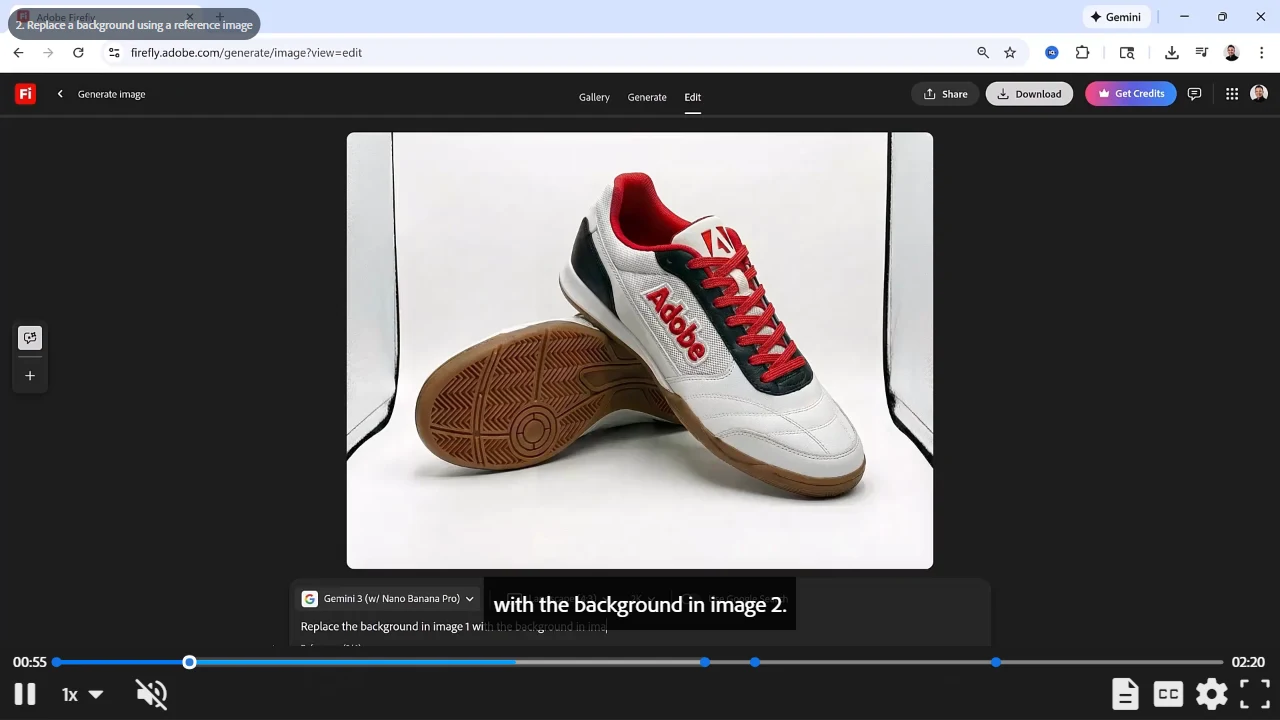
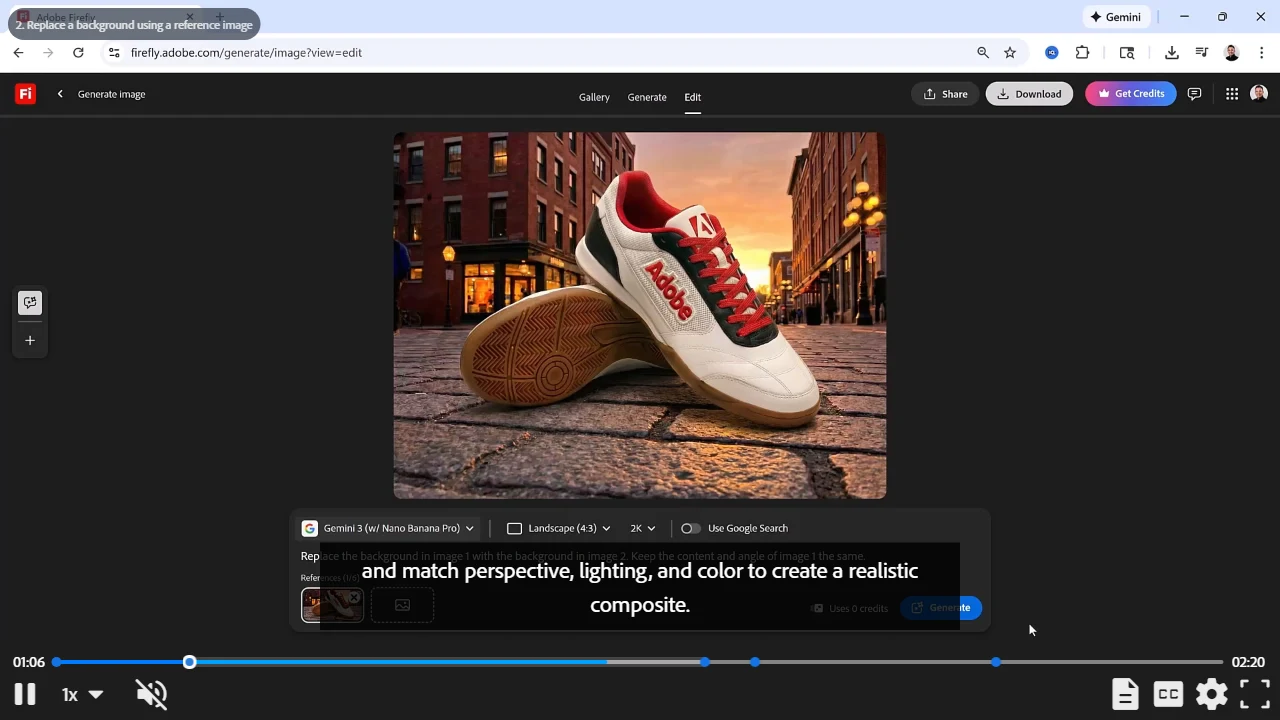
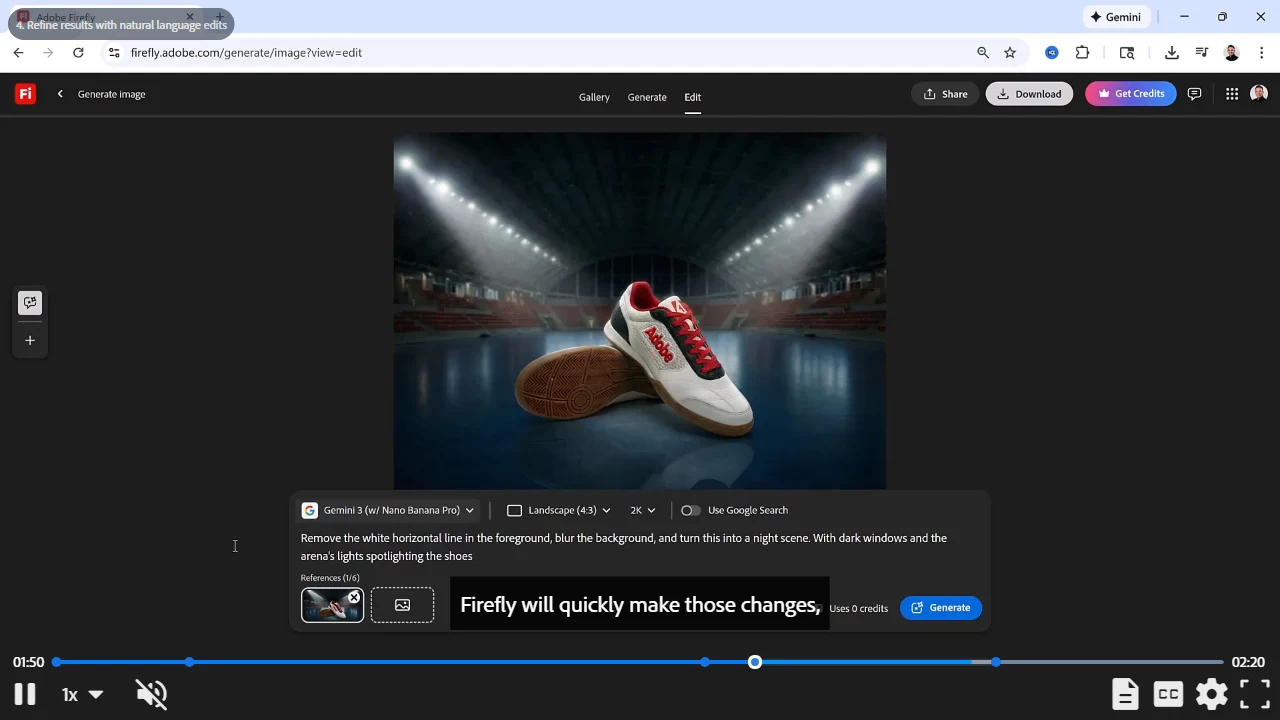
What to inspect: the sole pattern, laces and red lettering across all three frames, then the shadow where each shoe meets the ground. A convincing new setting is useful only if the product still matches the source. This sequence also shows why naming what to keep is as useful as describing the new background.
Midjourney: Add an object while making room for it on the canvas
Midjourney's worked example starts with a cat photo and adds a crown. Its screenshots expose an important preparation step: the new object needs space above the original image.
Midjourney's official Editor walkthrough, checked October 24, 2026
Upload, extend the canvas and mark the area to change
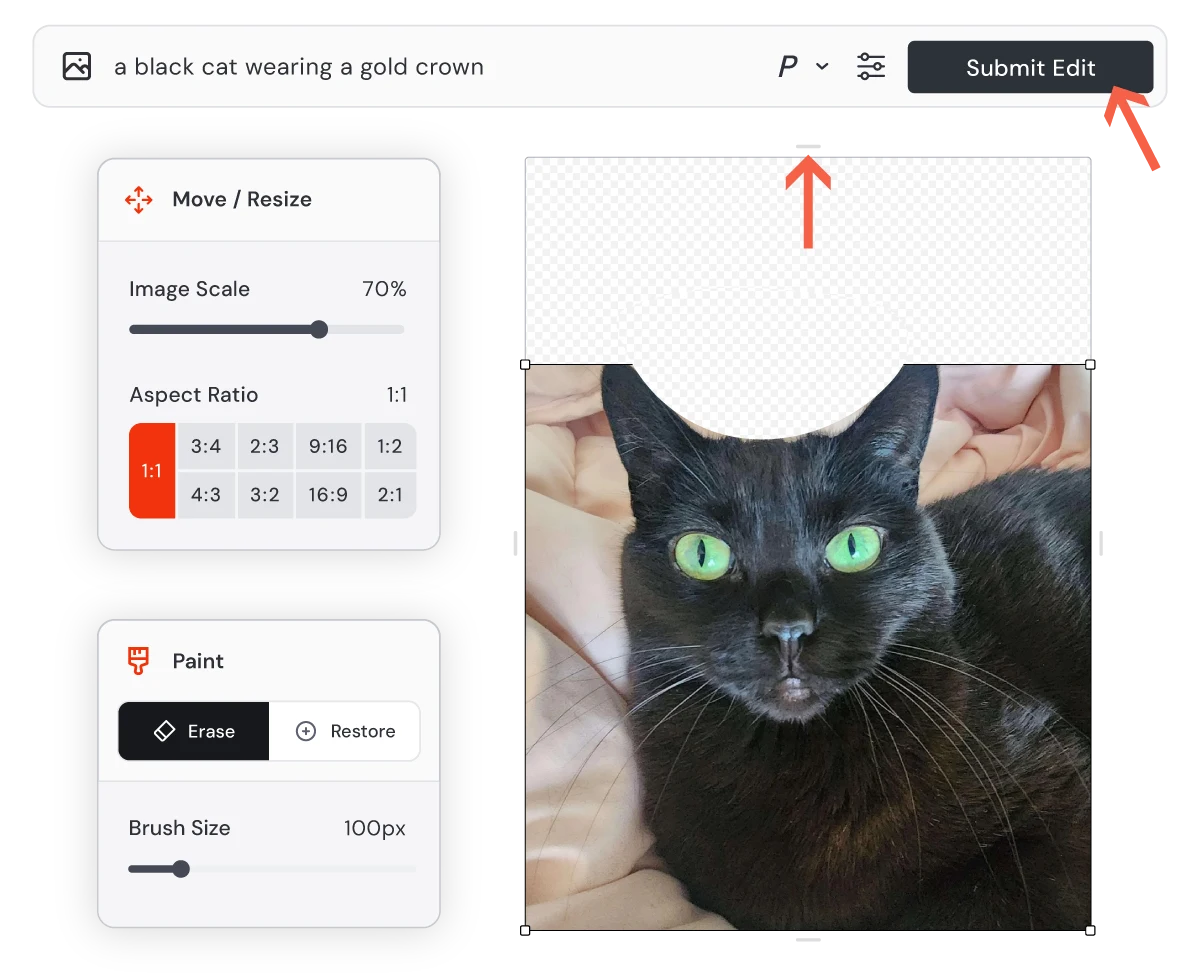
Open the Edit tab and upload the photo or paste its URL. In Move / Resize, extend the top of the canvas. Use Paint's Erase tool where the crown should sit, describe the desired image in the prompt bar, then select Submit Edit.
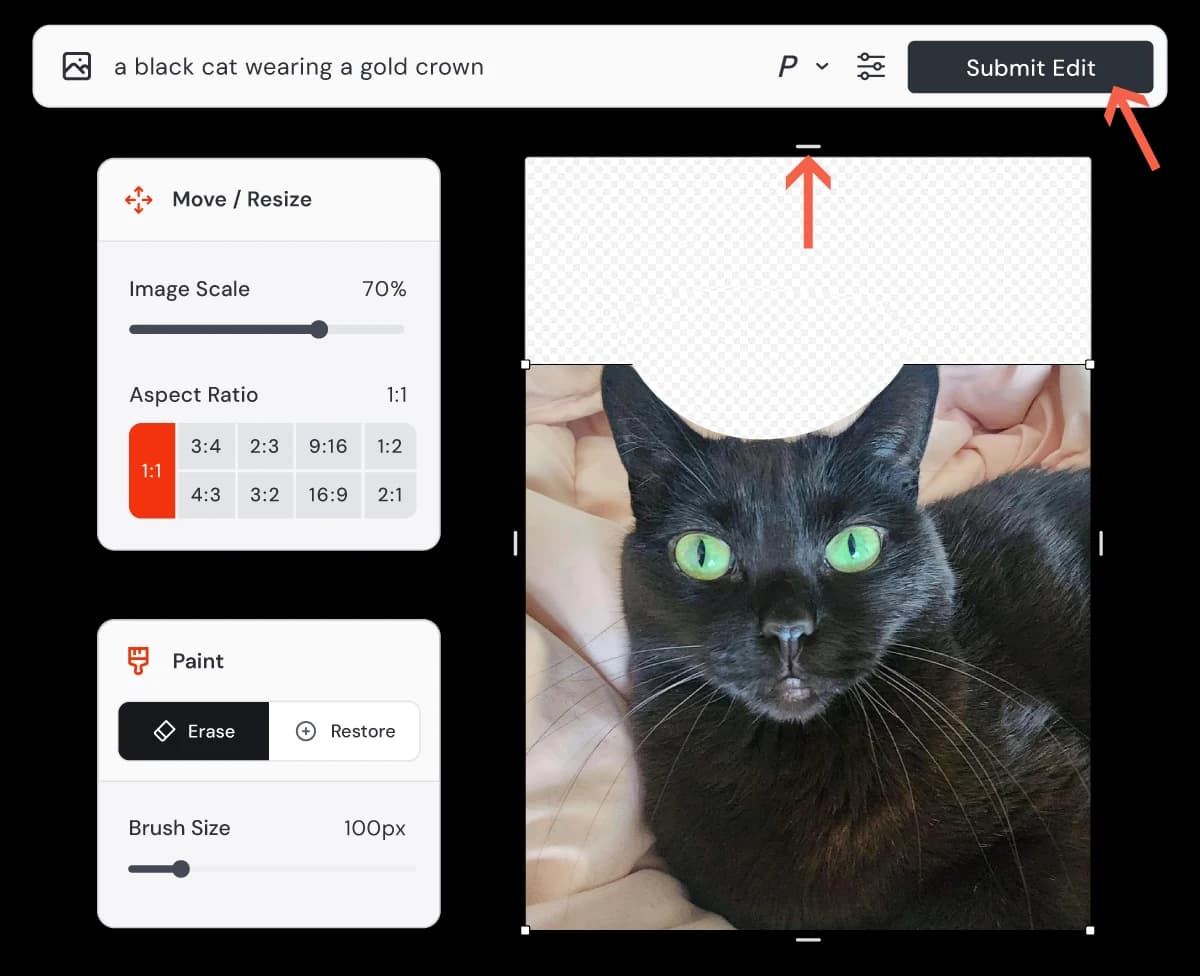
Preparation · The checkerboard shows the space available for the crown. Arrows are part of Midjourney's source screenshot. Source: Midjourney. Select the screenshot to enlarge it. Compare the candidates before exporting
The walkthrough's results panel contains four generated candidates beside the original. Open them to compare the crown's placement and its boundary with the ears. The Export Edit panel provides Download Image and Upscale to Gallery.
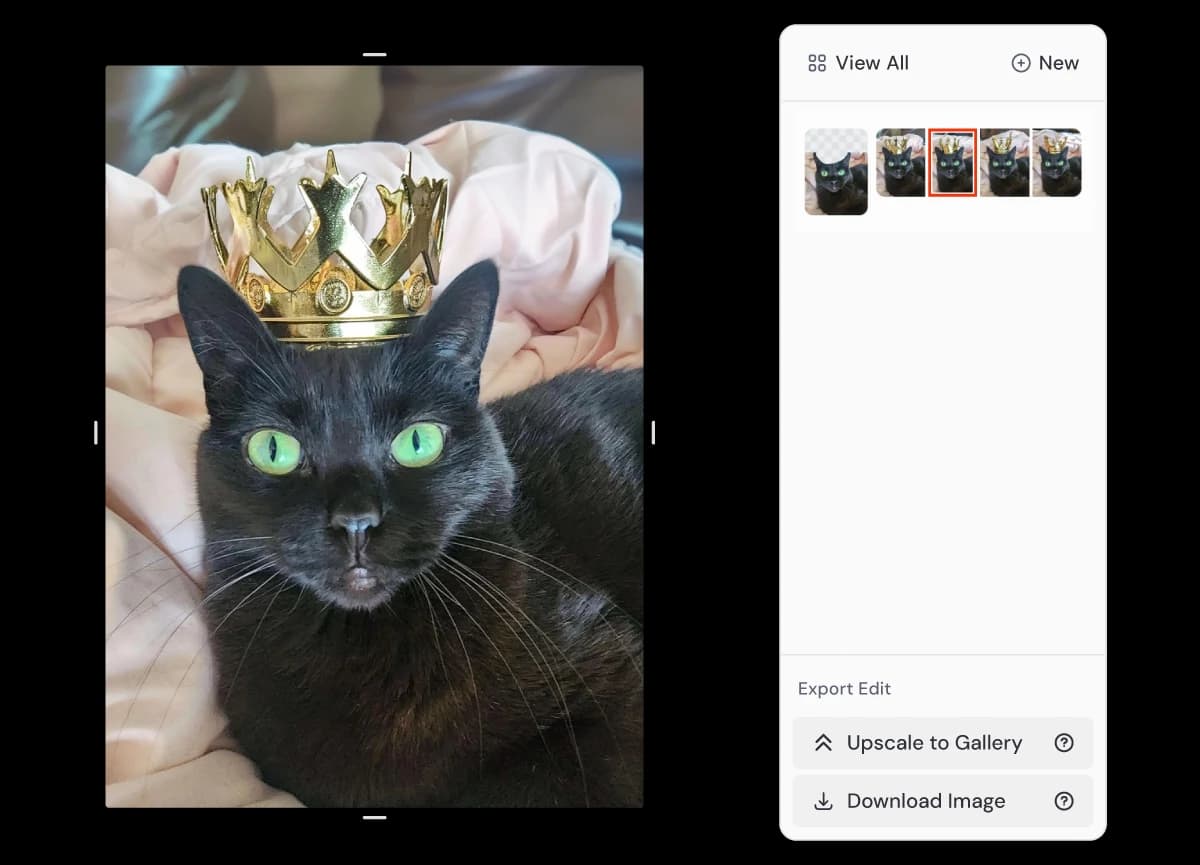
Result · The crown occupies the added space; the right-hand panel keeps the alternatives available for comparison. Source: Midjourney. Select the screenshot to enlarge it.
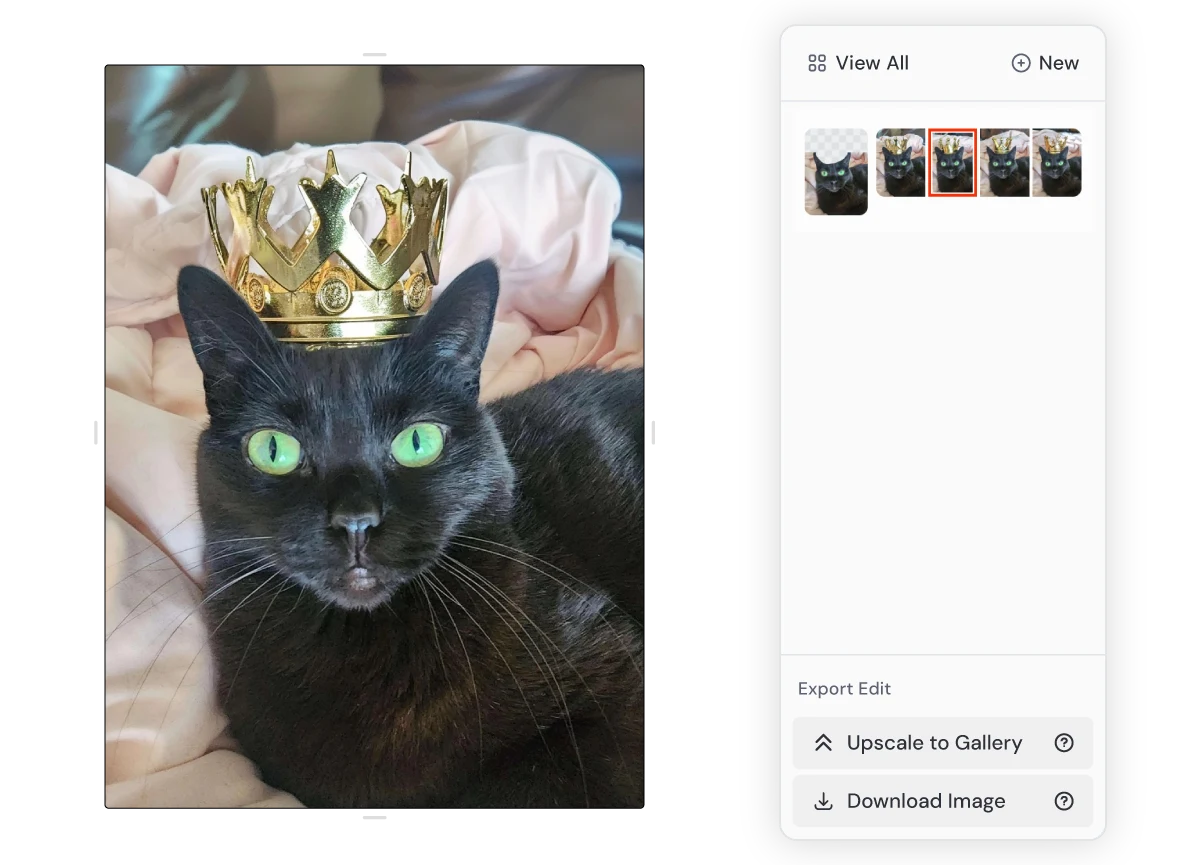
What to inspect: the crown-to-fur boundary and the added area above the cat. The useful distinction here is the workflow: you define where new content can go before generating it. This gives a different starting point from rewriting the whole scene through a text request.
Krea: Make a transparent cutout for a new layout
Krea's example removes the background from an existing asset. The source is a synthetic cube-shaped strawberry on red. The screenshots show how to isolate it for use in another layout.
Krea Team tutorial, published June 8, 2026
Choose the asset and remove its background
In Edit, use Select asset to put the image on the canvas. Right-click the image itself and choose Remove Background from its context menu. The screenshot shows the original red background still present at this stage.
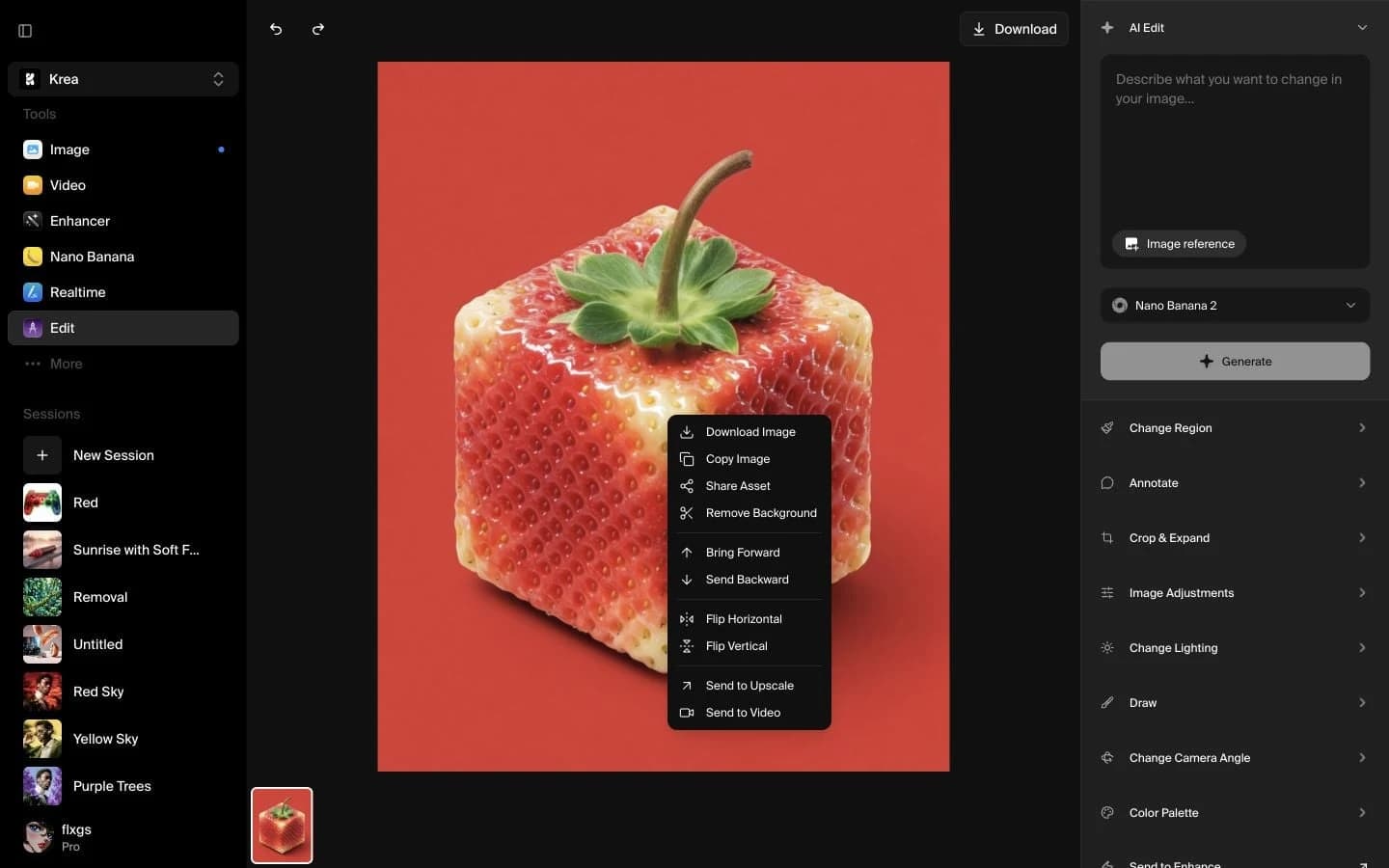
Operation · Select the image itself to open the menu containing Remove Background. Source: Krea. Select the screenshot to enlarge it. Check the cutout and download it
Wait for processing. Krea's next screenshot shows the strawberry surrounded by the editor's dotted transparent canvas. Use Download in the top toolbar, then inspect the exported edge against the background you intend to use.
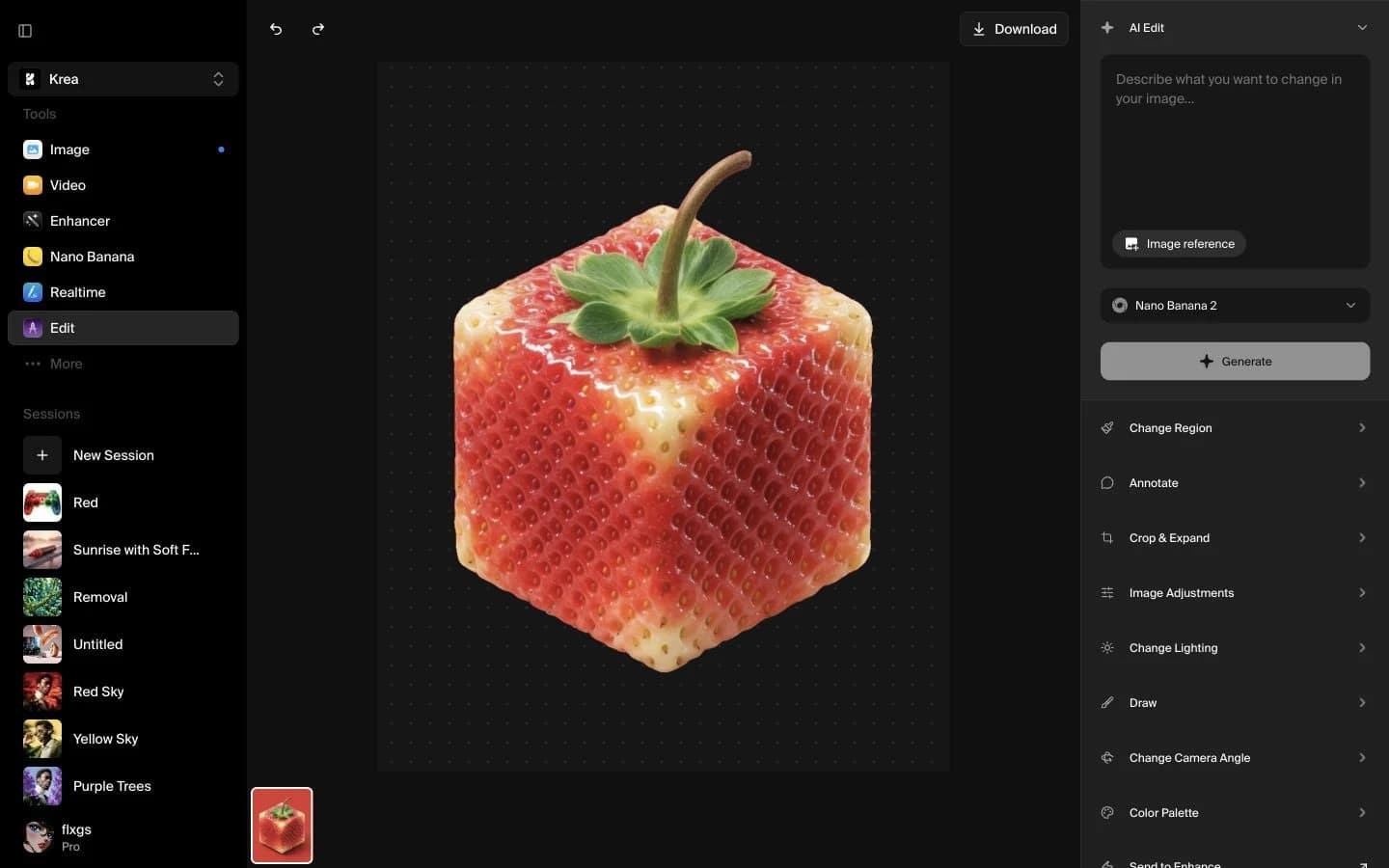
Result · The red background is gone. A new scene and its lighting would be a separate editing task. Source: Krea. Select the screenshot to enlarge it.
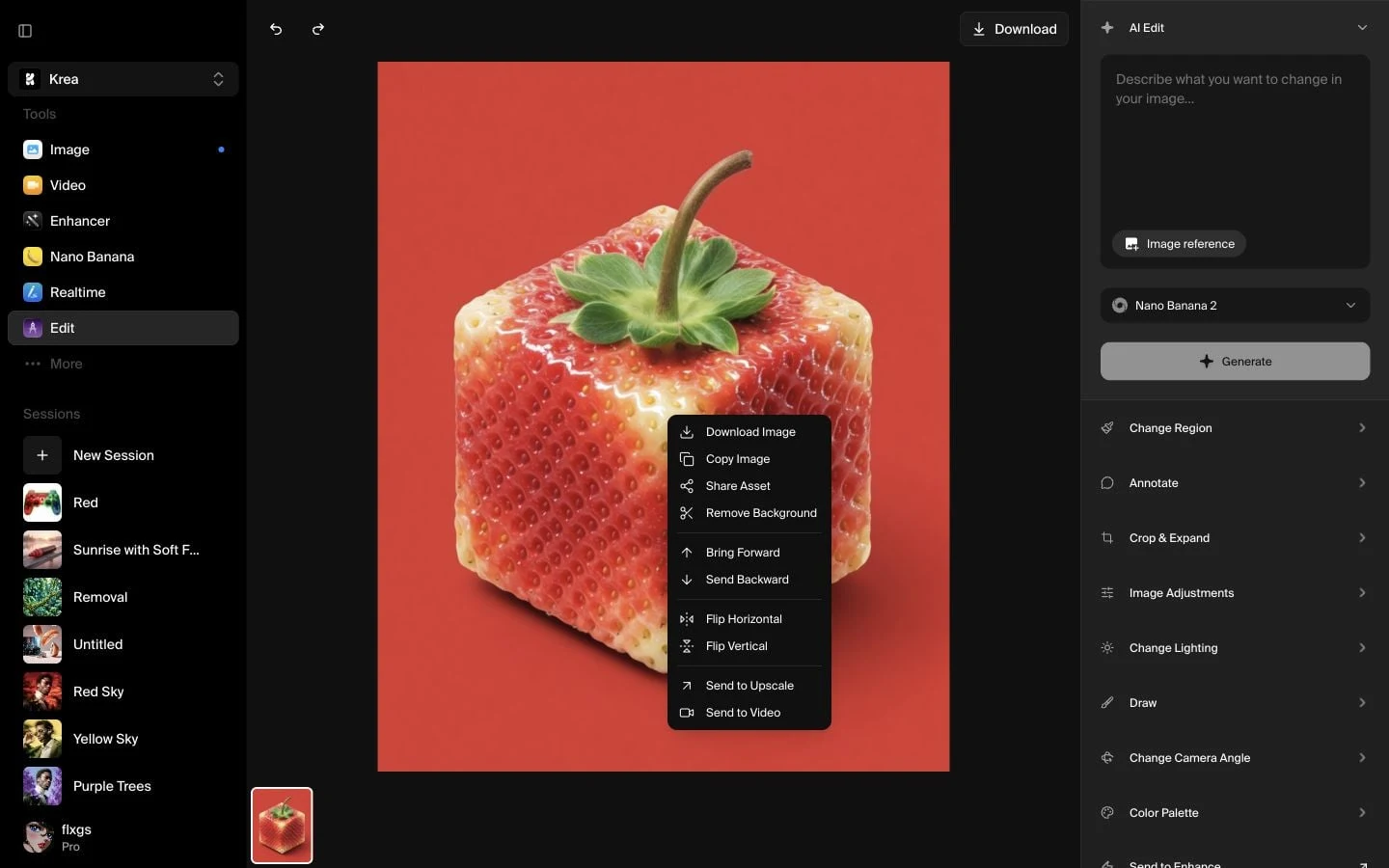
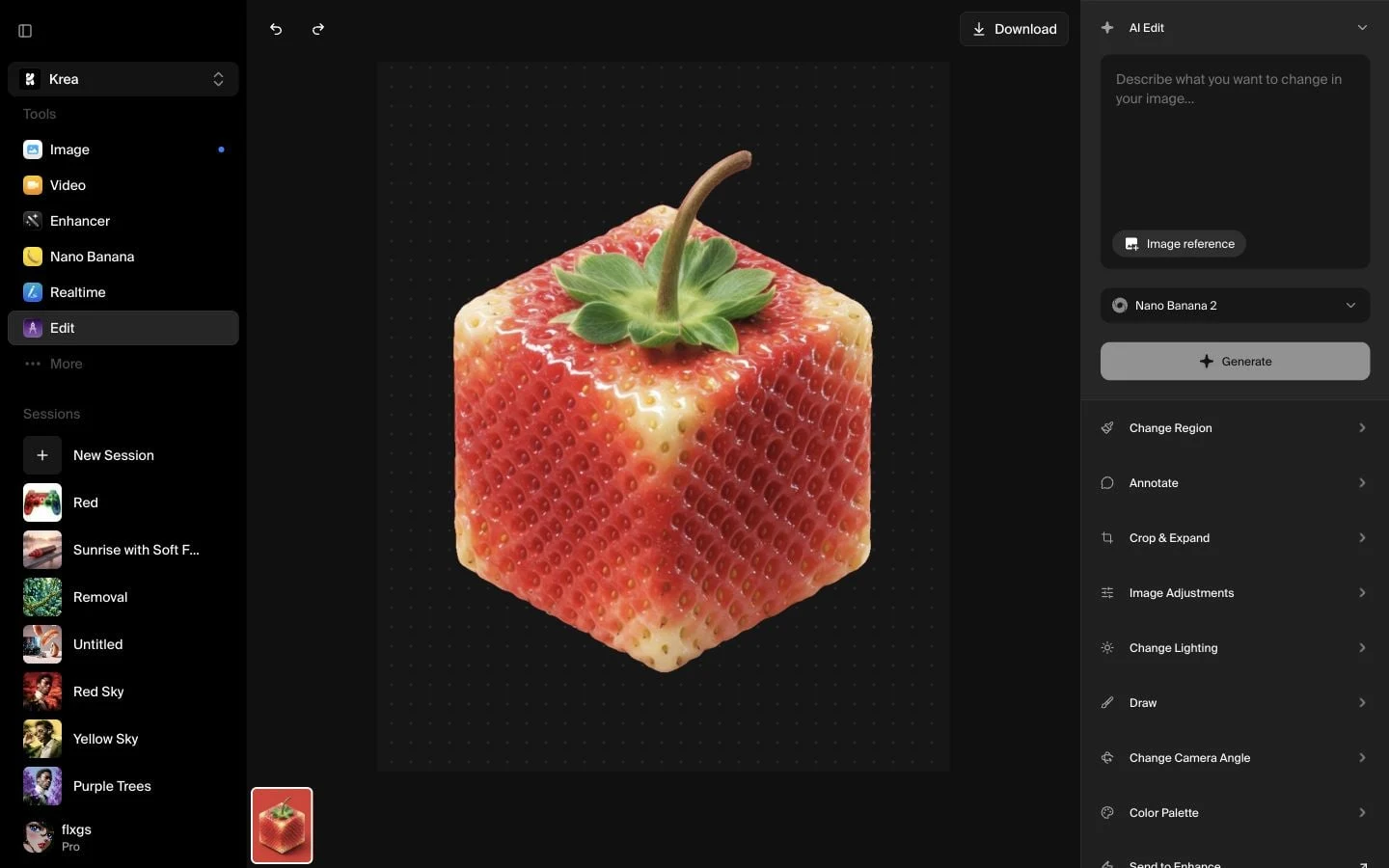
What to inspect: the small leaves and corners where the red background met the subject. For a catalog layout that only needs an isolated object, a cutout may be enough. If the brief calls for the object to sit naturally in a new scene, you still need to review scale, light and contact shadows after placing it.
Watch creators work through a photo task
These YouTube tutorials show three ways to change an image's context while starting with an existing subject. We reviewed the recorded steps and results on October 24, 2026. Each example uses the creator's own inputs; the source date identifies the interface shown. Select a timestamp to watch that part on YouTube.
ChatGPT: Improve a portrait, then change its background in conversation
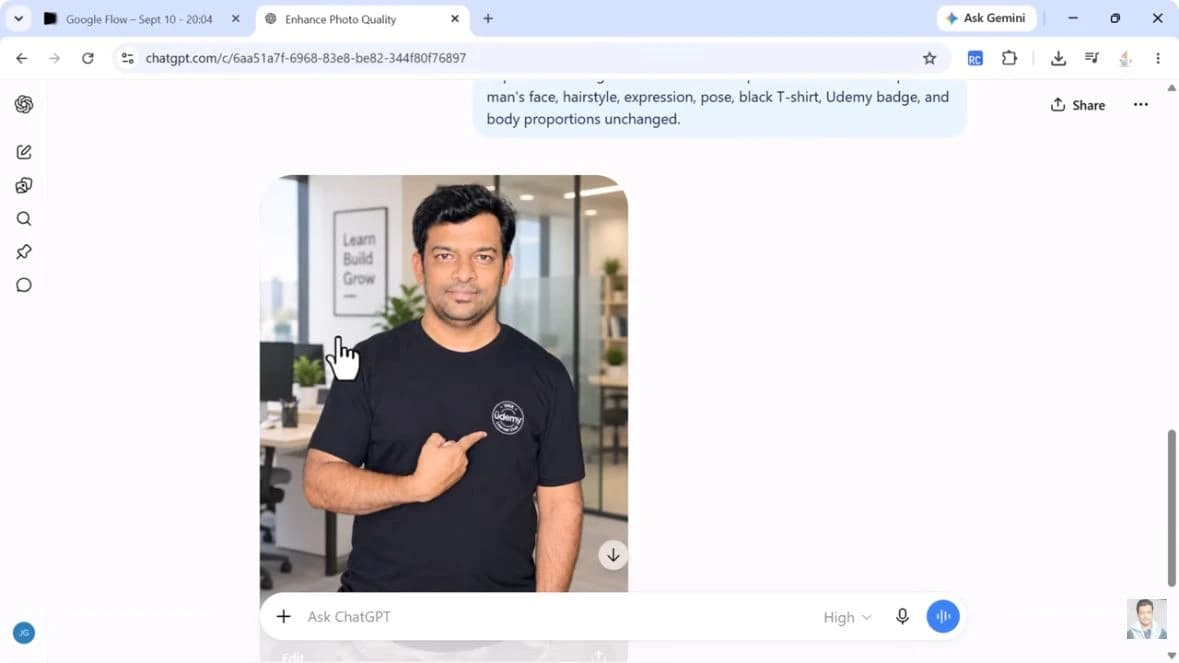
Ramesh Fadatare starts with his portrait against an indoor wall, makes a lighting edit, then continues with an office-background request. The video records the September 2026 ChatGPT workspace.
Ramesh Fadatare - AI & Tech · September 13, 2026
Loading the player connects to YouTube. 14:01 tutorial in English. The relevant sequence runs from 0:36 to 4:25.
- 0:36 Upload the portrait with the plus button in a new chat.
- 1:36 Ask for better lighting and photo quality while naming the face, pose, shirt and badge as details to retain. Review the returned portrait before continuing.
- 3:24 Open the edited image and use Describe edits to request an office background. Inspect the new result around 4:12.
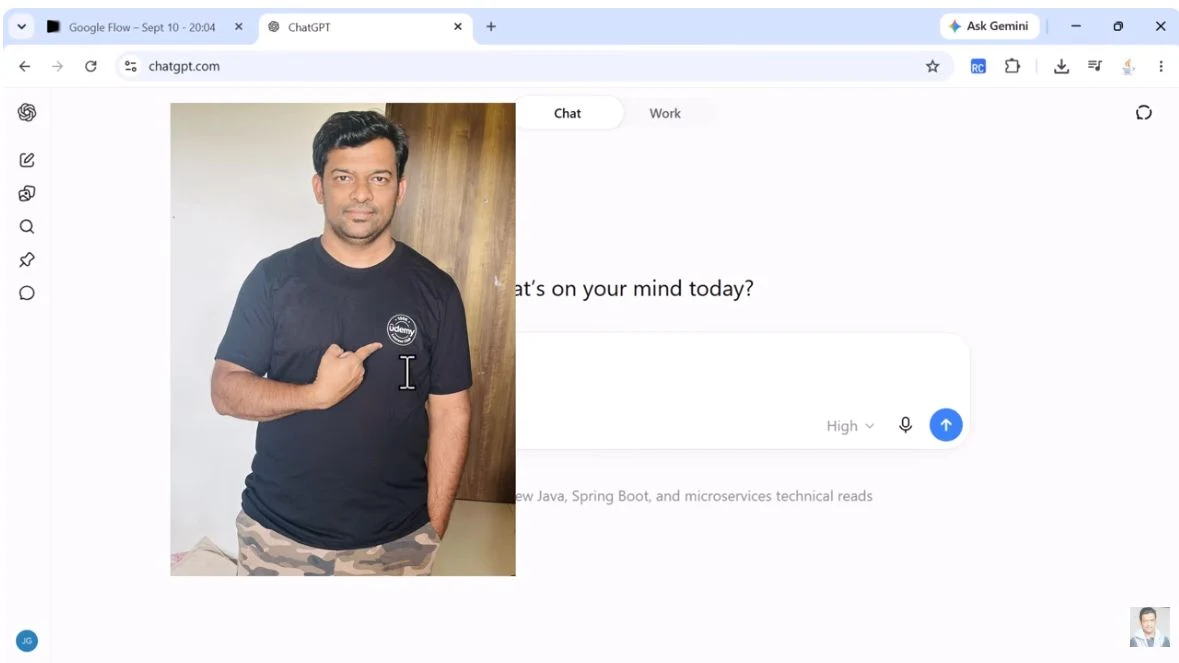
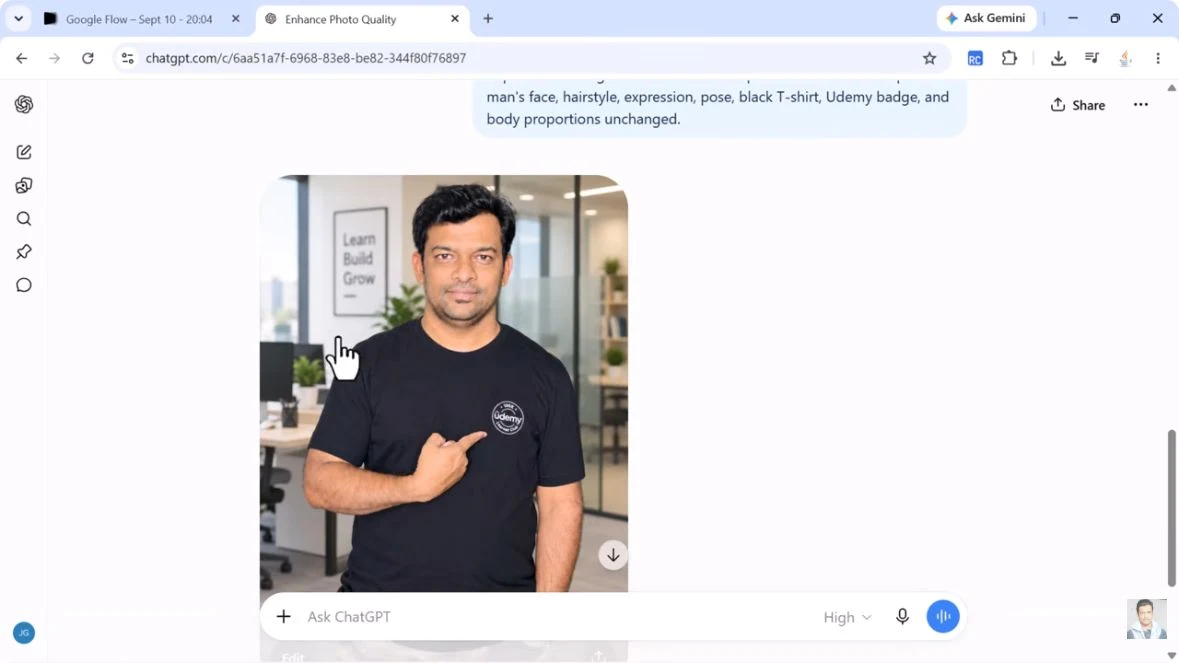
The useful part is the sequence. The second request builds on an image that has already been edited. The returned portrait keeps a circular shirt badge in place; enlarge its lettering, the face and the pointing hand when checking whether your own edit preserved the details you need.
Gemini: Combine a person and a setting from two references
proflead combines an existing portrait thumbnail with a landscape photo to make a new thumbnail. This August 2025 recording uses the Gemini app with the 2.5 Flash label shown in the interface. Its later AI Studio example is a separate workflow.
proflead / Vladislav Guzey · August 27, 2025
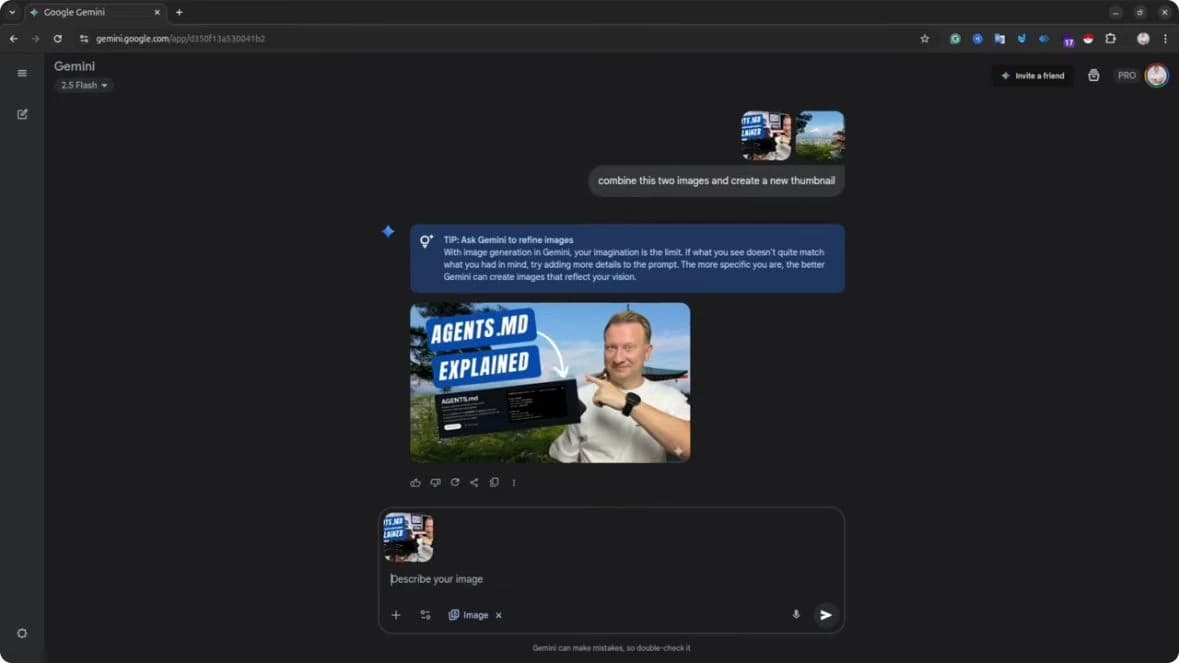
Loading the player connects to YouTube. 2:34 tutorial in English. The Gemini-app example is around 1:05 to 1:40.
- 1:05 Choose Tools, then Create images in the recorded interface.
- 1:22 Attach the portrait thumbnail and landscape, then describe the combined thumbnail you want.
- 1:32 Compare the returned thumbnail with both references. Check the person, setting and any text that was redrawn.
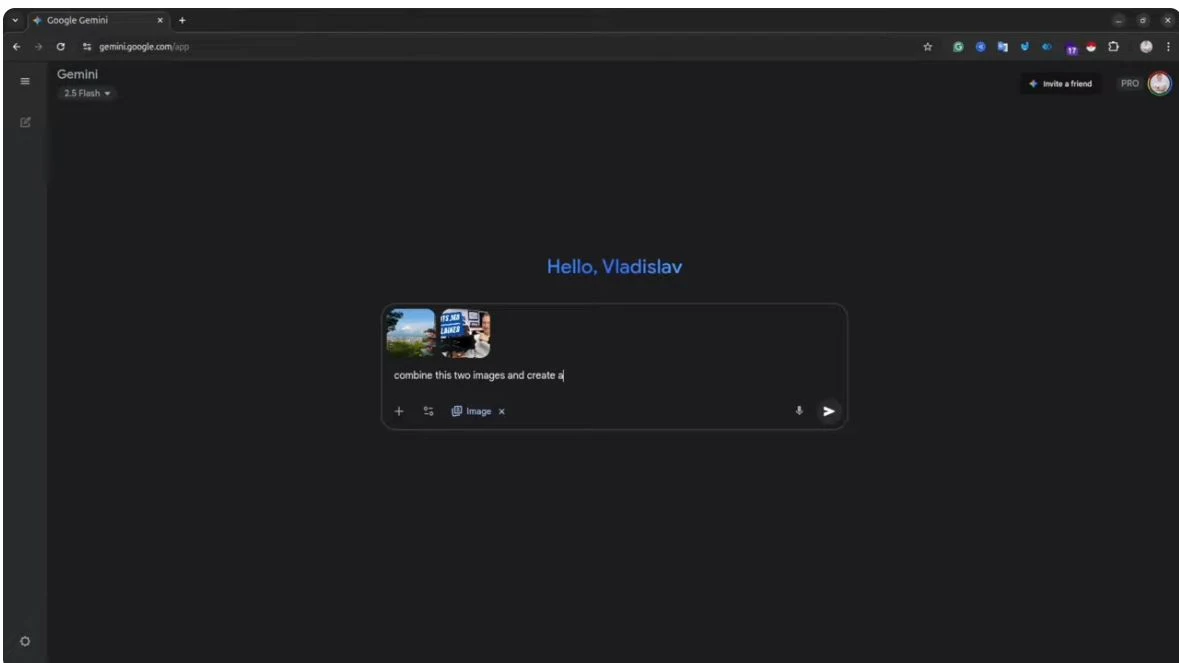
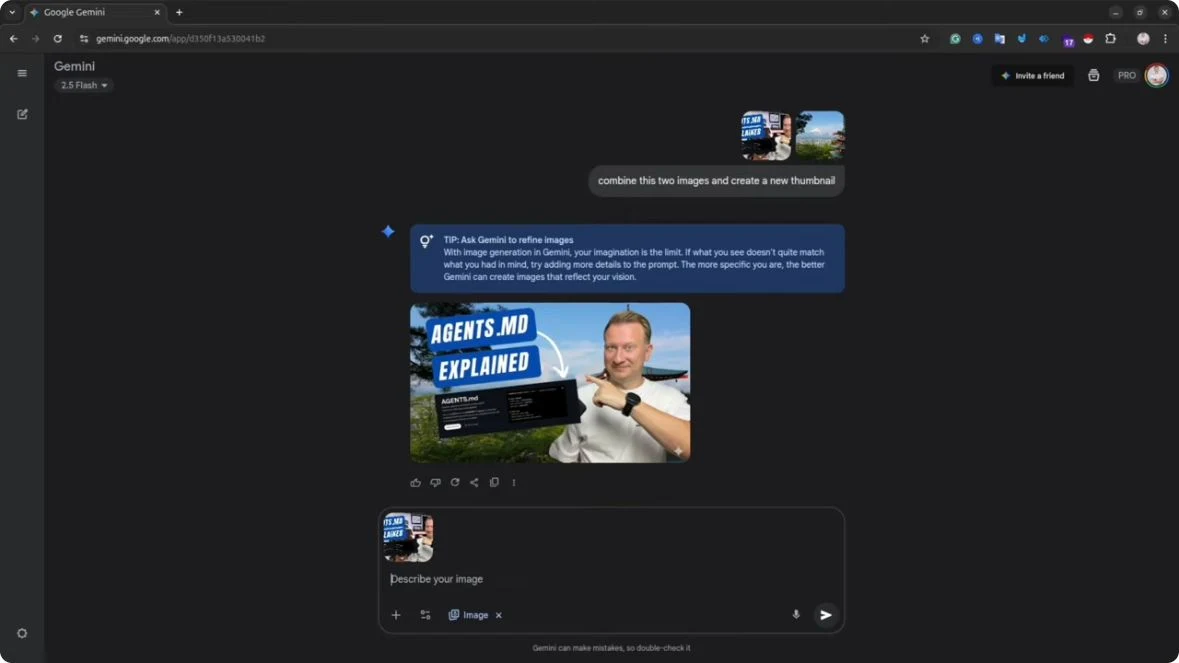
The two references reduce the amount of scene description the author needs to type. The result also has a new headline. When an existing asset contains text, decide whether that text can be rewritten and include that requirement in your brief.
Krea: Inspect a product scene and refine a result that misses the brief
Ekin Yalgın takes a bottle from a plain product shot into a beach scene, then revises the request after inspecting the first result. This February 2025 recording uses Krea's older Enhancer and Scene Transfer interface.
Ekin Yalgın · February 13, 2025
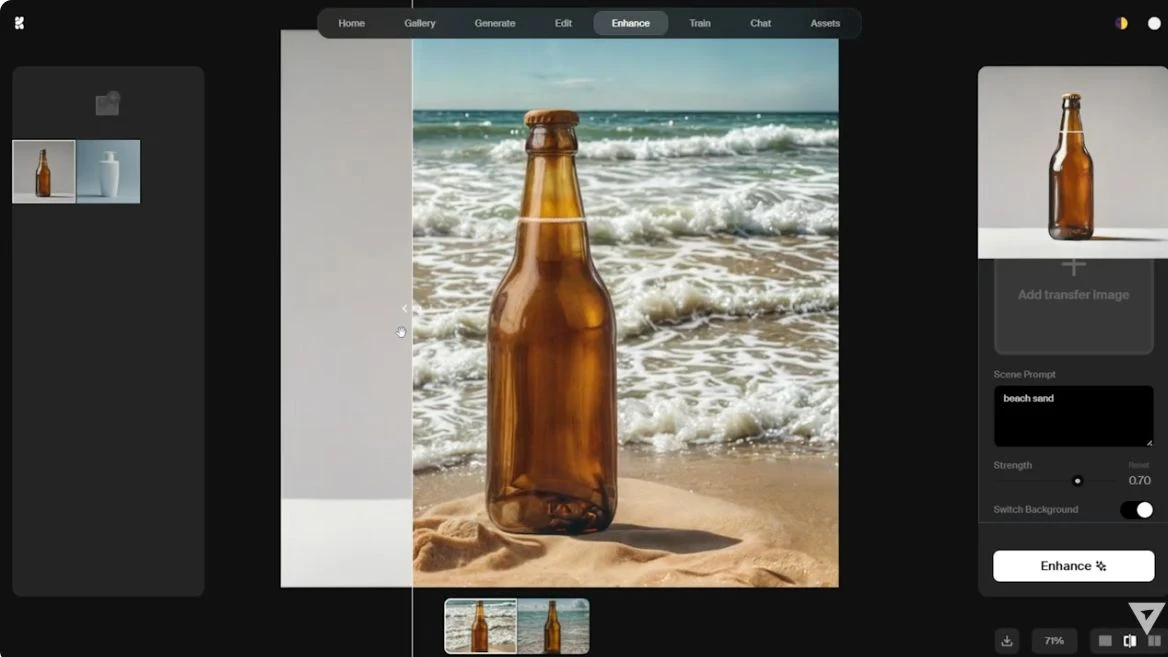
Loading the player connects to YouTube. 7:12 tutorial. Original audio is Turkish; use YouTube's available language controls.
- 1:37 Load the product photo. The original bottle is visible among the source images at 1:37.
- 5:24 Request a beach scene with Switch Background enabled and Strength at 0.70 in the recorded interface. Inspect the result around 5:41.
- 5:49 After finding the first attempt unsatisfactory, the creator changes the request to beach sand and runs Enhance again. Compare the next result around 5:56.
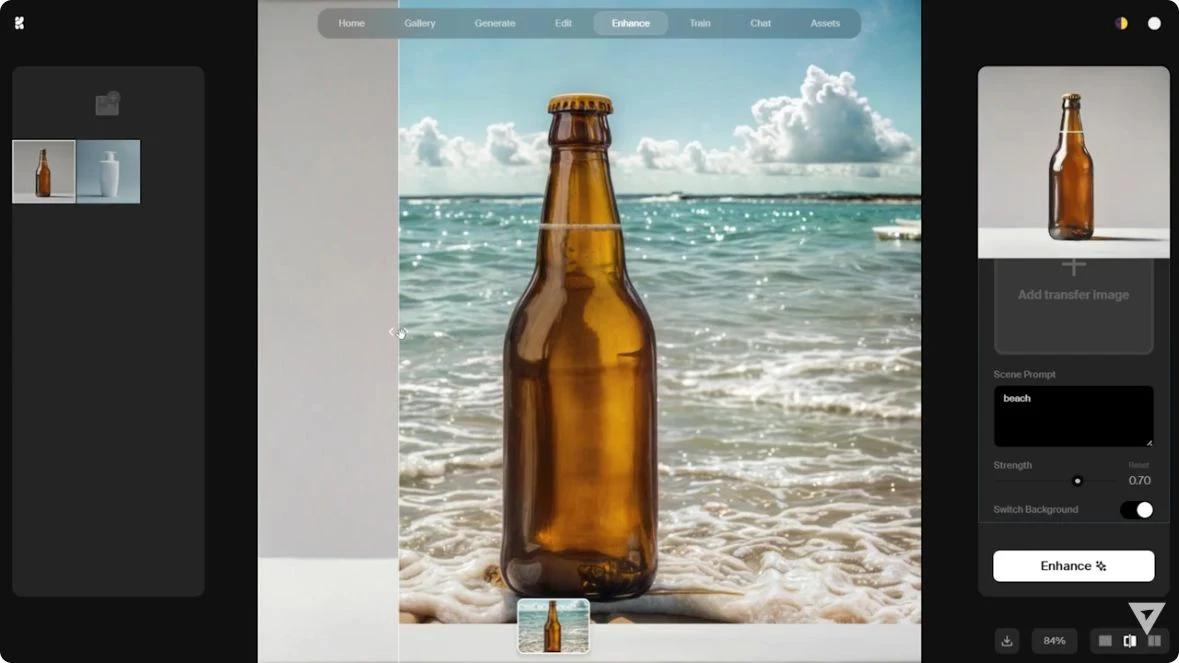
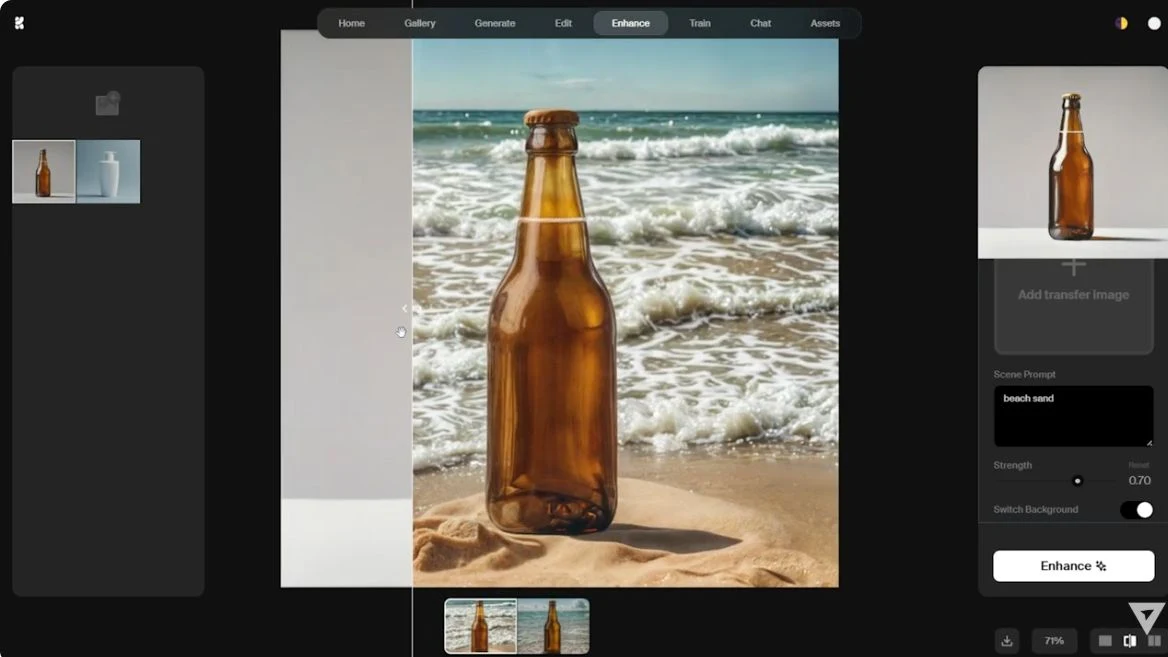
The first image supplies a beach, but the creator wants more sand around the bottle. Adding that missing placement detail changes the next attempt. Check where a product meets the surface as well as whether the requested background appears. Krea's current controls are documented in its Edit guide.
Read Krea's current Edit guideGive the model a photo brief
Describe what a photographer would need to know: the subject, location, framing, light and visible materials. "Realistic, high quality" leaves those choices open. A specific brief also gives you something concrete to check in the output.
For a new image
Prompt to try
Create an editorial photograph of a ceramicist shaping a bowl in a working studio. Frame the scene at eye level, waist up, with the hands and bowl fully visible. Use soft window light from the left, natural skin texture, clay on the fingers, and a gently blurred background of shelves. Keep the color neutral and the shadows consistent with the window. Avoid beauty retouching and text.
For an existing photo
Name the change and what must stay the same. For this example, upload your photo first, then request a lighting change.
Prompt to try
Edit this photo to use soft, overcast daylight. Keep the same person, facial features, expression, hairstyle, pose, hands, clothes, camera angle and background objects. Change the lighting only. Keep natural skin texture and make the direction of shadows consistent across the face, clothes and background.
These are starting prompts for your own trials, not additional test results. Change one part of the brief at a time. If an edit changes the person's face, return to the original photo before trying a more focused instruction.
Check your result before you choose a tool
Try the same task more than once with the same inputs and settings. Keep failed attempts in your comparison. One attractive sample tells you less about a workflow than whether you can repeat a usable result.
- Check the image at full size. Look at eyes, teeth, fingers, edges, fabric texture, reflections and the direction of shadows.
- Compare edits with the source. Check identity, pose, framing, background objects and every detail you asked the model to keep.
- Record the model, settings, time and cost of the attempts you needed to get a usable image. Include retries in your budget.
- Try the next step you actually need: a follow-up edit, another reference, a download or a handoff to your editing app.
Try this in PhotoGenerAI
Open the realistic photo generator. Enter a brief, or upload your image and describe the edit. Review the model, photo shape, quality and credit cost, then select Generate realistic photo. Compare the result with the brief before downloading. Use Continue editing to add the result to your inputs for the next change.
Before uploading personal or client photos, check the service's data policy and whether you have permission to use those images. For PhotoGenerAI, read the privacy policy and terms. When publishing a generated scene, describe it as generated rather than evidence that an event took place.
Sources and method
Each app entry links to the official page that supports its workflow description. Those pages document product capabilities; they do not establish a common measure of realism. Model access, plans and credit costs can change, so check the selected service before paying.
The outfit examples come from PhotoGenerAI's October 20 experiment. You can download its experiment plan, attempt records and editorial assessments. For another task-specific test, read our FLUX photography review. Use these records to decide what to try on your own task, with your own references and acceptance criteria.