
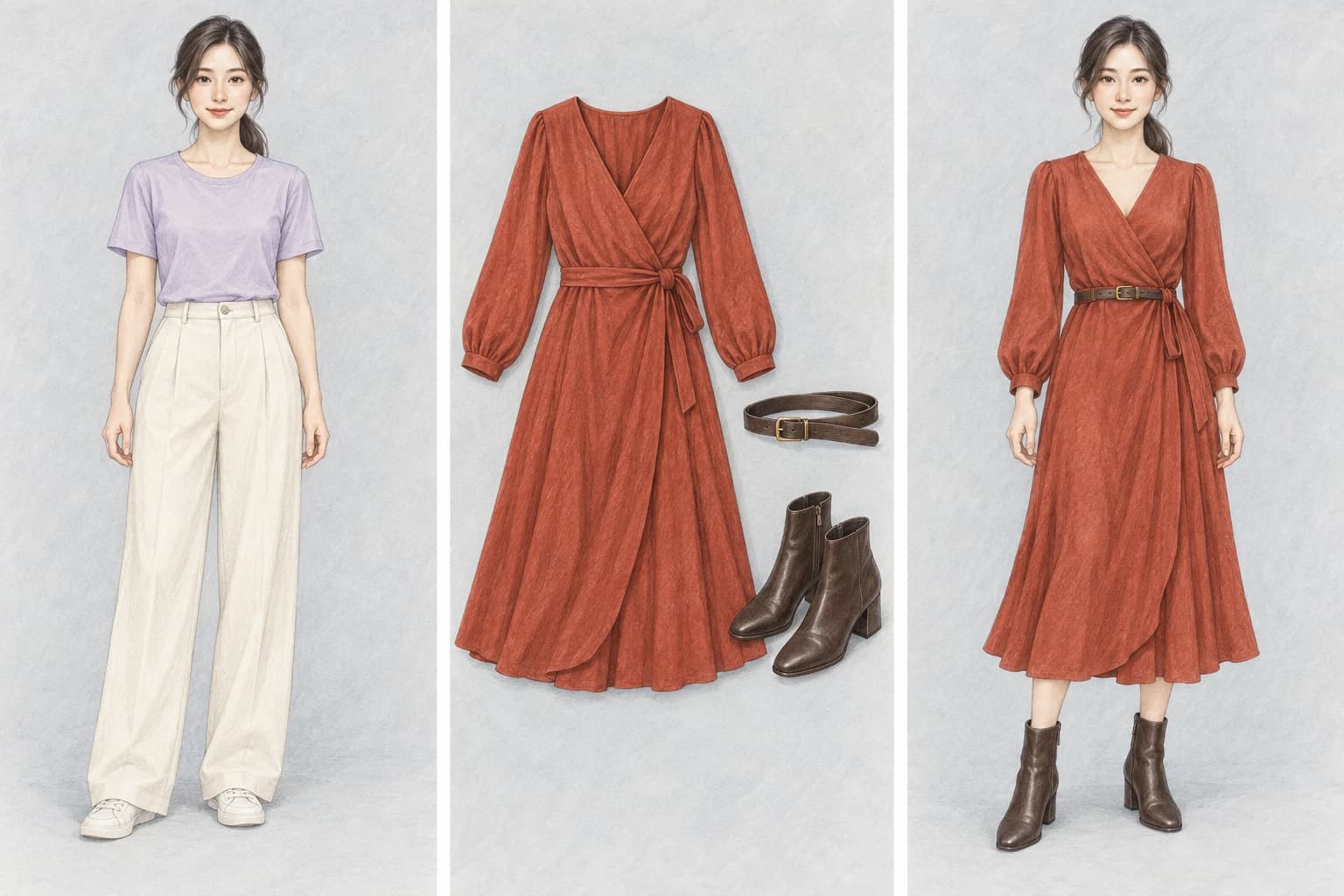
What the original costume gallery provides
COSTUME-DB-01 is a clothing-reference gallery published by ギア (@giaaibusi). Its appeal is practical: you can see an outfit before trying to explain it. The reference images show clothing without a character, leaving you free to bring your own person or illustration to the generation step.
The creator’s original clothing-gallery announcement is the source to follow. If you encountered the Chinese “拍片哥女装” project or a repost, those are later routes to the collection. This guide links to the original gallery so you can find its current references, download controls and usage terms in one place.
The useful task is broader than changing a character’s gender. You might want a seasonal look for an AI model, a dress for an original character, or a different costume for a recurring illustration. A clothing reference answers “what should they wear?” while a separate character image answers “who should wear it?” Keeping those roles separate makes the next step easier to describe.
1. Choose one outfit and download its image
- Open the original COSTUME-DB-01 gallery. Browse the available categories or search for a clothing keyword or item ID.
- Open a look you like. Check its shape, colors and layers, including the neckline, sleeve length and skirt or trouser hem.
- Use the original-size PNG download action, labeled 元サイズをダウンロード(PNG). Save the single reference image to your device.
Begin with the outline of the look rather than every small detail. A long flowing skirt creates a different result from a fitted short dress even if they share a color. If shoes or a bag matter, choose a reference that actually shows them. The generator cannot recover a specific hidden accessory simply because it belongs to the outfit in your imagination.
Keep one outfit in the reference. A screenshot containing a whole search grid gives the model several competing designs and adds page controls around them. The single downloaded image is clearer and usually contains more useful garment detail. Leave the original filename intact if you want to find the same item again later.
Check the creator’s current terms on the gallery. The site permits its individual reference workflow and prohibits bulk acquisition and redistribution of the collection. Share the original gallery link when recommending it. You can also use an outfit photo or garment illustration of your own instead of a gallery reference.
2. Prepare the character you want to keep
Choose a clear image of your existing character or person. Their face, hair, body proportions and drawing or photo style should be easy to recognize. A full-body source is useful for a complete outfit because it already supplies the legs, stance and framing. For a blouse or jacket, an upper-body image may be enough.
Think about what should stay fixed before uploading. You may want to retain glasses, a particular hairstyle, an unusual skin tone, a character’s expression or a familiar background. The default instructions preserve identity, pose, gender and visual style. Add the distinctive detail that matters when the character has something a generic preservation instruction might miss.
A tight headshot leaves the model to invent much of the body. You can still ask for a full-body look, but that becomes a larger creative change. If you already have a suitable full-body version of the character, use it as the starting image. It gives you a clearer comparison when reviewing what changed after generation.
3. Upload the character and outfit separately
Open the AI character outfit changer. Add your person or character in Your character, then the downloaded clothes in Outfit reference. Both images are required. You can upload the files or use the paste action where your browser supports image clipboard access.
The first image supplies identity and visual style. The second supplies the clothing design. If the clothing reference contains another person, the instructions tell the model to take their clothes without copying that model’s identity. A garment-only reference makes that separation more obvious, but it is not the only type you can use.
Review the instructions and choose the model and image shape in settings. The Generate button shows the credit cost for the selected configuration. Choosing a suggestion or replacing a reference does not start generation. Click Generate when both images and the instructions describe the result you want.
Try your character and outfitInstructions you can copy and adjust
This starting instruction gives each image a clear role. It also names the character properties to preserve. The tool includes it already; you can edit the text for your own scene or use it in another image editor that accepts two image references.
Prompt to try
Image 1 is the character. Image 2 is the clothing reference. Edit image 1 so the character wears the outfit from image 2. Preserve the character's face, hairstyle, body proportions, gender, pose, background and visual style. Take only the clothing design, colors, materials and layers from image 2, not the identity of any person in that reference. Fit the clothes naturally to the character.
Make a small, concrete addition for a specific need. “Keep the round glasses and freckles” prioritizes identity details. “Use the green dress but leave out the bag” narrows the transfer. “Keep the original background and camera view” helps keep a series visually consistent. Check that your addition agrees with the rest of the instructions.
For a full-body result from a cropped image, explicitly allow the composition to expand. For a different gender presentation, say what you want to change and which facial or character features should remain. Clothing choice alone does not request that transformation; the default workflow keeps the character’s gender.
4. Compare the result with both inputs
First compare the face, hair and distinctive features with the character image. Then compare the outfit’s silhouette, color, neckline, sleeves and layers with the clothing reference. Finally look at hands, hems, straps and overlapping accessories. A pleasing overall image can still miss a detail that matters to your character design.
If the character looks right but one sleeve is wrong, name that correction and preserve the rest. If the face changed substantially, go back to the original character reference and simplify the requested edit. Changing the outfit, pose, setting and visual medium together makes it harder to see which part of the instruction caused an unwanted change.
Use the result as a creative image preview. A generated garment can look convincing while changing seams, patterns or small fastenings. It cannot tell you which real shopping size to buy or establish the fit of a physical garment. Download the version you want to keep from the result area.
5. Keep the same character for the next look
To try another outfit, leave Your character in place and replace only Outfit reference. Keep the same instructions when you want a clean comparison between clothes. Returning to the same starting character for each new look can help avoid accumulating small changes in the face or drawing style.
Use Continue editing when you want to refine your current result instead. It makes that generated image your next character source while retaining the clothing reference. The two actions serve different purposes: replacing the outfit explores another design; continuing the result develops the version you already chose.
Once you like the outfit, you can explore a different body position with the AI pose generator and its pose gallery guide. For a single garment recolor or a change you can describe without an outfit image, the AI clothes changer is another starting point.
Common questions before you start
Do I need to know the clothes’ names?
No. Pick the visual reference closest to your goal. Names and keywords help you search the gallery, but the selected image supplies the garment design during generation. Use text to clarify details you want to keep or omit.
Is the gallery itself the generator?
The original site provides clothing references. Download one, then use it with your character in an image-generation tool. Browsing the collection and generating your own image are separate steps; PhotoGenerAI shows the generation cost before you submit.
Can I use a male character or a photograph?
Yes. The workflow separates clothing from identity and works with your chosen person or character image. Keep the default preservation instructions for an outfit-only change, and edit them when you want a broader creative transformation.
Create your next character outfit