
What AI Pose Gallery provides
POSE-DB-01, the original AI Pose Gallery by ギア is a collection of faceless gray mannequin drawings. A reference gives an image model a visible body position and composition to work from. You supply the character, clothes, setting and visual style separately.
Compare the available front, side, diagonal, high-angle and low-angle views before downloading. A different view changes how the limbs overlap and how much of the face is visible. Choose the image closest to the composition you want in the finished picture.
The gallery includes adult-oriented categories. Its creator excludes uses depicting real people or minors. Use its references for fictional adult characters, and read the original site's current notes before choosing material for your project.
1. Find and download a pose
- Open the creator's original gallery. Search or filter for the action you need.
- Compare the available views and open the selected image at full size. Start with one character and clearly visible hands and feet.
- Choose 元サイズをダウンロード(PNG) to download the original-size PNG. Keep that single pose image ready to upload.
On the Japanese site, 使い方のヒント contains usage tips and 注意点 contains the creator's terms. Those terms allow reference use and commercial artwork creation, while prohibiting redistribution, reposting or resale of the image data, including modified copies. Link people to the original gallery when you want to share the resource.
Use the downloaded full-size image rather than a screenshot of several poses. A single reference makes it clear which action and viewing angle should guide this generation.
2. Describe a new character in that pose
Open the AI pose generator. Choose one of its pose references or upload a suitable reference of your own. Leave the optional character image empty when you want to invent a new character.
Describe the person's appearance, clothing, style and setting. With only the pose uploaded, it is image 1. Give it the specific job of supplying the body position and camera angle.
Prompt to try
Use image 1 only for the body pose and camera angle. Create one adult fictional explorer with short silver hair, wearing a teal jacket, charcoal trousers and hiking boots at a coastal lookout. Make a full-body illustration with both hands and feet visible. Follow the reference's torso direction, arm and leg positions, and head angle. Render a complete character with clothing, without mannequin outlines or joint circles.
Replace the explorer details with your own idea. For a full-body reference, a portrait format often leaves more room for the hands and feet. Check the selected model, format and credit cost before generating.
Create an image from a pose3. Add a character image when appearance matters
Upload a character image when you want to keep an existing design. Use a clear image that shows the face, hairstyle and clothing you want in the result. The character becomes image 1 and the pose reference becomes image 2.
Tell the model which image supplies which information. Keep the character's body proportions and rendering style with image 1; take the torso direction, limbs and camera angle from image 2.
Prompt to try
Image 1 is the character reference. Preserve this adult fictional character's facial features, hairstyle, body proportions, outfit and illustration style. Image 2 is the pose reference. Use only its body pose and camera angle: follow the torso direction, arm and leg positions, and head angle while retaining the character design from image 1. Place the character in a sunlit courtyard. Show one full-body character with clear hands and feet, without mannequin outlines or joint circles.
Name distinctive details if they matter, such as round glasses, a silver braid or an embroidered red coat. These give you concrete things to compare afterward. Keep the same character reference when trying another pose, and change the scene paragraph when you want a different setting.
An actual result from two reference images
These are the two inputs and one returned image from our October 20, 2026 FLUX.2 Klein 9B test. The character and pose sketch are PhotoGenerAI originals, created before AI Pose Gallery was released. This example shows the reference workflow using our own material.
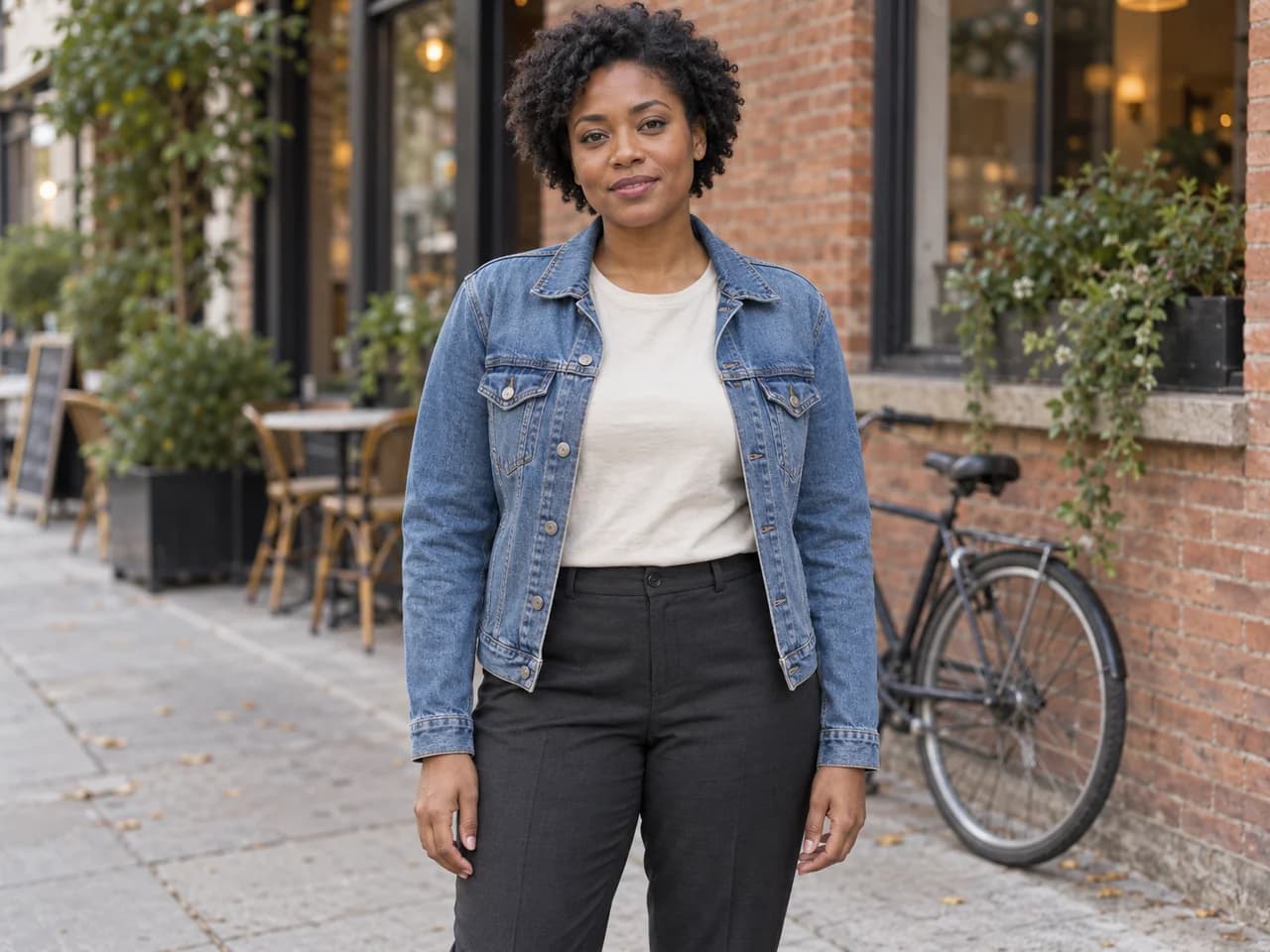
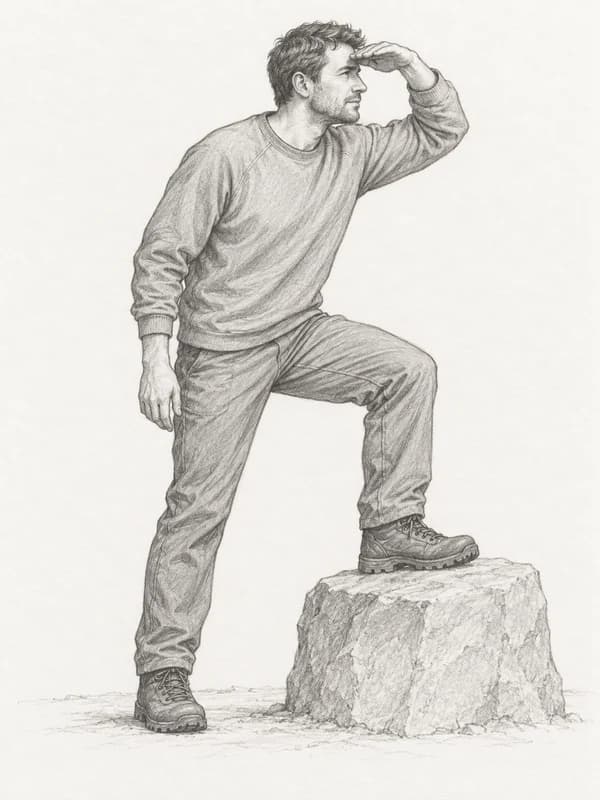
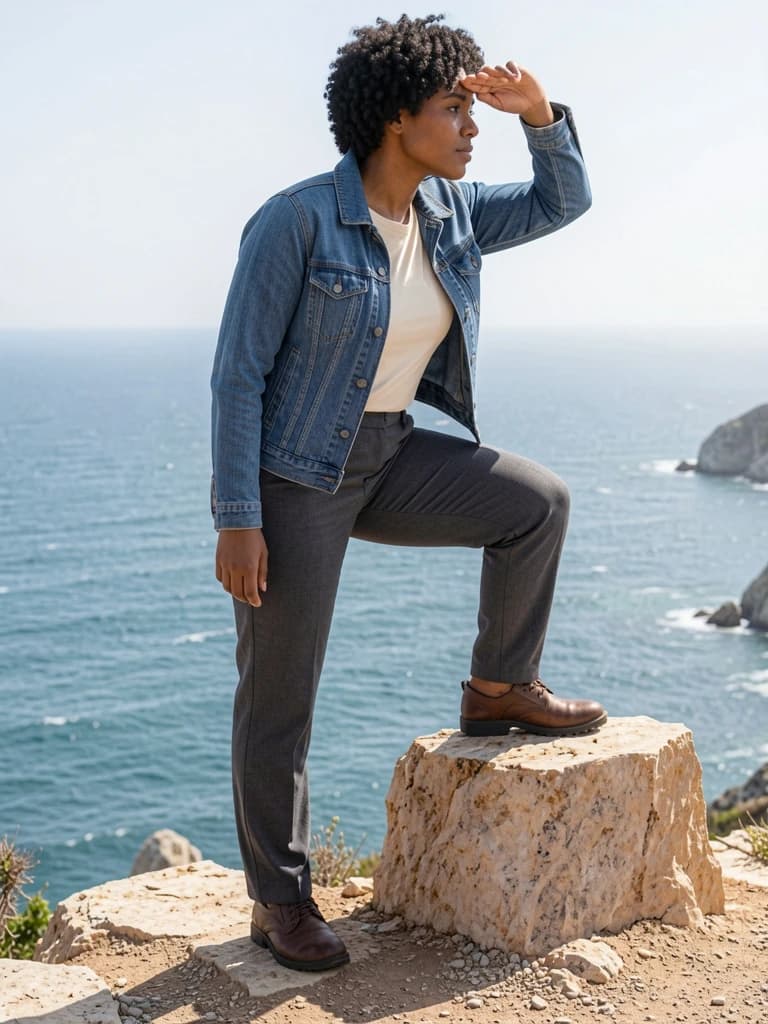
The result follows the raised foot, shading hand and body direction, while keeping the requested clothing colors. The face turns into profile, so this image does not settle how closely it preserves the original face. Compare the pose first, then look at the details you wanted to retain.
Our complete FLUX pose comparison includes the other attempts, full submitted prompts and downloadable test record. It also keeps the failed requests visible.
4. Check the pose, then refine the character
Compare the reference and result side by side. Look at the torso direction, bent knees, raised arms and head angle. Check the camera position too: a low-angle reference and an eye-level result can feel different even when the main action is similar.
Next inspect hands, feet and places where limbs cross. Count the visible arms and legs, and check whether hands actually touch the intended object. Then compare the face, hair, proportions and outfit against your character image.
If an action is missed, describe that detail directly. For example, ask for the character's right hand above the head, or both feet flat on the ground. Keep the same inputs while changing one instruction so you can see what helped.
If the face is hard to compare in profile, try a front or three-quarter view. If mannequin lines appear in the result, ask for a complete clothed character in your chosen medium. Download the version you like, and keep the reference and prompt together for the next image in the series.
Common questions
Do I need to pose a 3D figure first?
No. Start with a reference image you like. The pose generator lets you choose or upload one and describe the image you want. You can add a character reference when you have a design to keep.
Will every joint match the reference?
Reference-based generation can reinterpret limb positions and perspective. Inspect the result against the action that matters to you. Start with a clear, simple pose before trying heavy overlap, unusual foreshortening or a scene with several people.
Where should I send someone who wants the gallery?
Share the original creator's site. The creator keeps the downloads and current usage terms there. The worked example in this guide uses PhotoGenerAI's own material.
Try your pose reference